

How to make a stylish text- Outlined
Text
Making stylish text is possible with Photoshop. I made a one of them
to let the novice to learn an easy method. Here it is.
1. Open any version of Photoshop (but, i did in Photoshop 5.5). Open a
New Document by pressing Ctrl+N.
2. A dialog box appears as shown below. Specify the dimensions (Dimensions:
Width=300, height=100 and Mode=RGB) as given in the dialog box that was
shown in the fig-1. Click on Ok button.
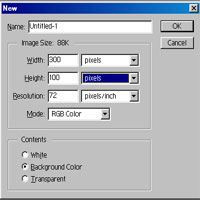
fig-1
3. Create a New Layer by pressing Shift+Ctrl+N.
4. Now, fill with black color.
5. Choose Type Tool. A dialog box "Type Tool" appears. In that,
write any text (but, i wrote "Tutors"), Size of 60 and click
on Ok button.

fig-2
6. Now, right click on the Layer Pallette and choose "Select Layer
Transparency".
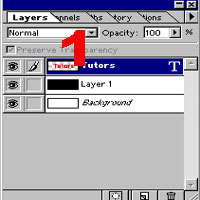
fig-3
7. Now, goto Select >> Modify >> Contract=2 (as shown below).
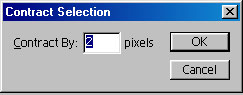
fig-4
8.Now, goto Filter >> Stylize >> Find Edges. After clicking
'Ok' button of "Find Edges", it will display a message like
"This type layer must be rendered before proceeding its text will
no longer be editable. Render the layer". No problem now. Just click
"Ok" button. You will see below image,

fig-5
9. Still the Transparency was selected, Choose Foreground color to "Yellow".
10. And goto Edit >> Fill.
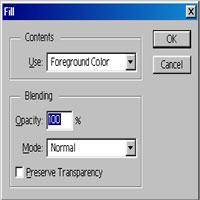
fig-6
Now deselect the text. You will get the desired design that was shown
below.

fig-7
That's all my dear friends.
"Fundamentals are the Route
to the Destination" - BHMK
Go Home