|
|
NOTE: Runbox Toolbar 2 is currently still under development. Features may be
added/deleted/modified. Menus may be changed. Some "bugs" may exist.
|
Runbox Toolbar 2
');if(navigator.userAgent.indexOf('Opera')>=0)D.close();}">Runbox Toolbar 2 (vertical orientation)
');if(navigator.userAgent.indexOf('Opera')>=0)D.close();}">Runbox Toolbar 2 (horizontal orientation)
What is it?
Runbox Toolbar 2 is a JavaScript Applet that enhances the use of the
Runbox Mail Manager web interface (runbox.com, runbox.no, fast.runbox.com).
What can I do with it?
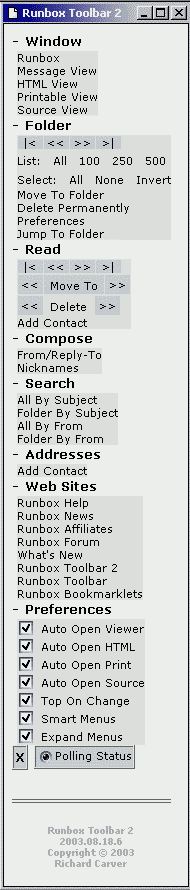
Here is a description of all the features of Runbox Toolbar 2:
| - | Window | | |
| | | Bring the Runbox Window to the front. |
| | | Bring the Message View Window to the front. |
| | | Bring the HTML View Window to the front. |
| | | Bring the Printable View Window to the front. |
| | | Bring the Source View Window to the front. |
| - | Folder | | |
| | |
Page Navigation:
|< - First Page
<< - Previous Page
>> - Next Page
>| - Last Page
|
| | |
List messages in current folder view
|
| | |
Select messages in current folder view
|
| | |
Move selected message(s) to folder picked from popup menu
|
| | |
Permanently delete selected message(s)
|
| | |
Pick "Folder Preferences" to edit from popup menu. Creates a new window
for "Folder Preferences" so your main Runbox Window remains open and on
the folder view.
|
| | |
Change to another folder by picking folder from a popup menu.
|
| - | Read | | |
| | |
Message Navigation:
|< - First Message
<< - Previous Message
>> - Next Message
>| - Last Message
|
| | |
Move and Read:
<< - Move current message to selected folder and read previous message
Move To - opens drop-down menu of available folders
>> - Move current message to selected folder and read previous message
|
| | |
Delete (to Trash) and Read:
<< - Delete current message and read previous message
>> - Delete current message and read previous message
|
| | |
Add selected or "From" address to Address Book. If you have selected an
address within any part of the page, the selected address will be parsed for
any Name and Email information. If there is no selected text, the "From"
address will be parsed for Name and Email informaiton. An Add Contact
window will then be opened for you to complete the contact information.
[Note: You can specify a Group name BUT this form can not verify that the
Group exists in your Address Book. An invalid Group name does not cause a
problem in the Address Book.] Selecting "Add" will open up the Address Book
in a new window and submit the contact information to be added. You can close
the Address Book window when done. (Selected text does not work for Opera)
|
| | |
Add selected or "From" address/domain to the Junk Mail Whitelist. You
can select an address/domain within any part of the page (Selected text
does not work for Opera). If there is no selected text, the "From"
address will be used. You will be prompt with the address/domain before
adding to allow you to edit the address/domain or cancel. Selecting "OK"
will begin the process to add the address/domain to the Whitelist. Because
the Whitelist is maintained through the Runbox Filters/Rules page, obtaining
the current list may take a little time while the page loads (especially if
you have many filters). A "Please Wait" window will be displayed during this
time. Once the current Whitelist is obtained, the address/domain is checked.
If the address is already in the list or if there are other problems detected,
an error prompt indicating the problem will be displayed and the adding
will be cancelled. If everything is OK, the address/domain is inserted
into the Whitelist and the new list is submitted to the Runbox Mail
Manager. At this point you will get a prompt box indicating that the
address/domain has been added to the Whitelist.
|
| - | Compose | | |
| | |
Opens up a new window with a list of all the "From" Name/Addresses
listed in the drop down menu (NOTE: If it's not in the drop down menu it
won't be here either. Currenlty, preferences with a blank From eMail do
not appear in the drop down menu). While the drop down menu only shows
the From Name and From eMail, this list will show the From Name, From
eMail and Reply-To eMail. You can scroll through the list and pick the
one you want by seleting the [>] button on the left or clicking on any
text within that row. Duplicate entries are also removed from this list
(NOTE: duplicates are only removed if they are completely identical,
including case and spaces).
In addition, you can manually enter your own "From/Reply-To" at the top of
the list in the line marked with the [+] button. The default values will
be the currently selected "From Name", "From eMail" and "Reply-To eMail".
When you click the [+] button, the new "From/Reply-To" will be inserted at
the end of the "From" drop down menu and automatically selected.
|
| | |
Opens up a new window with a list of all the Group/Nicknames. Each name
has a checkbox for 'To', 'Cc' and 'Bcc', allowing you to insert it into
any or all of these fields in the compose message. You can check as many
as you need. Upon pressing the 'Insert' button, the names will be inserted
into the selected fields and the list window is closed. This list is only
for inserting, not editing, so it does not know what Group/Nicknames already
appear in the fields.
|
| - | Search | | |
| | |
Search all folders for selected "Subject". A prompt will allow you enter the
search text. If text was selected on the page, it will appear in the search
text prompt. Search results are displayed in a new window. (Selected text
does not work for Opera)
|
| | |
Search current folder for selected "Subject". A prompt will allow you enter the
search text. If text was selected on the page, it will appear in the search
text prompt. Search results are displayed in a new window. (Selected text
does not work for Opera)
|
| | |
Search all folders for selected "From". A prompt will allow you enter the
search text. If text was selected on the page, it will appear in the search
text prompt. Search results are displayed in a new window. (Selected text
does not work for Opera)
|
| | |
Search current folder for selected "From". A prompt will allow you enter the
search text. If text was selected on the page, it will appear in the search
text prompt. Search results are displayed in a new window. (Selected text
does not work for Opera)
|
| - | Addresses | | |
| | |
Add selected or "From" address to Address Book. If you have selected an
address within any part of the page, the selected address will be parsed
for any Name and Email information. If there is no selected text, the
"From" address will be parsed for Name and Email informaiton. An Add
Contact window will then be opened for you to complete the contact
information. [Note: You can specify a Group name BUT this form can not
verify that the Group exists in your Address Book. An invalid Group name
does not cause a problem in the Address Book.] Selecting "Add" will open
up the Address Book in a new window and submit the contact information to
be added. You can close the Address Book window when done. (Selected text
does not work for Opera)
|
| - | Web Sites | | |
| | |
Open Runbox Help page in a new window
|
| | |
Open Runbox News page in a new window
|
| | |
Open Runbox Affiliates page in a new window
|
| | |
Open Runbox Forum page in a new window
|
| | |
Open the What's New section of the Runbar Toolbar 2 page in a new window
|
| | |
Open the Runbox Toolbar 2 page in a new window
|
| | |
Open the original Runbox Toolbar page in a new window
|
| | |
Open the Runbox Bookmarklets page is a new window
|
| - | Preferences | | |
| | |
Automatically open the Message Viewer when reading a message. The Message
Viewer is basically the Runbox Message View incorporated into it's own
window with a toolbar on top.
|
| | |
Automatically open the HTML View when reading a message (if multiple HTML
views, only opens first)
|
| | |
Automatically open the Printable View when reading a message.
|
| | |
Automatically open the Source View when reading a message.
|
| | |
Automatically bring Runbox Toolbar 2 to the top when the Runbox Window
address/URL changes.
|
| | |
Automatically expand/collapse menus based on contest of the Runbox Window.
For example, if you are reading a message the Read menu will be expanded.
If you are view a folder the Folder menu will be expanded. Smart Menus will
automatically collapse any folder it opens when not needed.
|
| | |
Automatically expand all menus when Runbox Toolbar 2 opens
|
What does it work with?
I've done most of my testing using Mozilla 1.5a, Mozilla Firebird 0.6,
IE 5.5 and Opera 7.11 running under Windows 2000 and Windows 98.
How do I install it?
The link near the top of this page called "Runbox Toolbar 2" is the
bookmarklet to launch the toolbar. To save a bookmarklet, right click
on the bookmarklet link and choose the item to add a bookmark (will
usually say bookmarks or favorites). Or, drag the bookmarklet link to
your bookmark toolbar.
How does it work?
By clicking on the "Runbox Toolbar 2" bookmarklet, you launch the toolbar.
The toolbar can only be launched from a Runbox domain (e.g. runbox.com,
fast.runbox.com, runbox.no). The bookmarlet "instructs" the toolbar
window to load the toolbar content from a javascript file. This approach
allows the bookmarklet to be small in size (so it should even work with
IE 6).
The toolbar "attaches" to the window where it is opened (if you
like have multiple Runbox windows active, each window can have it's own
toolbar). It will then begin monitoring the page location being viewed
in this Runbox Window. The page location is checked once every 1/2 second.
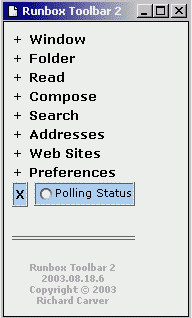
A "Polling Status" indicator (a radio button), near the end of the toolbar,
will toggle on and off every second to show that the Runbox Window
is being monitored.
If the Runbox Window is closed or the page location leaves the Runbox
domain, the toolbar will automatically close. If the toolbar's
Message Window is open, it will also be closed.
The toolbar stores the preferences as a cookie for the specific
Runbox domain (e.g. www.runbox.com, fast.runbox.com, runbox.no, runbox.com)
so it can remember your preferences. The cookie is refreshed each time
you load the toolbar or change preferences. The cookie will expire after
one year (365 days) from last refresh.
Due to javascript security restrictions, the javascript file can not
reside on your harddrive and has to be loaded over the internet. This
bookmarklet will load the following remote javascript file:
http://geocities.com/myrunbox/Runbar2.txt
This remote javascript has an extension of "txt" instead of the more
common "js" extension because Yahoo! Geocities automatically inserts it's
own "HTML stuff" into "htm", "html" and "js" files (maybe others too)
that will mess up the javascript. It leaves "txt" files "as is" so this
extension was used instead.
If you don't like loading the toolbar from Yahoo! Geocities, you can
put a copy of the Runbar.txt file on any other web site and load it
from there. You just need to change the path in the "Runbox Toolbar"
bookmarklet to the new location of the javascript file. However,
you won't always have the most current version of the toolbar.
Revision History
2003.08.16.1 - Initial BETA Release.
2003.08.19.1 - Updated BETA Release.
2003.09.04.1 - Updated BETA Release.
-
Fixed problem with Navigation Tools "|< << >> >|" in
Internet Explorer.
-
"Add Contact" now uses the local part of email address (the part before
the @) as an initial nickname value (Geir's suggestion).
-
"Add To Whitelist" was added to the "Read" menu. Works similar to the
"Add Contact" but adds the email address to the Junk Mail Whitelist.
Refer to above section for the "Read" menu for details.
-
The size of the Runbox Response Window was reduced. (Geir's suggestion).
2004.08.09.1 - Updated BETA Release.
-
Updated for RMM4 web interface.
2004.08.12.1 - Updated BETA Release.
-
Fixed "Add Contact" and "Add to Whitelist" to properly locate the sender information within the "From:" line for the RMM4 web interface.
|


