Checking Images
When doing your weekly rounds you will come to homes that have not had their new uploaded image checked. The below instructions will cover the Check Pictures Tool.
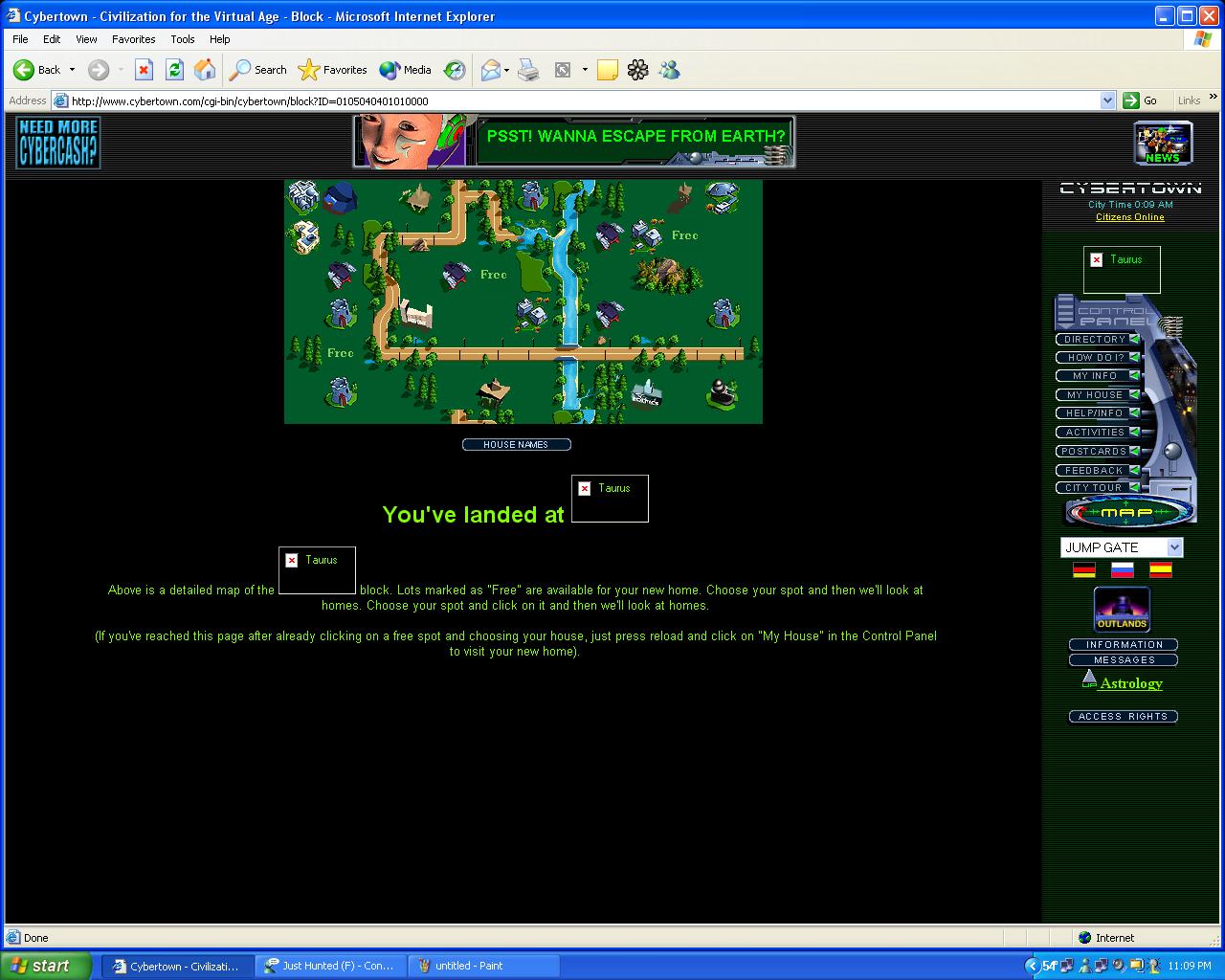
To check and update images you first go to the block map as shown below.
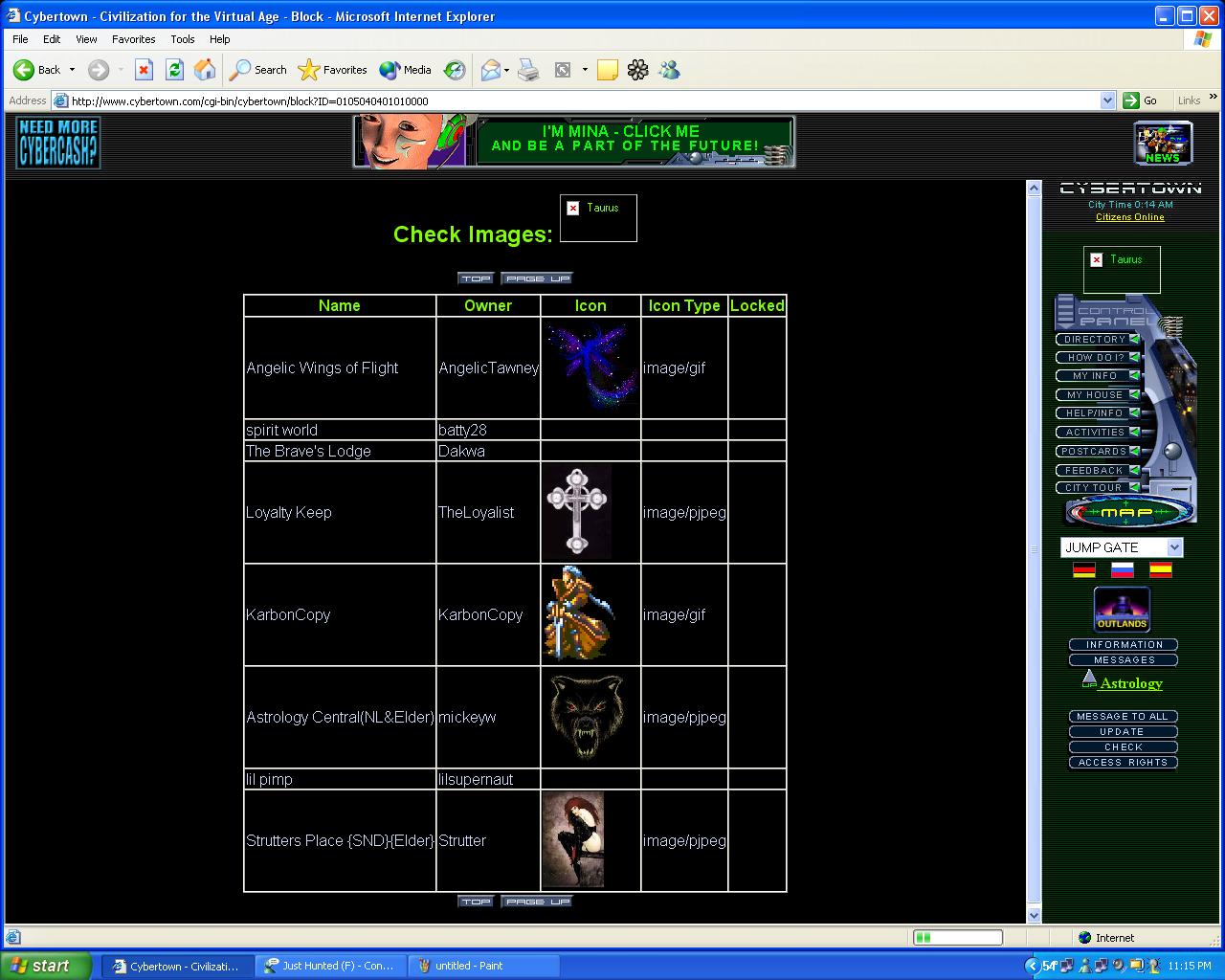
1) Press the CHECK button on the right hand navigator. This will bring up the image check page as shown below.
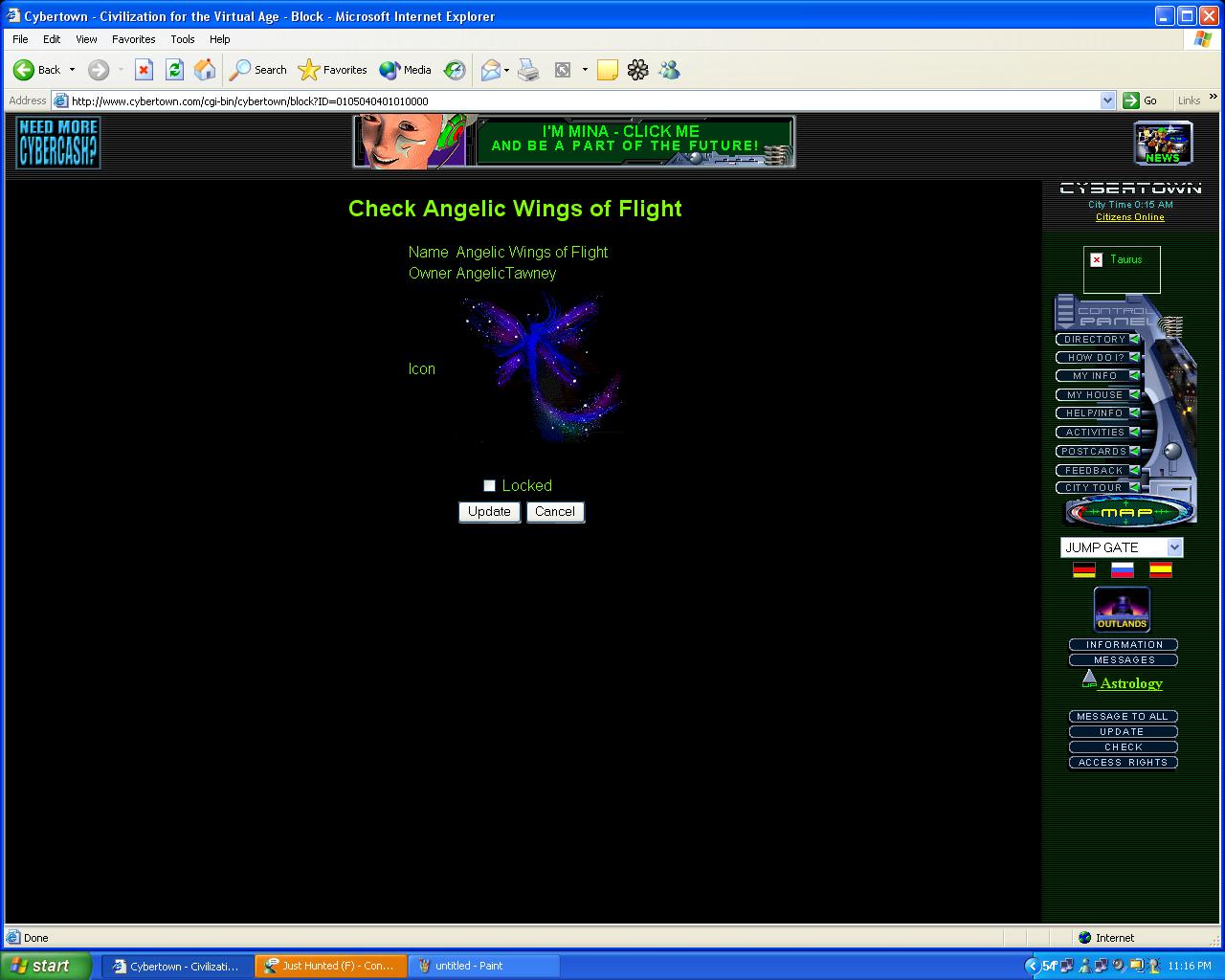
2) CLICK on the Image that is Identified as locked. Review and assure that the image follows CT Guidelines 3) If the picture meets them click on the image and it will open up the screen shown below.
4)click the box marked locked and clear it 5) Press UPDATE to confirm. 6)To lock an image place a CHECK MARK in the locked box and press update to confirm |
|