Matthew van Eerde »
Favelets
Favelets - Find, Next, Previous
Introduction
The Find favelet prompts you for a search term. Then it
takes you to the search results pages for:
- Google
- Yahoo
- MSN
- Ask Jeeves
... in a four-frame frameset. Best experienced with large resolution.
The Next and Previous favelets allow quick navigation
through number-based URLs. If you're looking at thing #37,
clicking "Next" would take you to thing #38, and clicking
"Previous" would take you to thing #36. They should work
in any browser that supports javascript favorites and
document.location.href
A C programmer would call them
++ and -- favelets.
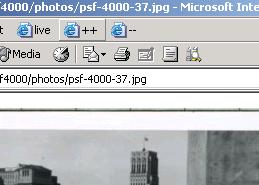
Very handy for viewing online image slideshows, without
having to reload the slideshow HTML.
Or, if you're looking at a Channel 9 post and want to
see the post that was posted just after (or just before) it,
you would click Next (or Previous) and it would take you to
the very next (or previous) post, chronologically speaking.
Quick Installation
If you're using IE, make sure your Links toolbar is set up in
a useable fashion. Instructions
for this are included in this document.
OK, you're back. If you're using any other browser, you probably
have a drag-and-drop Favorites location readily available.
Drag and drop any of the following links to your:
Links toolbar (for IE)
Bookmarks Toolbar (for Firefox)
etc.
In IE, you'll get a warning that "you are adding a link that may not be safe" -
This is due to the javascript-ness of the URL.
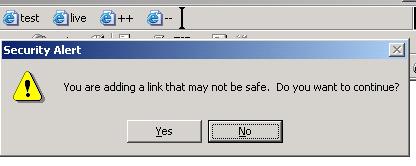
If you trust me, add the link. If you don't trust me, review the code.
If you don't trust me and don't know code, find someone you trust who does and have
them review the code.
The Code
The code is available as the href's of the links above.
Here's a more readable version. If you trust me, you can
believe that it's functionally equivalent to the actual href's above.
Find
javascript:
var s = '%s';
if (s == '%' + 's')
{	s = prompt("Search for:", "");
}
if (s != null)
{	s = escape(s).replace(/\+/g, "%" + "2b");
	document.open();
	document.write(
		"<frameset rows='50%,50%' cols='50%,50%'>" +
			"<frame src='http://www.google.com/search?q=" + s + "'>" +
			"<frame src='http://search.yahoo.com/search?p=" + s + "'>" +
			"<frame src='http://search.msn.com/results.aspx?q=" + s + "'>" +
			"<frame src='http://web.ask.com/web?q=" + s + "'>" +
		"</frameset>"
	);
	document.close();
}
void(0);
Next
javascript:
var l = document.location;
var h = l.href;
if (/^(.*)\?PostID=(\d+)(#\d+)?$/.test(h))
{	var i = RegExp.$2 * 1 + 1;
	l.href = RegExp.$1 + "?PostID=" + i + "#" + i;
} else if (/^(.*\D0*?)((09\d*)|([1-9]\d*))(.*)$/.test(h))
{	l.href = RegExp.$1 + (RegExp.$2 * 1 + 1) + RegExp.$5;
} else
{	alert("?");
}
void(1);
Previous
javascript:
var l = document.location;
var h = l.href;
if (/^(.*)\?PostID=(\d+)(#\d+)?$/.test(h))
{	var i = RegExp.$2 * 1 - 1;
	l.href = RegExp.$1 + "?PostID=" + i + "#" + i;
} else if (/(.+\D)(\d+)(.*)/.test(h))
{	l.href = RegExp.$1 + (RegExp.$2 - 1) + RegExp.$3;
} else
{	alert("?");
}
void(1);
Previous: preserve leading zeros
javascript:
function z(a)
{	return
		(	("" + a).charAt(0) == "9" ?
				"0" :
				""
		) +
		a;
}
var l = document.location;
var h = l.href;
if (h =
	/^(.*)\?PostID=(\d+)(#\d+)?$/.test(h) ?
		RegExp.$1 + "?PostID=" + (RegExp.$2 - 1) + "#" + (RegExp.$2 - 1)
		:

	/(.+\D0*)([1-9]\d*)(.*)/.test(h) ?
		RegExp.$1 + z(RegExp.$2 - 1) + RegExp.$3
		:

		alert("?")
)
{	l.href = h;
}
void(1);
If you have a default Internet Explorer installation,
chances are your Links toolbar isn't being used.
If so, try it out - you'll be pleasantly surprised at
how useful it is.
The first step is to give it some screen space. Your Links toolbar
might be all the way on the right, here:

You'll want to move it to somewhere a little more sensible. But to do
that, you'll have to unlock the toolbars first. Right-click the menu,
and uncheck the "Lock the toolbars" option in the context menu that
appears:
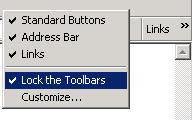
This should make a handle appear on the left edge of all the toolbars.
Drag the Links toolbar somewhere it can breathe. I find that to the
right of the main menu bar is a good place.
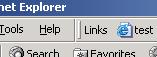
You might want to lock the toolbars again once you have it where you like it.
Licensing
No restrictions. If you give this to someone else,
it would be nice if you gave me credit though:
Matthew van Eerde
http://www.geocities.com/mvaneerde/