|
If you like creating abstract looking interfaces with a lot of curves then this tutorial is for you.
Step 1
Start with a blank Square canvas. I create the size 500 x 500 pixels with white background.
Step 2
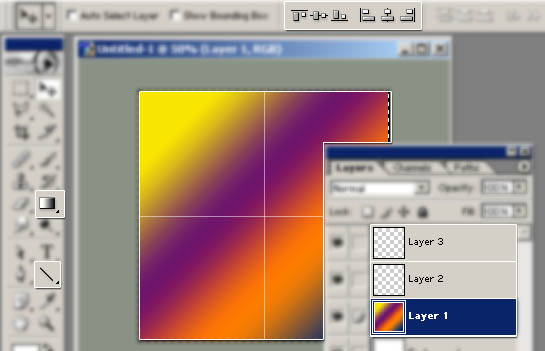
Create a new layer �Layer 1� and fill it with color gradient. Here in example I use ready-made pattern of �Yellow Violet Orange blue�.
Step 3
Divide the canvas into 4 equal parts. For my accuracy and comfort I draw 2 lines on separate layers and align them as middle.
Step 4
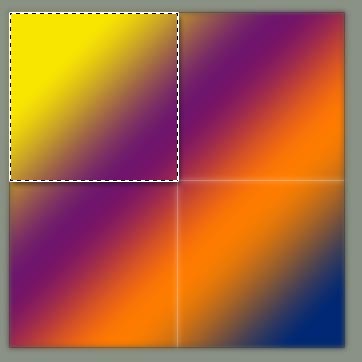
The major work we have to do here now. Click the �Layer 1� one filled with colors. Select the Rectangular Marquee tool. Select the �First Quarter�
Step 5
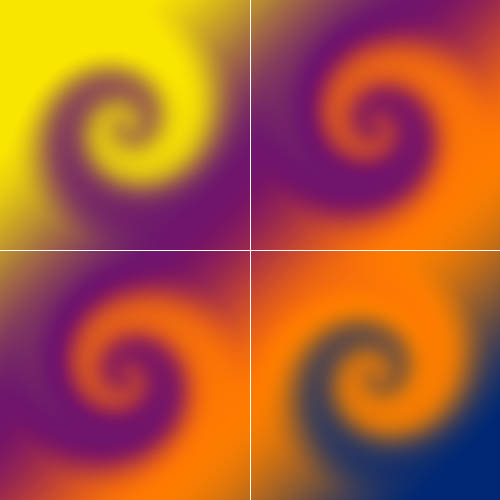
Apply Filter --> Distort --> Twirl with angle 400(+). Select next quarter and press
ctrl + Shift + f to hire the Twirl effect again. Change the value to �400 (Just add a minus sign) and apply. Complete the sequence by repeating the same procedure (with addition of some common sense?) and at the end you might get something similar to this.
Step 6
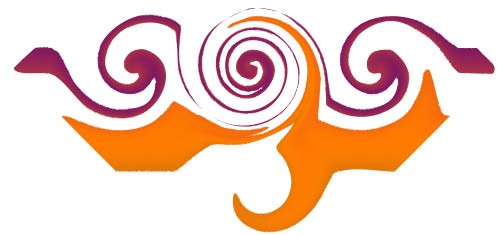
That�s it, yes. The secret is in �Magic Wand Tool (W)�. Active the Magic Wand and select some random parts by pressing Shift with click. Copy and Paste it to new layer or to New Image.
Extra
Add at least one more Twirl effect in middle. It is itself a nice piece of abstract curves and after selection a few parts you can come up some silly layouts like one I made (in hurry) for our example.
Trust me, you will like the after effects.
|
