|
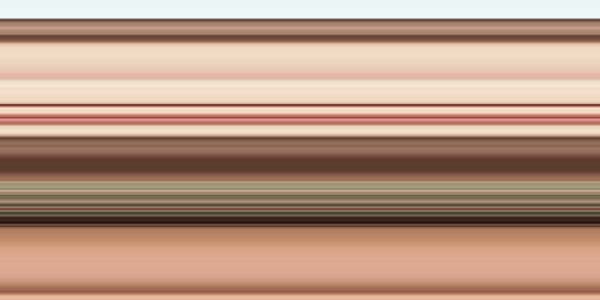
Impressive looking background isn�t it? How
on planet earth, someone like me can come up with such beautiful colors? The most important question, and here is the simple answer.
Step 1
Start with a new document, I pick the size 600x300 pixels. Background is white.
Step 2
Find yourself an image, any image with nice colors. I pick this lady�s image because of the colors into this image.
Pretty soft colors haan? Yes.. Paste this image to the canvas we created. Placement is not important. Stretch this image to resize the height same as the canvas (300 px in our example)

Step 3
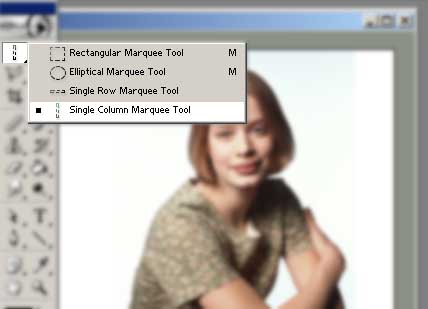
So much for the easy part. Now the hardest one. Pick the �Single column marquee tool�. Spot a vertical point that you think containing the colors will look good and click it there and the entire column with one pixel will be selected. Press CTRL + J to duplicate this selected column to a New Layer, Layer 2. You can use all
time favorite Copy and Paste too to get the result.
Step 4
Press CTRL + T to enable the �Transform� method and stretch from one corner to another. Howz that?
Uses
Where and how this image can be use. I select a section from top and with this I form a frame around picture. And after changing colors I also utilize the same selection as Top Navigation System of a site.

From this image I also comes up with a soft color scheme for a web site. Easiest way to organize great colors.
Extra works
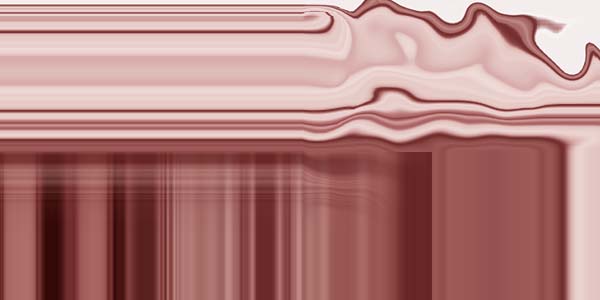
Duplicate layer (ctrl + j) before experiment on it. Alter colors by changing Hue Level (ctrl + U) and you can get many other color schemes or shapes. Use some Liquefy too and Enjoy.
Here are some images I made by using same technique.
|
