|
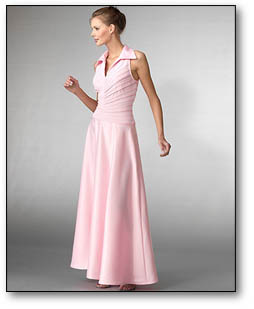
Above is one all time hit traditional Photoshop�s shadow and bellow I added some modifications and one is completely custom-made at the end. In this episode I will try to learn creating these or even better drop shadows.
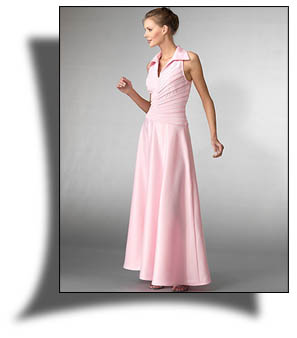
Step 1
I am starting by picking a picture that contains 230x287 pixels. Create enough big canvas where you can place the picture as well as create the drop-shadow. My canvas is 500 x 500. Insert the picture in to this canvas.
Step 2
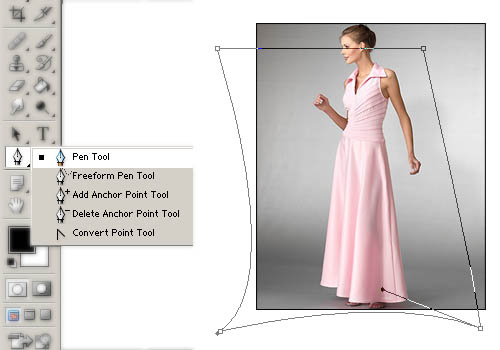
I hope you know working with �Pen� tool, if not then click here to have basic guide. Create a new blank layer. Draw the shadow like you want to have of that picture. Keep some natural rules of shadow while drawing the outline to give more impressive and realistic look to the picture.
Step 3
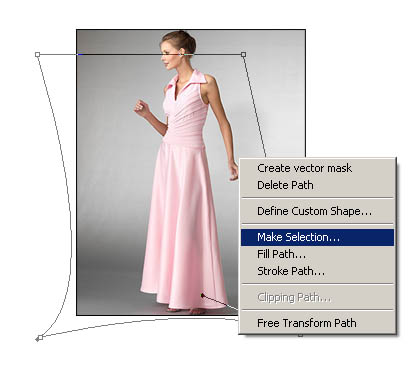
While keeping the �Pen Tool� right click inside the perimeter you draw for shadow and select �Make Selection�. With it you will have a selection from the shadow-frame you drawn.
Step 4
Fill it with black color. Drag the layer behind your picture. Set Opacity level down to 75 or 70, or whatever level looks good for it. Never forget to give light Gaussain Blur (Filter � blur � Gaussian Blur) to your shadow.
Extra
You can try stretching, skewing, or rotating or changing perspective to set the shadow.
|