|
Few weeks earlier, a client demands to add some more impressive page-look effect to one of his advertisement.
While looking around and playing I ended up
something like this (not this).
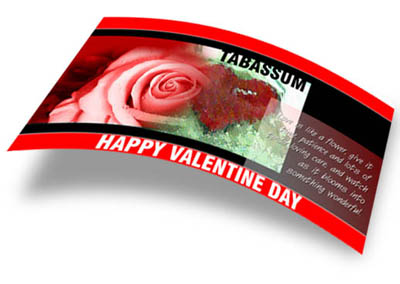
Lets start creating it, a little piece of reminder that here at tutorials I don�t go for much fine quality output, it doesn�t mean you cannot give realistic look to your work. My primary purpose is to show you the basic techniques, and realistic look will come with more time, more neat color management.
Step 1
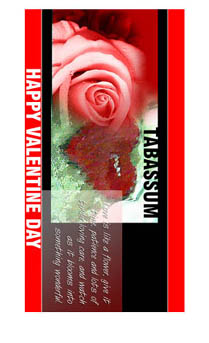
In my example I create a big canvas and place a greeting card in middle of it. Rotate the layer with card/image to �90oCW� ( ctrl + T � right click � Rotate 90oCW )
Step 2
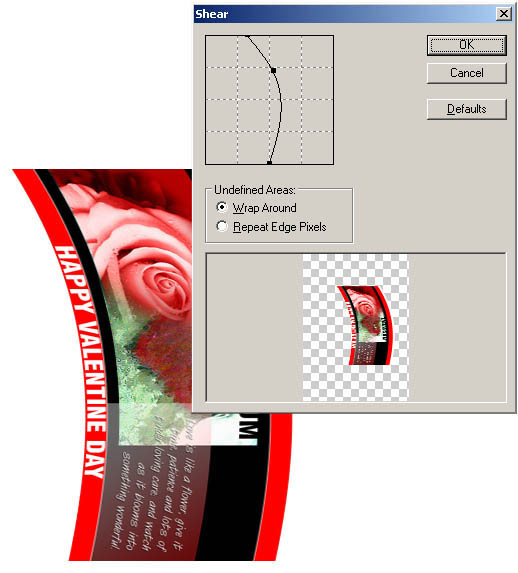
Shear is not very favorite tool of mine but well current task cannot complete without hiring it so find Shear again under Filter � Distort � Shear and reshape the image something like this.
Step 3
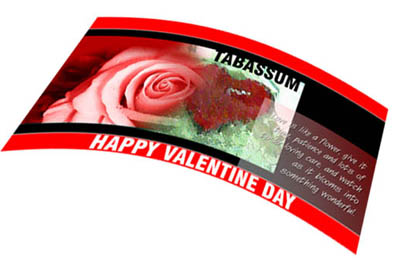
Press Ctrl + T for Free Transform this picture, Rotate and change perspective to give some new better look to your �curled page�.
Step 4
To create shadow under the card, press Ctrl + J to duplicate image, Press Ctrl + U to enable Hue/Saturation settings, in there turn the Lightness level to �100, apply Gaussian Blur (Filter � Blure � Gaussian Blur ) with about 8 or 10 radius. Lower the opacity to 75% or less. Drag the shadow layer under page layer. You may have to use Free Transform �Ctrl + T� again to reshape the shadow.
|
