Introduction:
So, you have decided to create your
first web page. What I am going to do is explain the process on it's
simplest level to show you how to do it without using editors or any other
outside programs except for your Notepad, or Word pad which comes with
all Windows programs. If you follow the instructions that are listed
on this page, by the time to you have reached the bottom, you will know
how to create a web site with multiple linked pages, post graphics to the
pages, along with text, and having control over where everything
goes. Start with opening notepad, for those
that do not know how to find it on their system, here is a screen shot
of where it should be: 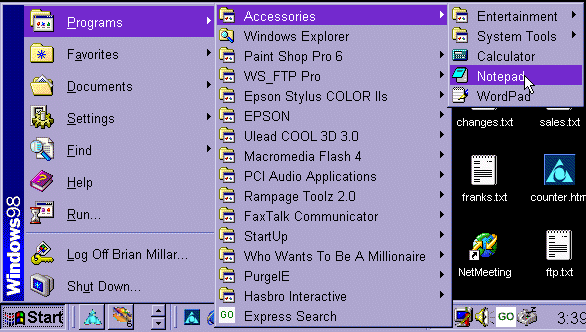
Setting things up:
If you have never used wordpad or notepad before, they are very basic word processing programs. Personally I like using notepad due to it's simplicity, but word pad will work just as well.
Another first step you should consider doing is creating a new folder for yourself, open up windows explorer, then hit the File menu, then New, then Folder, it will highlight the name of the folder, "by default it will be called new folder you can name it to anything you want or just skip that part and accept the name new folder, you can always change it later. Once it is created, you can click on any folder in the left side, and your new personal folder will show up in place along with the other folders. You will notice windows labels them alphabetically, so if you use the letter A at the beginning of the name, it will be easier to locate later,
**another way you can do this to make it even easier is save your new html files you are about to create to "desktop" an icon will then show up on your desktop for each new file you create, which makes it easy for you to find later. Which ever you find works best for you will do.
Lets confirm the following information before beginning our first page,
1. We have notepad open.
2. We have our new folder
created and know how to get to it. or, you have decided to save the folders
to desktop and know how to click an icon on your desktop..
Lets Start:
We are going to create a very simple html document, this is your first web page, cut and paste or type the following code to note pad, it is in bold red lettering to make it easy for you to differentiate, only copy the bold red lettering text and code:
<html>
My first
Web page
</html>
This is a screen shot of what it
should look like on your notepad: 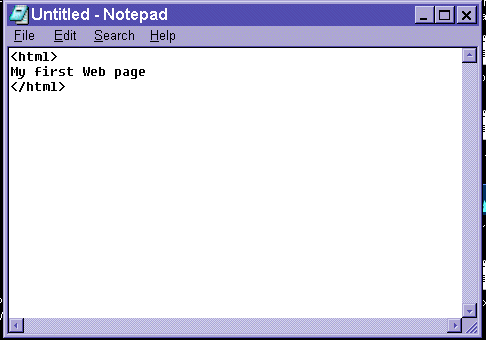
*Please remember, for future reference, this screen shot will not be shown for all examples, it is just to help you with your first one, just copy the code into it from the text printed on the page.
Using the notepad command bars, click:
file, save as, Refer to the screen shot: 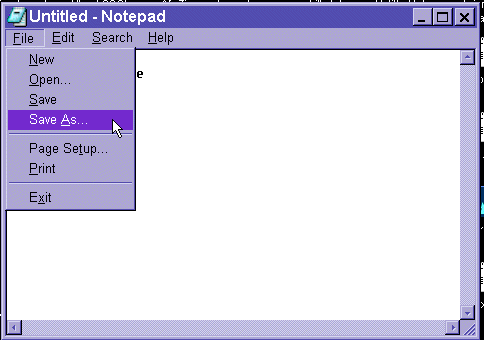
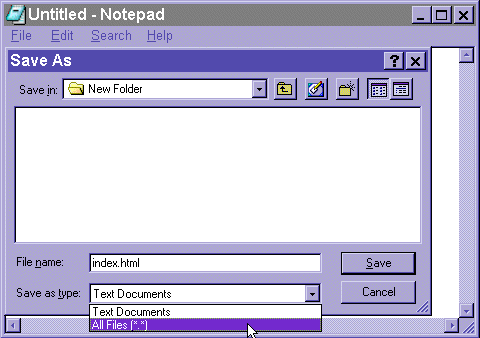
Label it index.html, make sure
at the box below that shows file type, txt is not selected or it will be
saved as a text file, make sure the "all" as file type is selected. also
make sure the directory where it is being saved at is in the same folder
as the new one you created or the desktop if you went that route.
Here is another screen shot:
Now, lets test it to see if it works.
Open up a browser, such as Internet explorer, or for you aol users, aol,
but don't bother logging in, it isn't necessary, if you are already don't
worry about it, you are going to view your new web page directly from your
hard drive only and will not need to access the web, just your own files.
Using the browsers task bar, click file, open, here is the screen
shot: 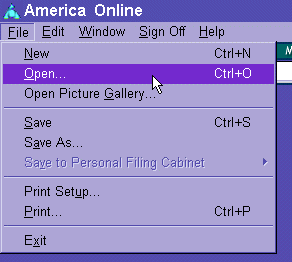
Search for your new file, you will have
to find your folder first, then click it to find your new file, once it
is located, open it. Refer to this screen shot: 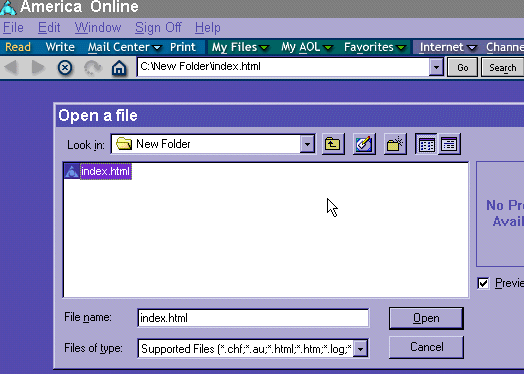
You should now be looking at a blank
page with the words: My first Web page on it. Here is another
screen shot: 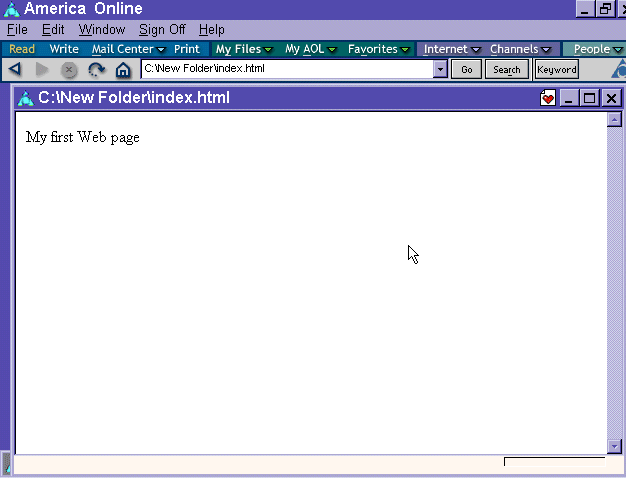 Congratulations, you have
made your first web page. Simple it is yes, but you have to start
somewhere. If it did not show up, you should review the previous
steps to make sure you did not miss anything. If it did show up,
you should move on to the explanation of the dynamics of what you did.
Congratulations, you have
made your first web page. Simple it is yes, but you have to start
somewhere. If it did not show up, you should review the previous
steps to make sure you did not miss anything. If it did show up,
you should move on to the explanation of the dynamics of what you did.
How this works:
Ok, the tag <html> tells the
browser that this page is an html document and to view it as a web page.
You can omit the tag, but the page will only show up as rough text, if
anything at all.
The text you put in of course is self explanatory.
The </html> tag tells the browser
that the web page is finished.
Adding a title:
Ok, you are now ready to move onto the next step. A full html document is divided up into 2 sections, the head, and the body. They each have tags to tell what goes where the title tag always is within the head tag. We will work with the title in the below example:
<html>
<head>
<title>your
new webpage</title>
</head>
</html>
You can save this as you did the other one, but label it as index2.html for our purposes. Now go ahead and view it in your browser. You will see a blank page, but at the top of the browser, you should see the title of the page "your new web page". What the title does is tells the browser what to name the page. This is particularly important when you want to get listed in search engines as well as showing people what page they are looking at.
Adding content:
Lets move on to the next step, the body tag. Look at the following example:
<html>
<head>
<title>your
new webpage</title>
</head>
<body>
Your new
web page
</body>
</html>
Go ahead and save this one, again to a new name such as index3.html, and view it. You should see a page with the title "your new web page" at the top of the browser, and the text "Your new web page" on the page itself. The body tag is where you place information that is view able within the web page. You can place text, graphics, "some code from my free flash page" or other html tags "listed further on in this guide" to display within it.
Adding a hyper link:
Ok, you should have the fundamentals covered at this point, so I do not need to show complete html pages for all of the examples, later on with the quick reference index, you will not get them. But for this exercise, I will. Our next step is adding a hyper link, this creates a piece of text that is click able and brings you to the other pages you have created. Look at the following example:
<html>
<head>
<title>
your new
web page
</title>
</head>
<body>
Your new
web page click
<a href="index.html">here</a>
</body>
</html>
Go head and save this one to another name, yes same directory in your personal folder as well, and view it in your browser. You should see what you have seen before, but the the word, "here" should be click able. Go ahead and click it, it will bring you to the first page you created. The a href statement tells the browser that the following file is linked to another page. You can replace index.html with a url, such as http://www.goodwebsitedesigner.com and it will bring you to that page instead. The </a> statement tells the browser that the link text is ended.
Adding an image:
Next step, placing an image: Review the following code:
<html>
<head>
<title>
Your new
site
</title>
</head>
<body>
<img
src="ball.gif">
</body>
</html>
Do the save end view thing with this one, you should see a box with a question mark, x, or some funky windows graphics in it, basically what it is telling you is that it cannot locate the graphic, you will need to either create a graphic named ball.gif, or copy the one I am providing here, just right click on the graphic, a pop up menu will appear, one of the selections will be "save as" make sure you save it as ball.gif, most browsers will have the original name there.
Here is the graphic to save, make
sure it is saved in the same folder as your other html files you created: 
Now that you have that saved, go ahead
and view the page you just created. Just hit refresh if you have
it open already. The ball should show up on the page now.
If aol or your other browser decides
to display it as an .art graphic, you will need to change the name in the
tag to ball.art so the complete tag will change from:
<img src="ball.gif">
to:
<img src="ball.art">
Now that you have that saved, go
ahead and view that page you just created. Just hit refresh if you
have it open already. The ball should show up now.
Ok, you now are able to add content to your web site, and technically can start building your first serious web site with these tools understood, what about controlling how everything is laid out? My favourite way of doing this is using tables
There are 3 main elements involved
here, here is an example of one simple table, 300 pixels by 300 pixels
in size:
| Here it is |
Here is the code to create it
:
<center><table BORDER CELLPADDING=4
WIDTH="300" HEIGHT="300" BGCOLOR="#FFFF00" >
<tr>
<td>Here it is</td>
</tr>
</table></center>
How it works:
The height and width determine it's
size, the border determines the size of the border, enter =0 after it if
you don't want one, or eliminate the "BORDER" statement all together,
or use a higher number if you want a larger one. The <tr> statement
is like an opening tag kind of like a row statement, what it does is tells
the browser that there is only one row. The <td> statement determines
the columns. Here is a table with 2 rows and 2 columns:
| content | here |
| each | box |
Here is the code for this one:
<center><table BORDER CELLSPACING=0
CELLPADDING=4 COLS=2 WIDTH="300" HEIGHT="300" BGCOLOR="#FFFF00" >
<tr>
<td>content</td>
<td>here</td>
</tr>
<tr>
<td>each</td>
<td>box</td>
</tr>
</table></center>
The difference here, is adding additional <tr> and <td> statements between the <table> and </table> statements, be sure to add some content into them or they will not show up when you view it in a browser. If you are just using a cell to pretty up the page, use the space code, just add the following piece of code into the "cell" instead of the text like I have it above:
You can also use that statement if you want to align text and/or images without using a table.
Additional tags to keep in mind within the table statement are cell spacing "determines how much space between the cells" Cellpadding "determines how much space around the inner edge of the cell so there is something like a page margin to prevent content from riding up to the edge of the table, and cols which basicly is a supporting tag saying there is going to be columns. You will notice I placed the <center> tag at the beginning of the table, it operates just like centering text or an image.
An additional tags that will help keep things in place,
the valign tag example:
<td valign="top">
makes the content begin at the top
of the cell and not by default the center, you can change the "top" with
"center" "right" "left" or "bottom".
You can also place tables within tables, but it can get confusing at this point, I suggest adding little hidden notes into the code to help you keep your place, example:
<!---any content you place here can only be seen if you view the code----!>
the dashes and exlmanaion point are
what do it, you will see these alot with free stuff, basically it is just
for helping people organize their pages code, and have no relavence to
the physical design, you can even take them out of the code I supply with
the free flash site, I guess I should do that myself when I get time here,
he he.
Congratulations!!
You have reached the end of html101, if you understand the principals described here, you will be able to create a professional looking interactive web site. "thought there was more to it?" Well, this is the basics, there are many additional tags to play around with, and the net is full of resources, this page was designed to show the absolute beginner how to make their own web site without confusing them, I hope I succeeded in your case, if not, practice each lesson/example by itself until you are able to combine them. One web site that you might find some amusing stuff to add into your page is http://www.dynamicdrive.com/ as well as learning the subtle details about the next generation of web site coding i.e.. dhtml and xml. And of course, be sure to check out goodwebsitedesigner.com/freeflash to get your free flash code for your web site
Copyright � 2002 Muhammad Tayyab Inc. All rights reserved
