

CHANGING YOUR SCREEN'S RESOLUTION AND COLORS
Changing the resolution and color of your display is dependent on the capabilities of your video card and that of your monitor too, so check first with your hardware's documentation before doing this procedure.
To change your screen's resolution, follow these steps:
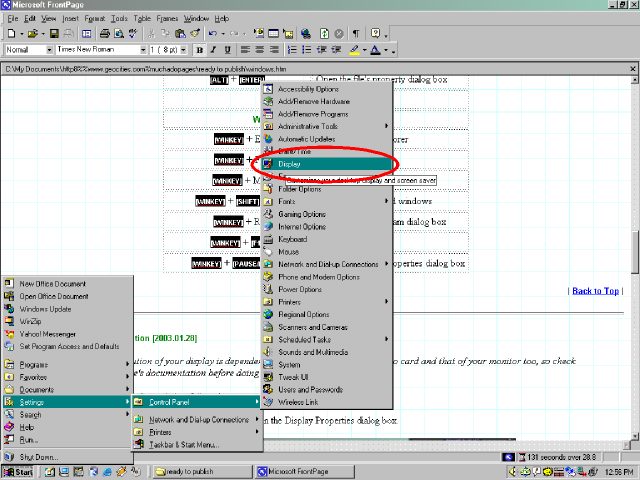
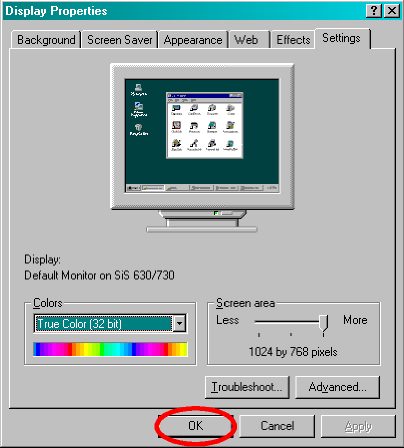
Click Start > Settings > Control Panel > Display to open the Display Properties dialog box.
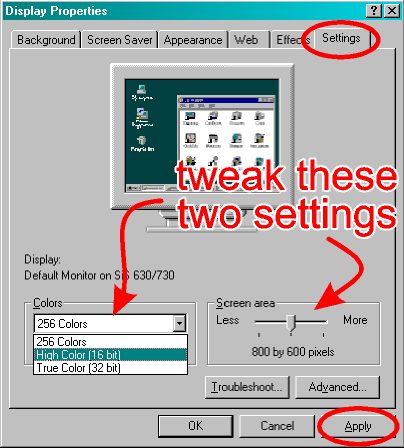
In the [SETTINGS] tab, change the desired resolution and color depth as shown in the figure below.
Rule
of thumb: Choosing
more colors means better picture quality but requires more video memory.
Make sure your video card can handle this. The same principle applies when
choosing a higher resolution.
More resolution means more desktop space. But also make sure your monitor
can handle such high resolutions.
Do not click the [OK] button yet. Instead, hit the [APPLY] button. Windows will give you the following message:
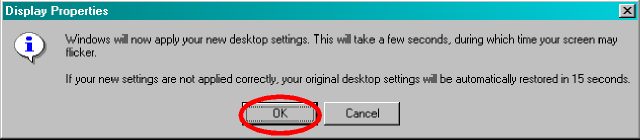
Click the [OK] button. If the resolution and color depth are applied correctly, your desktop should change and the following message will appear:
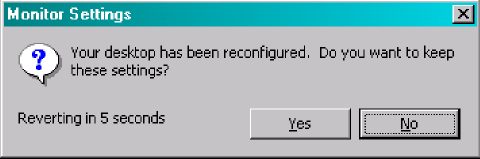
If you're satisfied with the setting, click the [YES] button. Choose [NO] if you want to try another setting. On the other hand, if the screen flickers or displays garbage, it means that you have chosen a setting not supported by your video card or monitor. Just wait for 15 seconds and the previous settings will be automatically restored. Click the [OK] button to close the Display Properties dialog box.
| Previous Page | Main Page |