

I WANT TO START
MY COMPUTER FROM THE DISKETTE DRIVE/CD-ROM DRIVE
INSTEAD OF THE HARD DISK
DRIVE. HOW DO I DO IT?
Changing
the boot-up sequence requires a bit of knowledge of the computer's BIOS program
(BIOS is an acronym for Basic Input/Output System). If you want to get
your hands dirty, read on. 
First of all, you have to restart your computer. Click Start > Shut Down... and choose the Restart option.
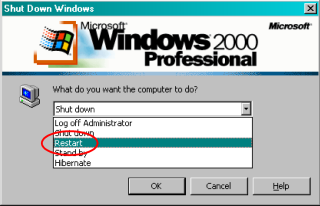
The computer should restart itself within the minute. Next, you should see the following screen (depending on your set-up, however, the screen shot below may not be the same as what you might expect).
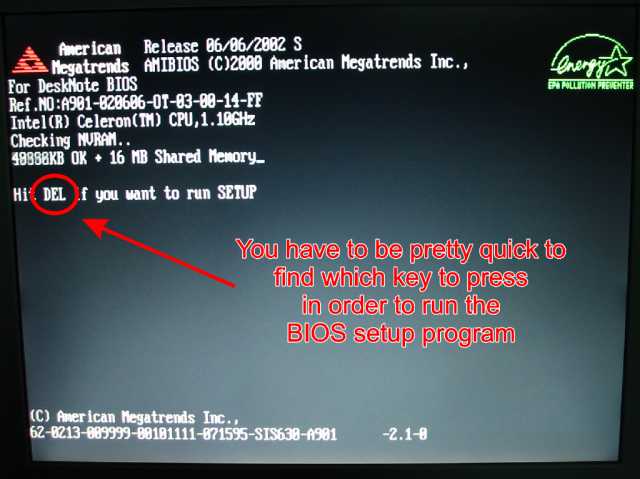
There are several ways of getting into the BIOS setup program of your computer. As illustrated in the picture above, you hit the [DELete] key. Next, the main setup screen will appear.
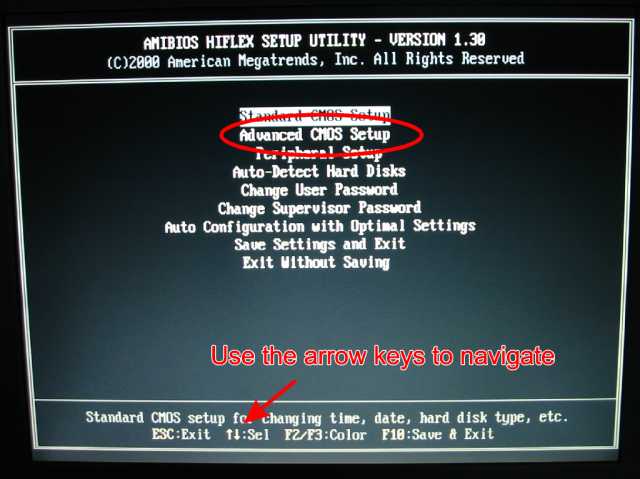
What you are looking for is an entry named "Advanced CMOS Setup" (or something similar). Once you find that item, hit the [Enter] key to show the options underneath it.
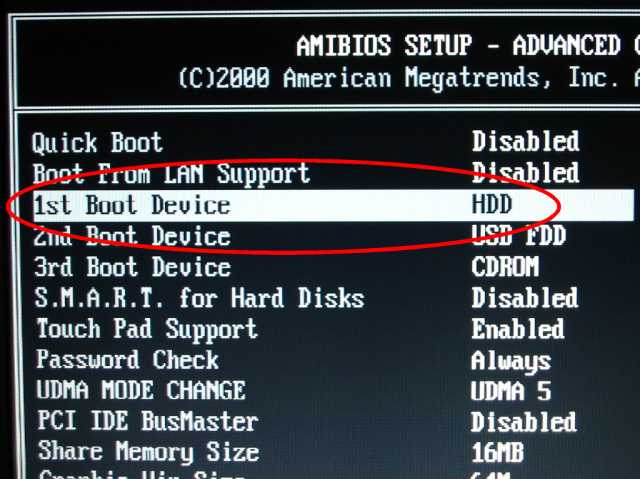
Look for the item called "1st Boot Device" Most likely, it has already been set-up to boot directly from the hard disk drive. You can change that setting using the navigation keys illustrated in the picture below.
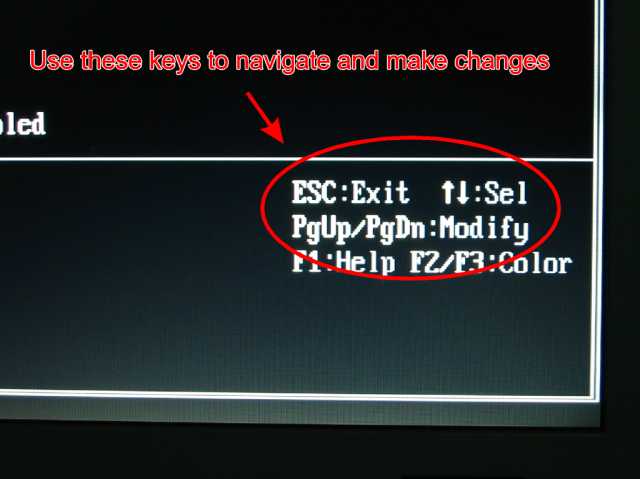
Once you made the changes, save the settings and exit the BIOS setup program. The computer will restart itself and you will now be able to boot from the diskette drive or the CD-ROM drive.
Restoring the setting is pretty straightforward. Just redo the procedure again and choose the Hard Disk Drive as your primary boot device. Save the setting and exit BIOS.
| Previous Page | Main Page |