

HOW DO I ADD A VOICE CLIP TO MY YAHOO! PROFILE?
There are three major steps involved when adding a voice clip to your profile: (a) create the voice clip itself, (b) upload the file to your Yahoo! Briefcase, and (c) point the voice clip's URL to your profile.
To keep it simple, use the Sound Recorder application that came with Windows to create the voice clip. Click Start > Programs > Accessories > Entertainment > Sound Recorder.
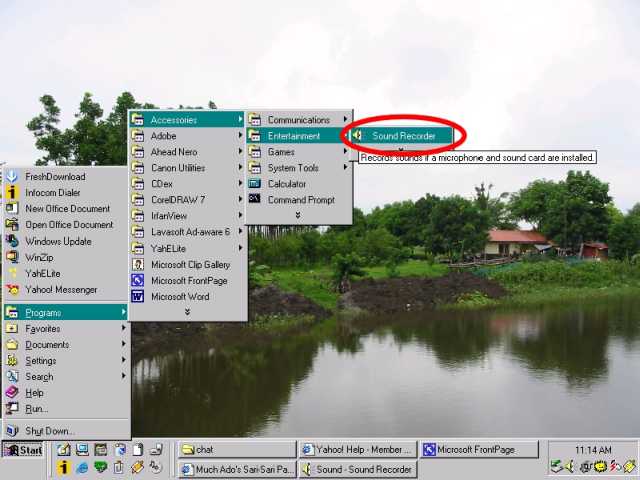
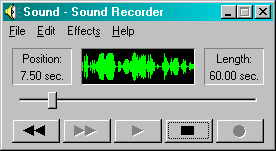
Record your voice the usual way. After recording, play it back to hear it. If you're not satisfied, click File > New to make a new recording. You may also want to tweak with the volume and recording control settings to refine the sound.
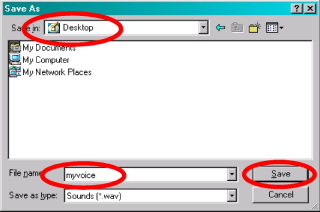
Save the clip to the Windows Desktop for easy reference later on when you upload. Also, fancy names are not needed here. Just name the file myvoice (or something similar). Then click the [SAVE] button.
Click the [X] button to close Sound Recorder.
Upload the file to your Yahoo! Briefcase
Click this underlined text to bring up the Yahoo! Briefcase sign-in page on a new browser window. Log-in with your Yahoo! ID.
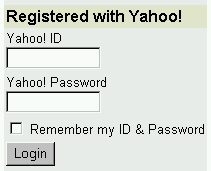
Once
logged in, click the  link.
link.
On the next page that follows, choose File Folders and click the [SELECT] button.
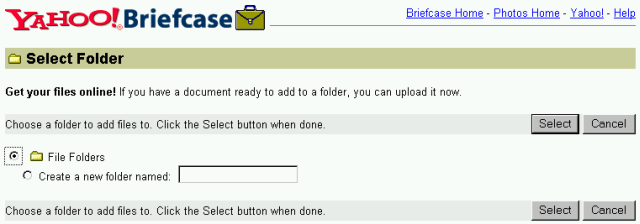
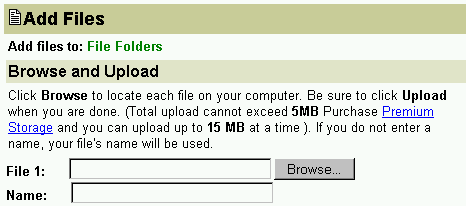
Another page will be displayed. Click the [BROWSE] button...
...and select the voice file you saved earlier on the Windows Desktop.
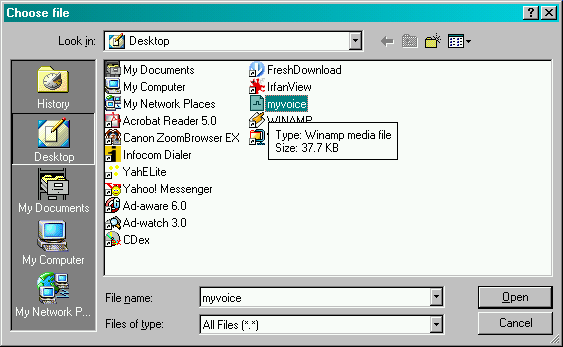
Once
you click the [OPEN]
button in the Choose File dialog box,
the Add Files page will
redisplay. Scroll down the page and click the  button.
Perhaps
this is the right time to stand up from your chair and stretch while waiting for
the voice clip to upload. 

Click the [Back to Folder] button once uploading is finished.

The File Folders page will display with the voice clip you uploaded earlier. Right-click the name of the file and select Copy shortcut.
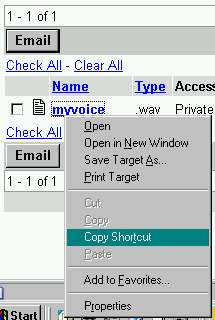
Sign out of Yahoo! Briefcase and close the browser window.
Point the voice clip's URL to your profile
In
Yahoo! Messenger, Click Login > My Profiles and click the  button.
In the Public Profiles page click the [Edit] link for the profile you want to add the voice clip to, then click the [Edit Voice] link in the subsequent page.
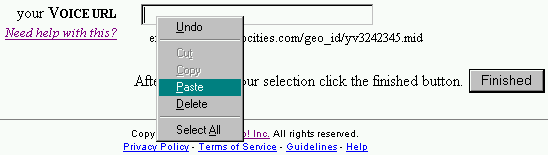
Right-click inside the text box beside the your Voice URL, then select Paste. The URL will show in the text box, similar to this one: http://us.f1f.yahoofs.com/users/1a2b3c4d5e/bc/myvoice.wav?6F7g8H.9i0J
Click the [Finished] button to update your profile.
Done!

| Previous Page | Main Page |