Create a Yahoo! Email Account 


Acquiring and adjusting images from the Internet

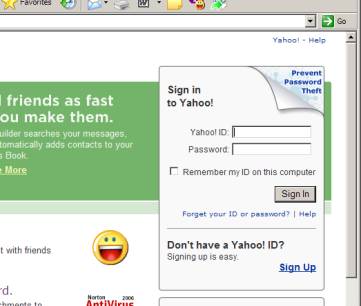
1.  Go to Yahoo.com, and click on the “Mail” link.

8     Even if you have your own account, I would like you to set up a new account for this class.

8     Click on the “Sign Up” link.

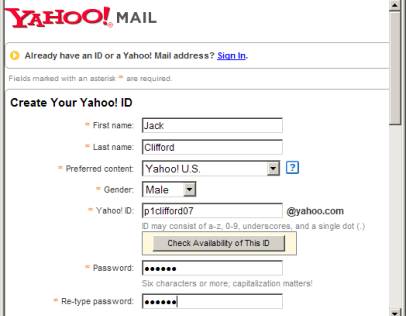
2.   You must insert information where there is an asterisk.

8       Type your first and last name in the first two boxes.

8       In “Preferred Content,” don’t be funny and choose “Yahoo! China” because you won’t be able to read anything.

8       Choose the right gender.

8       Use the following formula for your Yahoo ID:

The letter P

The period you have this class

Your last name

2 digits of the year you graduate


ex: p1clifford07


8       The password should be the same as the CHS log in.


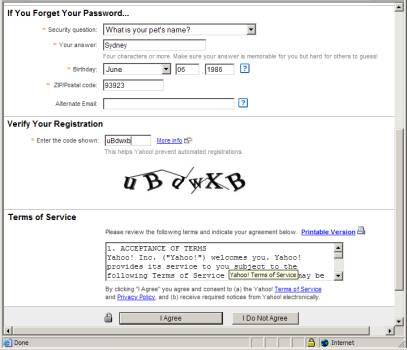
3.  Scroll down and complete the next few sections.

8       Choose a security question which you know the answer.

8       Make yourself 10 years older than you actually are.

8       Use the CHS zip code (93922)

8       Leave the alternate Email blank.


8       Copy the protection code.


8       Click the “I agree” button to the “Terms of Service.”

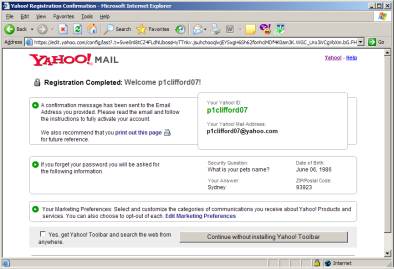
4.  If you don’t get this next screen, there was a problem with the sign-up. Change the errors and resubmit.

8       Click the “Continue without the toolbar” button. (Deselect the check box if it is selected.)

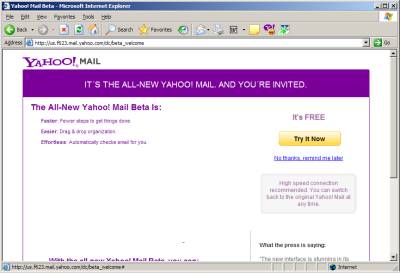
5.  Yahoo! is in the process of changing their format. Don’t choose the Beta version (even though it’s fine.)

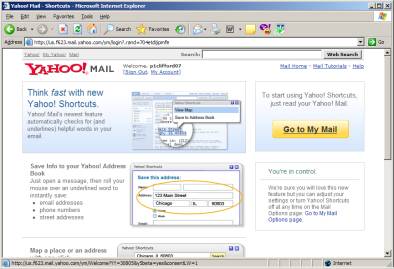
6.  The next screen shows some changes Yahoo! has made. Click the “Go to my mail” button.

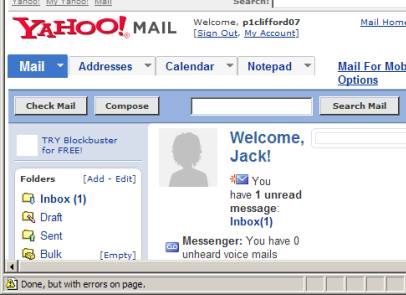
7.  Now click on the “Compose” button.

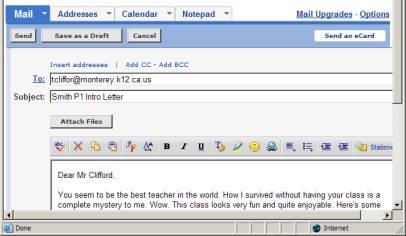
8       Send an e-mail of no less than 125 words to your favorite “Software Apps” teacher describing yourself and what I might not know about you from the time you spend in this class.

8.  Send your e-mail to:

[email protected]


Note there is no “d” at the end of my name in my e-mail address.


8       In the Subject line type


LastName P? Intro Letter


where ? is the period you have this class.


Hosted by www.Geocities.ws

1