Study Sheet for
Graphic Programming Test#2
1.
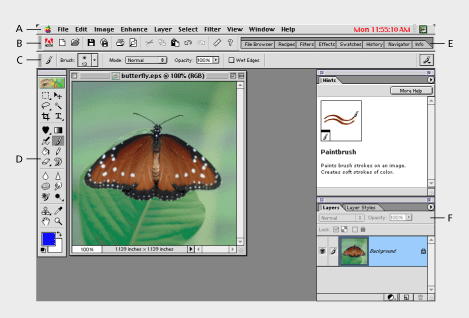
Identify, label, and describe the common parts of the
Photoshop Interface.
A. Menu bar B. Shortcuts bar C. Options bar D. Toolbox E. Palette well F. Palettes Menu bar The menu bar contains
menus for performing tasks. The menus are organized by topic. For example, the
Layers menu contains commands for working with layers. Shortcuts bar The shortcuts bar displays
buttons for executing common commands. (See Using
the shortcuts bar.) Options bar The options bar
provides options for using a tool. (See Using
the options bar.) Toolbox The toolbox holds
tools for creating and editing images. (See Using
the tools.) Palette well The palette well helps
you organize the palettes in your work area. (See Using
the palette well.) Palettes Palettes help you
monitor and modify images. (See Using
palettes.) 2.
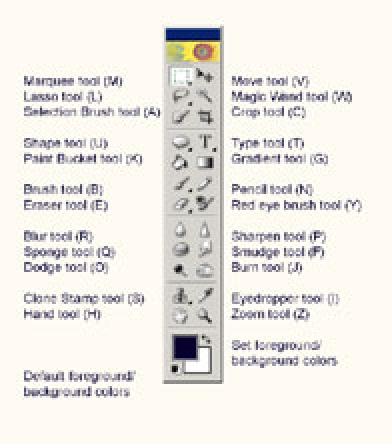
Identify, label, and describe common tools used in
Photoshop. Study Sheet for Graphic
Programming Test#2 page 2 3.
Give common keyboard shortcuts for Photoshop. Zoom In = Ctrl +
-(minus key), Zoom Out = Ctrl + + (add key) New Layer = Shift + Crtl + N, Select All = Ctrl + A, Copy =
Ctrl + C, Cut = Ctrl + X, Paste = Ctrl + V, Fit on Screen = Ctrl + O, Merge Down = CTRL + E, Group = Ctrl + G, Ungroup = Shift + Ctrl
+ G 4. Describe what a layer is in Photoshop and
explain the advantages of using layers to create an image. In Photoshop and many other
graphic applications, a layer is a component in a complex image that consists
of multiple layers. Each layer is like a transparent sheet upon which the user
may draw or insert an image object. Each
transparency contains part of a single image. One transparency might have the
background. One transparency might have text. Another transparency might
display the company logo. You can view each transparency by itself, or you can
stack the transparencies on top of one another and view the stack as one image
by projecting the stack on the overhead projector. It
is the same with layers in a graphics application. You can work with or view
each layer by itself, or you can combine them (it's called flattening) and view
the "stack" of layers as one image. Layers are useful because they
allow you to move and manipulate parts of an image to see how your changes
affect the whole. 5. Describe the difference between vector and
bitmapped images and tell how this explains why you can’t paint on a shape
object in Photoshop until you merge or flatten the shape layer and thus change
it from a vector image into a bitmapped image. Vector graphics - is the creation of digital images through a sequence of
commands or mathematical statements that place lines and shapes in a given
two-dimensional or three-dimensional space. Vector graphics can’t be drawn
or painted over because they are not bitmapped images, they are just formulas
for creating an image. Bitmapped Graphics (Raster
image) — A bitmapped graphic is an
image made using a grid of dots (pixels), also known as raster format. A
bitmapped image has a fixed resolution, therefore, enlarging the graphic causes
it to become coarse or stair-stepped.