| Morrowind Mania |
| www.morrowindmania.tk |
| This tutorial is especially made for beginners; people that have to learn the basics of building plugins with the TES construction set. I explain how to move around in the builder, how to drag pieces to the view window, how to bind them, how to create a nice interior, how to make doors teleport and just open etc. It's made in Word. The tutorial includes screenshots. |
| Description: |
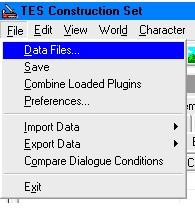
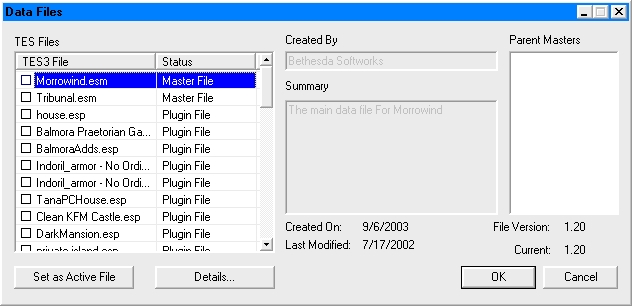
| Let�s start learning you building your own plugins for Morrowind. The first step we are going to take, is launching the CS and creating a new interior cell house. 1) Launch the TES Construction Set. You see all there is in your �cell view� window, is wilderness and in your view window (Now there is written �Wilderness 0,0) everything is brown. Now we have to import the morrowind data files. Goto ->file->Data Files and select Morrowind.esm and click ok. After waiting a while the data files are loaded and you can start building your mod. Now you see your object window is filled with objects and pieces and the cell wiew window is filled with place names and interior cell names. |
 |
 |
 |
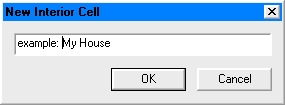
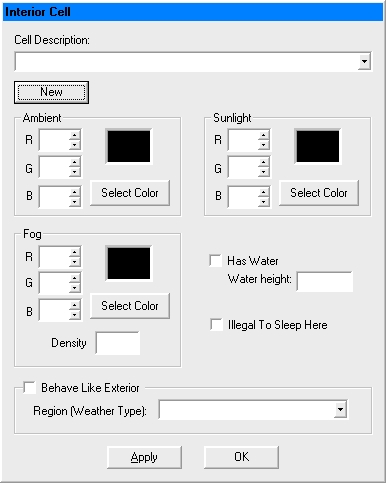
2) Now we start building our little house. Let�s start creating an interior cell. Go to world->Interior Cell� and select �New�. A window appears. Here you have to write the name of the house down (example: Your House; Balmora house etc.). If you�ve done that, you go to the cell view window and scroll down untill you found the name of your house� (if your house is called �My House� just select a cell and type fast �my house� and you�ll be there�). Double click on your cell and it will be loaded. It appears in the view window. You see the window turns grey instead of brown. Grey is the �Black space�; in the game it will be black; nothing� |
 |
|
 |
| 3) Building in the TES Construction Set requires you to be able to move around. Go to the object window, select NPC�s and drag the first NPC into the view window, that would be �A shady Smuggler� Now you have dragged him into the window, you can see him from above. To change your sight, try to hold down shift and mouse your mouse. The object you selected works as spiral; you are moving around the object. Now we want to see his head again. If you press �T� you will be again above the object. Now we want to see him just straight ahead. When you press �C� you�ll see the object from a side. Try it. Now we want to see the entire NPC. You�ll have to zoom-out for that. Now that can be done with the scroll wheel on your mouse but if you work very detailed I should recommend you to press �V� and move the mouse. That will zoom slower and not with frames. Try it. If you want to watch around your self, deselect the object you�ve selected by pressing �D� and press shift and move around your mouse. You see the difference between having selected an object and watching around with shift and after having deselected it? During the building, everything will bit very dark. To get a brighter view press �A� and everything will be much clearer. |
Main keys: A= brighter view C= side view T= top view D= deselect Shift + selected object + mouse movement = move around selected object Shift + mouse movement = move around yourself V + mouse movement = zoom in- and out Mouse scroll = zoom in- and out |
 |
|
 |
|
| under construction |
| 4) Now we are going to drag the main pieces for the building: walls, corners, floors etc. In this tutorial we will work with Redoran architecture; it�s one of the easiest but still very nice� Let�s start with a cornered house; very small but still enough place to live in. We have created an interior cell and now we put corners in the view window. Go to the object window and goto in_r_l_int_corner_01. |