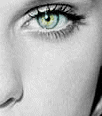
How to colorize and eye realistically
by xXxSYNxXx
12-28-2004
Open up the eye av in your psp, make sure your toggle tool and layer pallet are out to work with. And of course increase colors of av before you start working on it.

On your toggle layer pallet, right click on the one layer there, it should say background. In those option that show up choose duplicate.
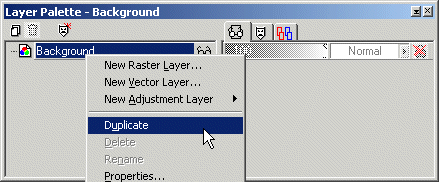
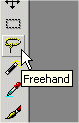
Next we’re going to go over to our tool bar on the left side there,
and select the freehand tool, it looks like a little yellow lasso. Look on
your tool pallet, and make sure feather is set to 0.
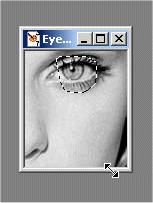
Now draw a circle around the eye, doesn’t have to be exact, it can go
over the edges, no big deal, we will be erasing anyway.
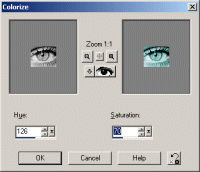
Go to your top tool bar, and click color, and choose colorize off the drop
down menu.
When you do it will open a new window, on it, it will show your original,
and the effected version.
Choose a color you want to make the eye, for this lesson I chose a greenish
color. The hue is set at 125, and the saturation is set at 70, hit Ok when
done.
You’ll notice you still have the little line moving around your selection, to make that stop go up to the top selection bar and choose selections/select none.
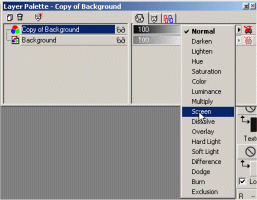
Go back over to your layer pallet now, and on the top layer that you colored, go to the layer blend mode, the little drop down arrow over to the far right of the layer, and change the layer blend mode to screen.
Select your eraser tool, and work with it at any size you feel comfortable, for this simple exercise in erasing, I set it at round, size 50, opacity 100, the rest of the setting are set at default. Now erase everything except the colored eye ball.
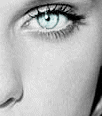
And that my friend is how you get a natural looking color on eye avs. This isn’t very practical unless the eye is a major part of the av. It’s not necessarily the best way to go with smaller eyes in avs. For those I would use the retouch tool, and do color to target, but set the opacity down to like 20ish. Lets face it florescent green, and blue eyes are not natural looking, and take away for any sense of reality you might be striving for by colorizing it.
If you wish to take this a step further, you can duplicate the original layer
again, and colorize it a yellowish color, and erase selected areas to add
golden flecks to the eye.
For this av below, I changed the green layer back to normal, instead of screen,
to make the yellow stand out a bit more, and erased the green where I wanted
the yellow to show through. I also changed the layer blend mode of the yellow
to hard light, for more emphasis.