 |
|
|
|||
|
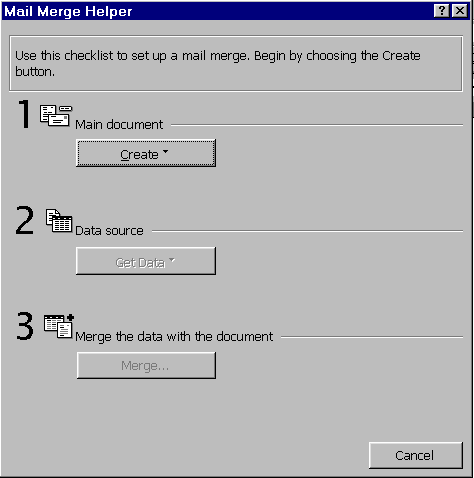
MailMerge is the facility to write a single document (eg: a letter to your customers), insert fields within this document which contain information like name, address, phone number (and so on), and have Word create a separate (customised) document based on the original for each of your customers. Obviously for this process to work, Word needs two things: A document to act as the ‘master', and a document containing the data fields to be inserted as appropriate. To get things started, select the Tools/Mail Merge... menu option. You will see the following dialogue box:
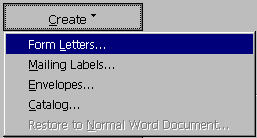
Brief but illuminating instructions are given at the top of the dialogue box. As you can see, there are three steps to follow, and Word will step you though them. Click on the Create... button as instructed. You will be offered the following options:
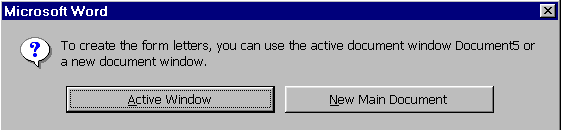
Yes, we wish to create Form Letters, so select that option. Word then asks us the following:
Now you have to decide. Do you wish to use (as your ‘master' document) the Word document you currently have open? Or do you want to create a new document specifically for this purpose? Since our currently open Word document contains no data, we might as well select ‘Active Window'. Word then allows us to proceed to step 2:
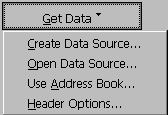
Click the ‘Get Data' button. Again we are asked to make a decision:
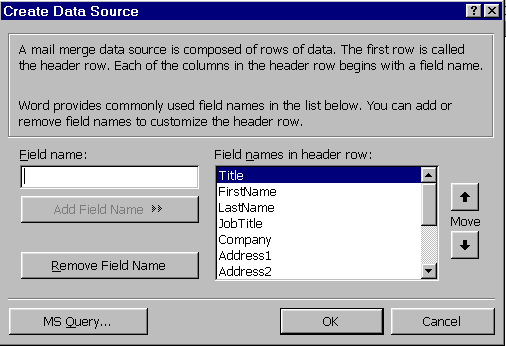
Since we do not have a data source, we'll select the ‘Create Data Source' option.
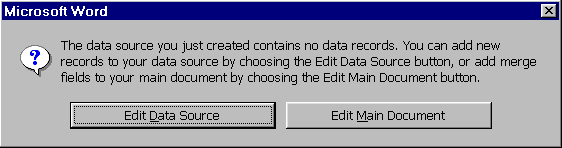
Again, brief but clear instructions and explanations are provided within the dialog itself. Once you have customised your field names to your satisfaction, click the OK button. You will be asked to save this data file. Give it a meaningful name, like ‘Customer data'. Ever vigilent, Word now informs you that...
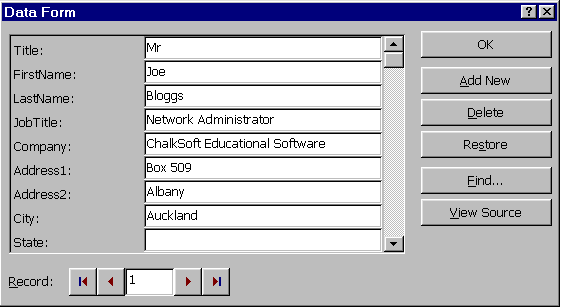
Since we have no data in our newly created data document, let's select the ‘Edit Data Source' option. Word creates a neat little data entry form for us for convenient data entry.
When you have finished ‘Adding New' entries, click OK to move on to the next stage - which is to return to the ‘Master' document, and begin writing your text (and inserting your data fields)...
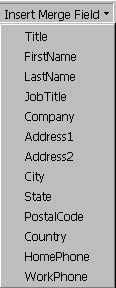
Notice, however, that we now have a new toolbar - which contains the buttons ‘Insert Merge Field' and ‘Insert Word Field'. We've come across Word Fields before. The ‘Merge Fields' are the fields we have just created. If you click this button, this is what you'll see...
|
|||||
|
Notice, your merge fields are surrounded by double angle brackets. In this graphic, they have been highlighted in red, so that you can readily identify them - though they will appear as black text in your document. You can toggle the display to show you the contents of these merge fields, if you prefer. Simply click the All that remains now is for you to print your document, which you do in the usual manner. Except that now, Word will insert the relevant data contained in your data file into the master document, and print a customised document for every record in your data file. |
|||||



 tool on the Mail Merge Toolbar.