:Jean Skirt Tutorial:
We will be making this jean skirt today.
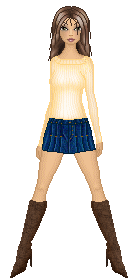
The base is from Exotic Wildness Now if I had more time to describe each step in every detail I would, so this tut is for people who are familiar to PSP. I use PSP 8 but it's the same for about everything. Anyways on to the steps.
Step 1. Get the base ready.
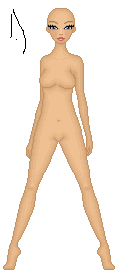
I always make my background white. It makes it so much more easy to see everything. If you don't know how to or you want to learn then I recommend Xandorra's Place tut.
Step 2. Outline the skirt
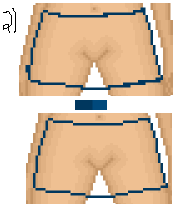
Now you need to pick a colour. It can be any colour you want, I have my colours I'm going to use in the middle of the 2 legs. So once you pick the colour you want to use, you just make the outline of how it's gonna look. Then you can make it all nice and make it 1 pixel wide everywhere. I have put 2 images on how it should look. The first one is just the messy version, the second one is the nice version. It should look like the second one.
Step 3. Pleats
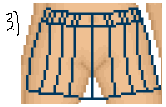
Now, I don't know if that's how you spell pleats but whatever lol. Anyways, this jean skirt is going to have a kilt effect. So all I do here is make the outline of the pleats. And silly me I didn't leave enough room for the button and belt hoops. So I just added like 5 pixel spaces on top of my original outline.
Step 4. Fill in
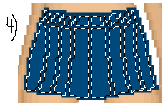
Ok now with your magic wand tool, hold down shift and click the inside of the skirt. Click in the middle of the hoops and everything. So it looks like this. After that is done, you pick your second colour and fill it in. Don't take of the outline of the magic wand (ants)
Step 5. Shade dark
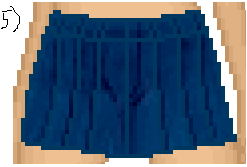
Ok now we are gonna use our Lighten/Darken tool. Since were making dark shades you right click instead of left click. Now my settings for this was Opacity:40 Mode: RGB I did different size 1 and 2. Now make shades where it would be like the sides, more in the middle where her crotch is. For this I made the top of the pleats more dark then where it started to go to the side. Now my images don't have the "ants" on them, I only took them off so you could get a better picture on how it looks. So don't take your ants off!
Step 6. Shade light
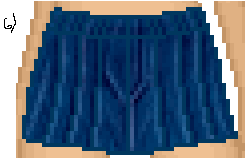
Now with the same tool and the same settings except I used size 1 the whole time. Left click where all the light hits the skirt. I did it beside the pleats lines to make it more noticeable and dramatic.
Step 7. Add Noise
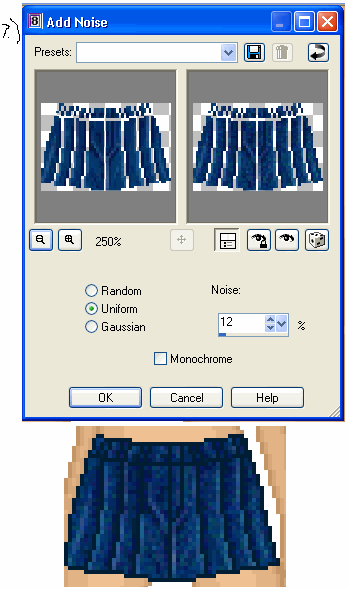
Now, go to Adjust at the top, go down to Add/Remove Noise and then click Add Noise. I made my settings as shows up there. Then click ok and tada your skirt should look like that. Also, I looked at it far away and the outline color of the skirt was way too light. So I just went over the outline with my paint brush tool with a darker blue.
Step 8. Details
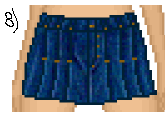
Now we may take our ants off! To do so just click Ctrl and D. Now we just add the main details. With a more browny orange colour make the button of the skirt, then I put a dot in each belt hoops and some various dots around the crotch part. And then finally I made 2 pixels wide lines where the pleat lines start to curve. Also if you want to darken anything or lighten anything more this is where I would do it using the paint brush though.
Now I believe that is it! All you need to do is put some shoes on, a shirt on and some hair and your done! Congrats!