Open up Paint Shop Pro.
Make the height and width something like 100-150.
Put the background as whatever colour you want like black or red.
Then go to Effects and then Textured Effects then Titles.
Make your window look like that.
For the color, just start with white. But..if you want the background to be black, choose black.
Click ok..
Choose the crop button, and if you need 3 squares for the name..Mel-for example-, so crop around the squares BUT leave the black border around the edge so you have 3 squares. Now, crop it! Image>>Crop Selection
You should be looking at a some squares with black borders. Now, for the text. Choose the text icon(4th one from the bottom). Click somewhere on your image(one of the squares). Do one letter at a time and place each letter in the box.
So it looks like that..in the zoomed in way
Then zoom out and safe it as a .gif
Open Animation Shop.
Click File...Open.. and open the image you just made! like mel.gif for example
Go to Edit--Duplicate Selected. Zoom in the one with F:2 D:10 below it.
Color in one letter using the paint bucket(Flood fill).
Now click Edit>>Duplicate Selected. You should see the first letter colored in. Color in the next letter.
Repeat the duplication until you have finished all the letters. *If you want the background to change, just fill in the background and follow the same steps.
TO make the blinking go on go to Animation...Animation Propeties...Then go to lopping and repeat.
Save as a .gif
 >How To Make Blinkies
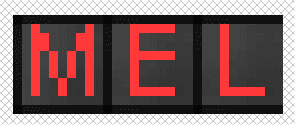
 it will look like that