 |
 |
|
|
|
|
|
|
|
| <<Home | ||||
|
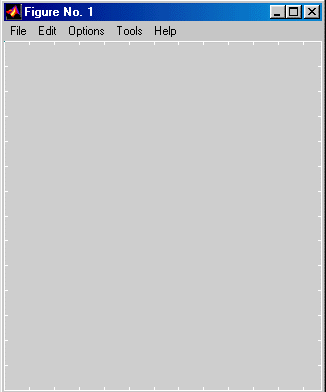
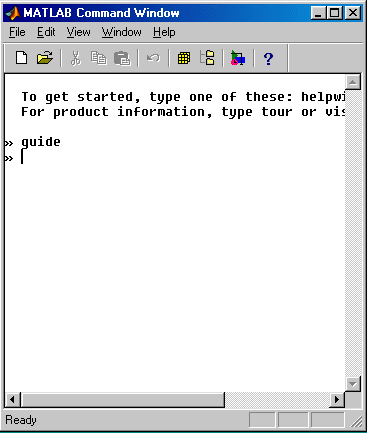
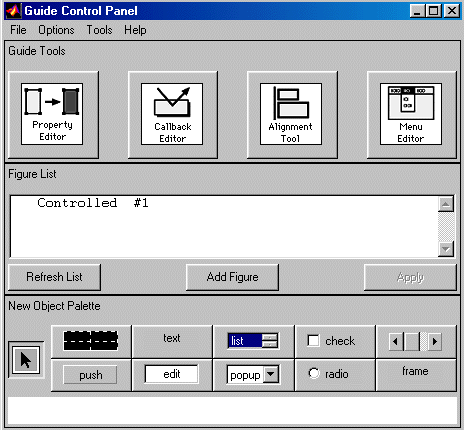
When you double click on Matlab icon on desktop you will see "Matlab Command Window". To enter into the GUI mode, type "GUIDE" on command window. GUIDE is abbreviation of Graphic User Interface Development Environment. After entering you will find following windows on your desktop. If in case you did not find "Figure No.1" window then click to the "Add Figure" in "Guide Control Panel window".
.
Click to "Figure No.1 window" and then click to edit menu and go to "Add Object" you will find "text, list box, check box, push button etc" choose any one you want, you will find particular object on "Figure No1 window". For programming and setting of properties just go to the "Figure No.1 window" or "Guide Control Panel window" and click the "Tools" menu you will find "Property editor, Call back editor, Alignment tool. Menu editor". After setting properties you can go for programming.
Example
Let us build a simple GUI. (A user friendly GUI in which we can add two numbers)
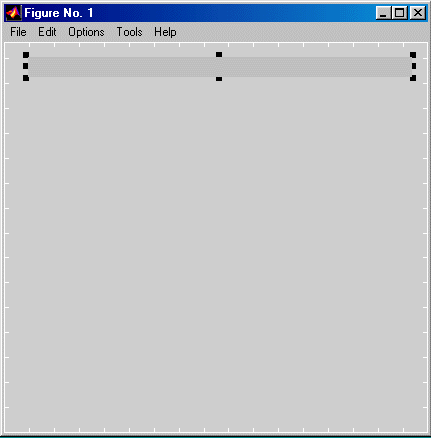
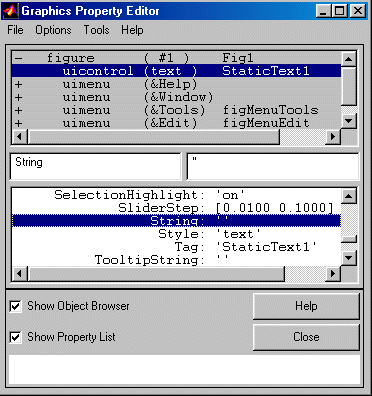
First of all make the form as we do in Visual Basic. In Matlab instead of form we make figure. In figure window click to "Edit" menu and select "text", you find "Text box" on "Figure No1 window" enlarge or reduce the size according to your requirement. Then double click the "text box" you will find another window "Graphics Property Editor" , go to "String" and type "Program for addition of two nos" in between ' '.
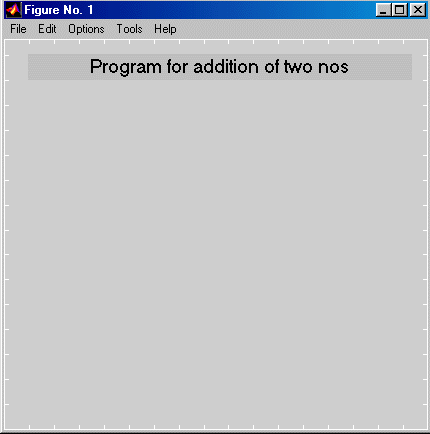
After closing the window you will find figure as follows.
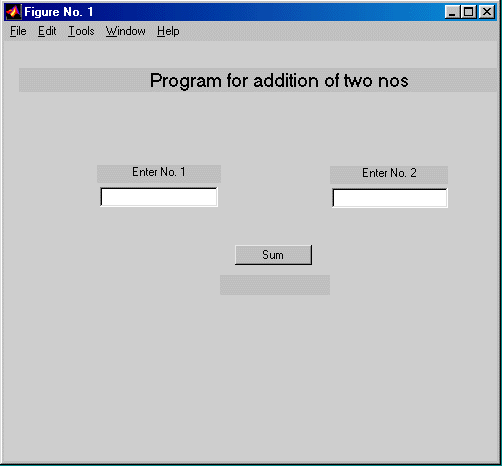
Follow the above procedure and make three other text boxes, two edit boxes and one bush button as shown in figure below. Now change the string of two text boxes as "Enter No.1" and "Enter No. 2" in the same way change string of push button as "Sum".
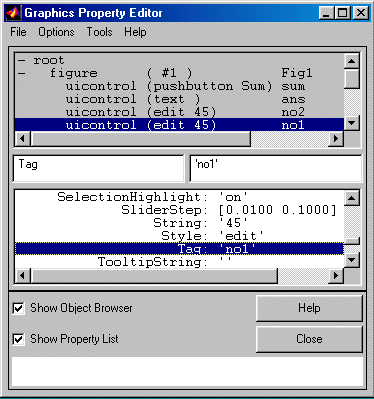
Now change the tag property of edit boxes as "no1" "and no2". In the similar fashion change the tag property of last text box by "ans"
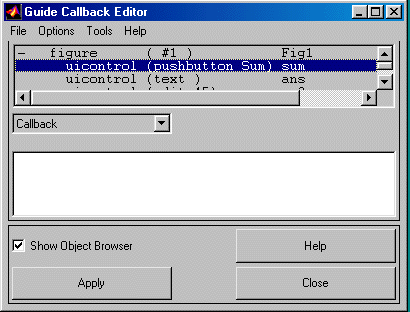
Now double click the push button named as "Sum" for the purpose of programming. You will find another window "Guide callback editor".
Write down the code in "Guide callback editor" window.
h = findobj(gcf,'tag','no1'); no1 = str2num(get(h,'string'); h = findobj(gcf,'tag','no2'); no2 = str2num(get(h,'string'); ans = no1 + no2; z = num2str(ans); h=findobj(gcf,'tag','ans'); set(h,'string',z);
After this go to "Figure No.1" window, press "Options" menu and select "Activate Figure ". It will ask to save the figure, select yes and then write the file name you want to save with. To run it again write the file name on Matlab command window and enter, you will find your GUI.
Help
gcf
gcf :- Get handle to current figure.
Abbreviation of Get Current Figure
findobj
findobj :- Find objects with specified property values. h = findobj(gcf,'tag','no1'); In this we are finding object with 'tag' property.
str2num
Convert string to numeric value
num2str.
Convert numeric value to string.
set
Sets object property set(h,'string',z); In this we are changing "String" property of object. We are actually replacing it by "z", which is actually sum of two numbers. |
||||
| <<Home | ||||
|
||||||