 |
|
|
|
|
|
|
|
|
|
|
|
|
|
|
|
|
|
|
|
|
|
|
|
|
|
|
Multi-Event Timer Program
Page 2 |
|
|
|
<- Back to page 1 |
|
Main Page |
|
|
|
 |
|
|
 |
|
|
|
|
|
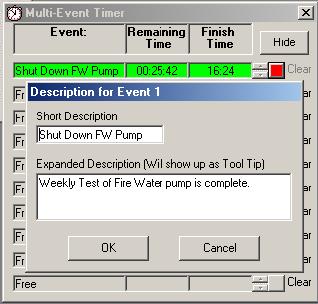
To enter an Event Description, Click on the Event Box in he row that you want to add or change. The description can be added before or after a timer is started and can be changed anytime.
Add the information as required in the two boxes and click on OK. If you have clicked on the wrong timer, just click on Cancel to exit with out making any changes. |
|
|
|
|
|
|
|
 |
|
|
|
|
|
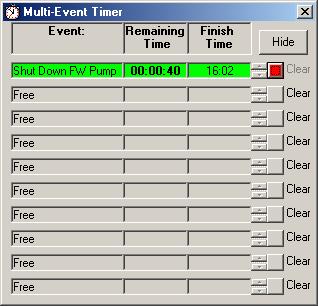
The "Hide" button can be clicked to Minimize the form at any time. It will Pop up again when a timer times out. |
|
|
|
|
|
|
|
When the timer is less than one minute,for an Event, the remaining time will start to flash as a pre warning. |
|
|
|
|
|
|
|
 |
|
|
|
|
|
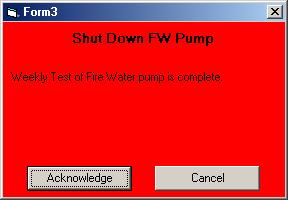
This window will pop up when a timer has timed out and an alarm sound will be heard if you computer has a sound card, speakers and the volume is turned up.
The alarm sound can be changed if you like, by replacing the Alarm.wav file in the same folder as this program. It must be named "Alarm.wav" and should not be more than about 15 seconds. |
|
|
|
|
|
|
|
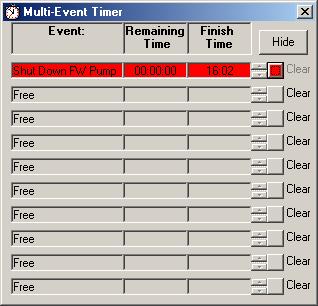
There are two buttons on the bottom of the alarm window. The "Acknowledge" button will silence the alarm and make the alarm window disappear, but will leave the information on the main screen and the line flashing Red.
The "Cancel" button will silence the alarm, make the alarm window disappear, and delete all information about this alarm.
The "Acknowledge" button should be used if the Event will need to be repeated. This will save having to type in the description again. |
|
|
|
|
|
 |
|
|
|
|
|
|
|
|
|
|
Continued on next page -> |
|