
This page will teach you how to get a picture from anywhere and put in CStrike as a very cool, color, spray. First I will tell you how to get the picture. Second I will tell you how to convert the picture using Adobe Photoshop, and last but not least how to convert it over to a spray in CStrike using Wally.
You will need to have Photoshop, and Wally for this tutorial. You can use other programs then Photoshop as long as it has the color index feature.
Wally is a program that converts .bmp files over to .wad files... I will show how to use it step by step to make a CStrike spray.
1. If the picture you want is not in .bmp format we will convert it later, or take a Screenshot with the "prt sc" button on your keyboard. Printing the Screen really comes in handy in you are in a game, or watching a video of what you want to convert into the spray. I will use a Screenshot of my South Park character created in Comedy Centrals, "Create your own South Park Character Game".
A. Open up Photoshop. Open the Image file, or create a new picture and paste the Screenshot. 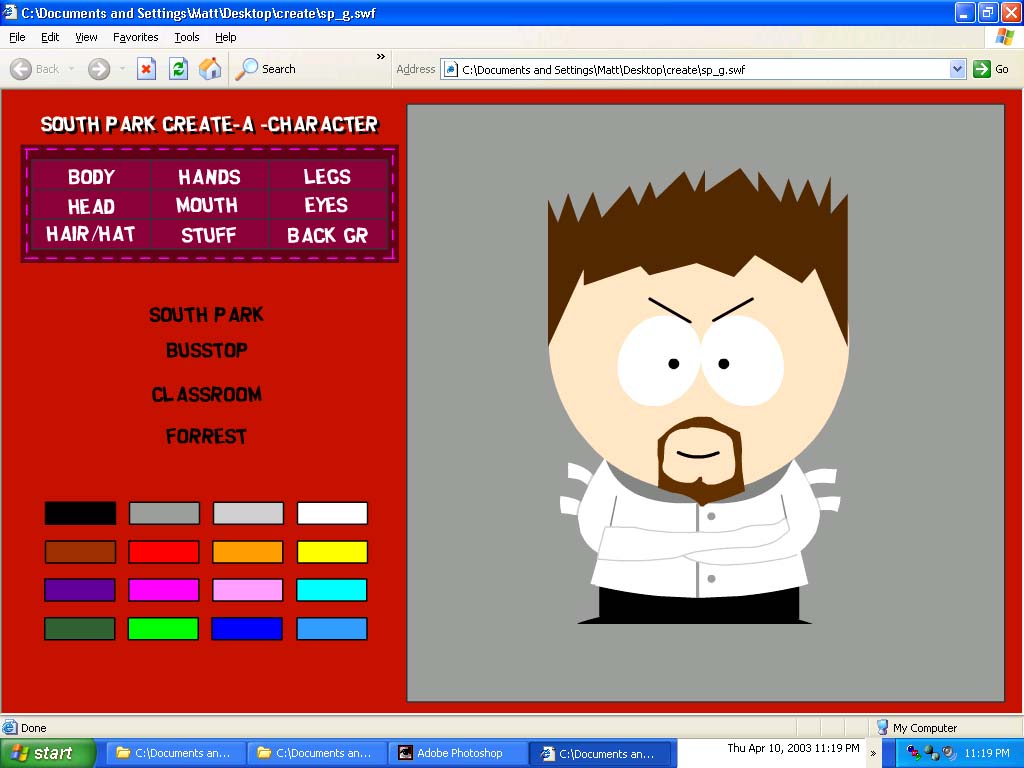
This is what mine looks like.
B. Crop the picture down as much as you can, til you only have what you want. 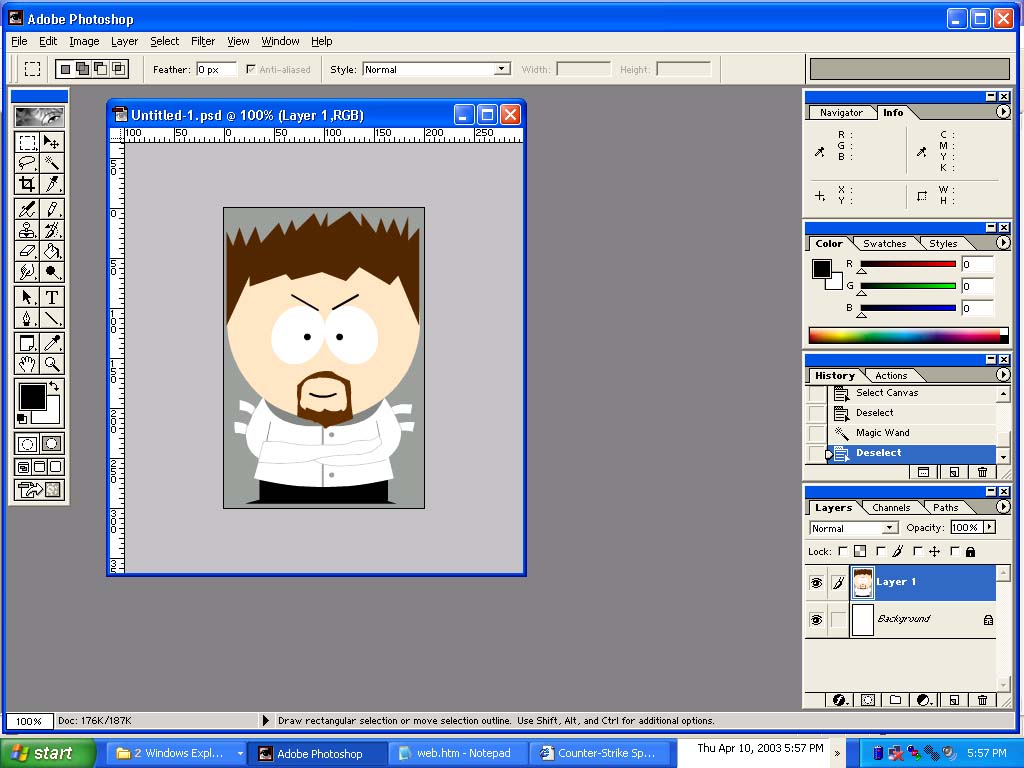
This is what I have.
2. Now we have to understand what Wally will work with to make everything more simple, earlier. These are the biggest sizes Wally will work with:
Sizes:[Width x Height]
256 x 32,
240 x 32,
224 x 48,
208 x 48,
192 x 48,
176 x 48,
160 x 64,
144 x 64,
128 x 80,
112 x 96,
96 x 112,
80 x 128,
64 x 144,
64 x 160,
48 x 176,
48 x 192,
48 x 208,
48 x 224,
32 x 240,
32 x 256.
Out of these sizes, 128 x 80, and 80 x 128 are most recommended by CStrike Spray Makers.
3. Open a new document the size that has close to the same shape as the picture you want. If your picture is round, go for the more square size. [96 x 112] is good for those.
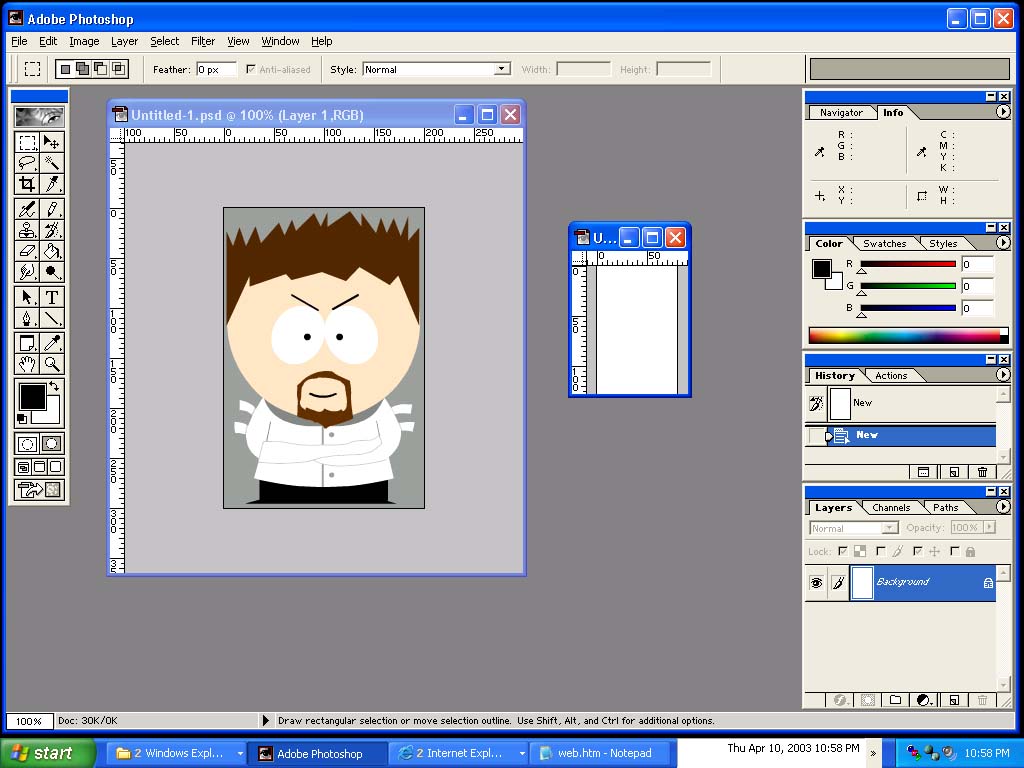
This is an example of what I have. I chose "80 x 128" because that is the closest to what I have.
4. Now you will want to resize your image. Goto Image-Image Size to get the Image Size window (figure 4a). After you find a size that is lower than both of the numbers you picked. I had to find numbers that were below "80 x 120". I found that my picture can be resized to "80 x 120" (figure 4a.). After resizing your image(figure 4b.), Select All and Copy the picture. Move to the new window and Paste (figure 4c.).
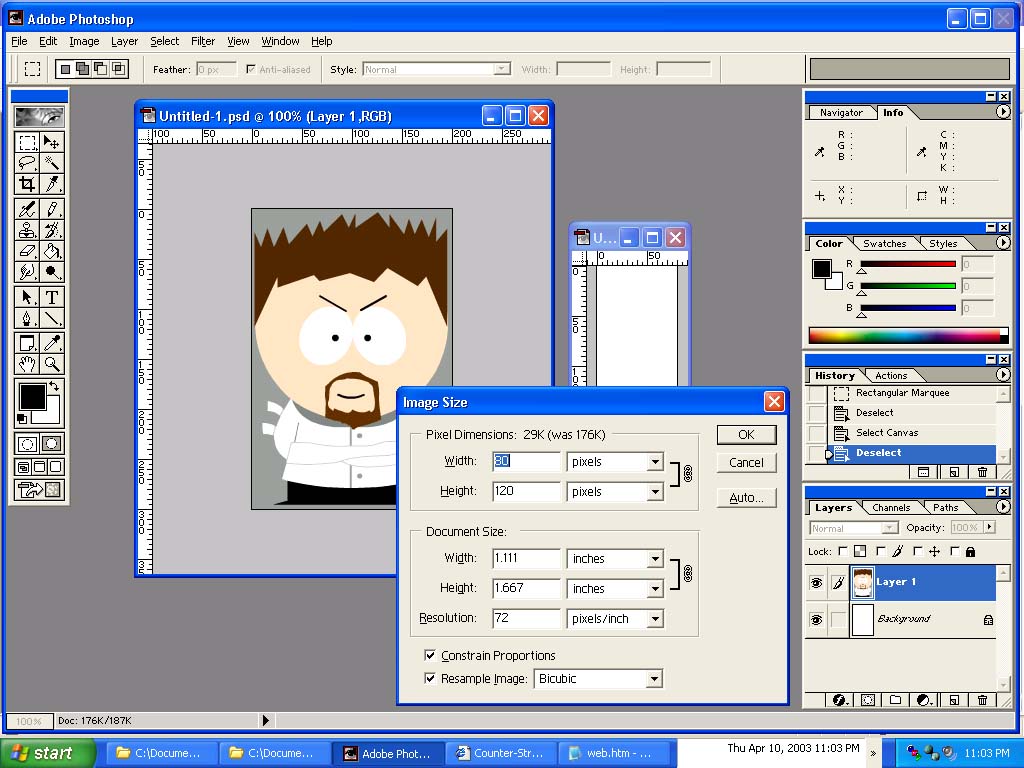
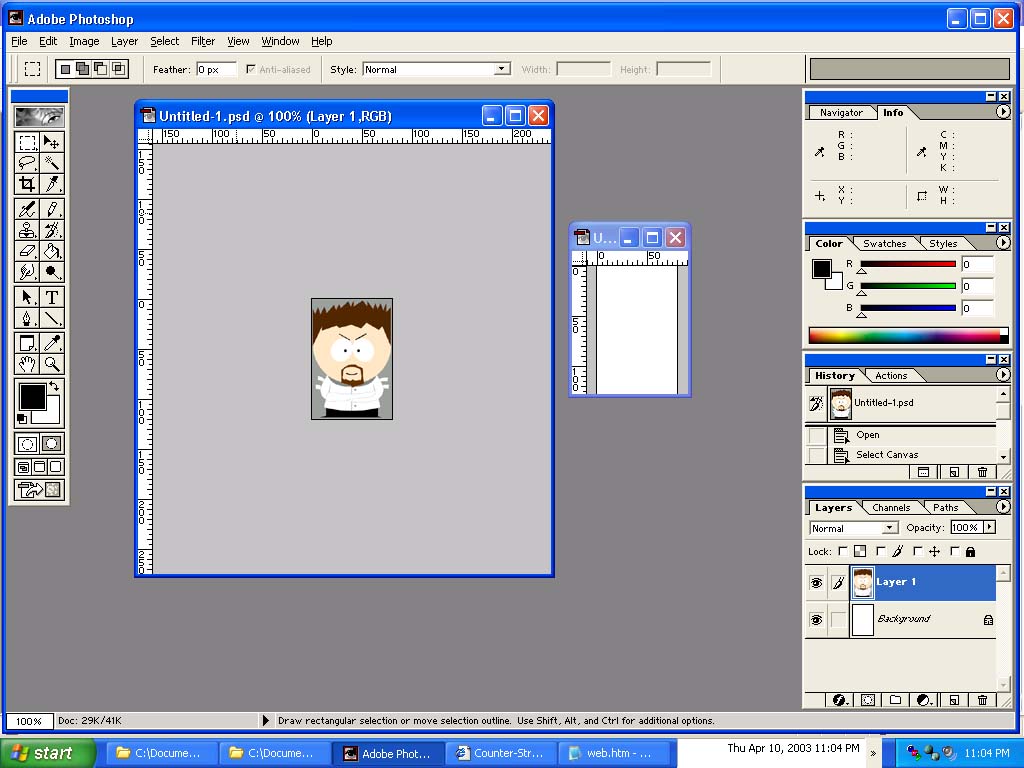
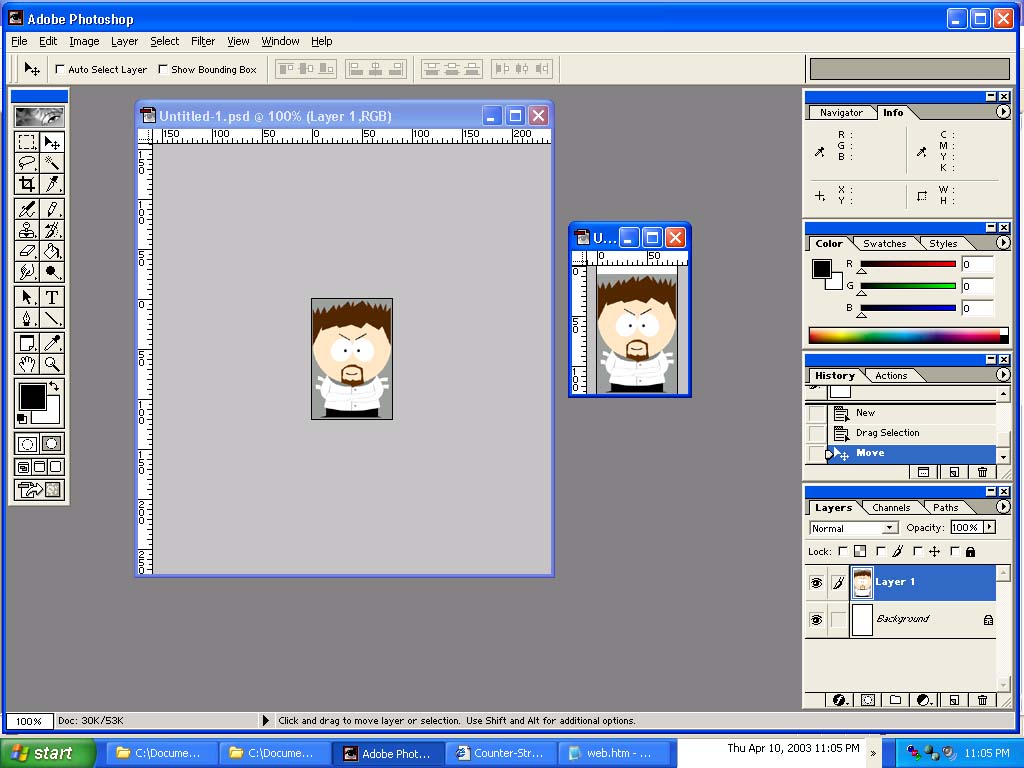
(Figure 4a.) (Figure 4b.) (Figure 4c.)
5. After Step Number Four, you can get rid of the original picture. You can save it, or just get rid of it, It's Your Decision.
A. Start by resizing the window.
B. Then Zoom in a little bit. (figure 5a.)
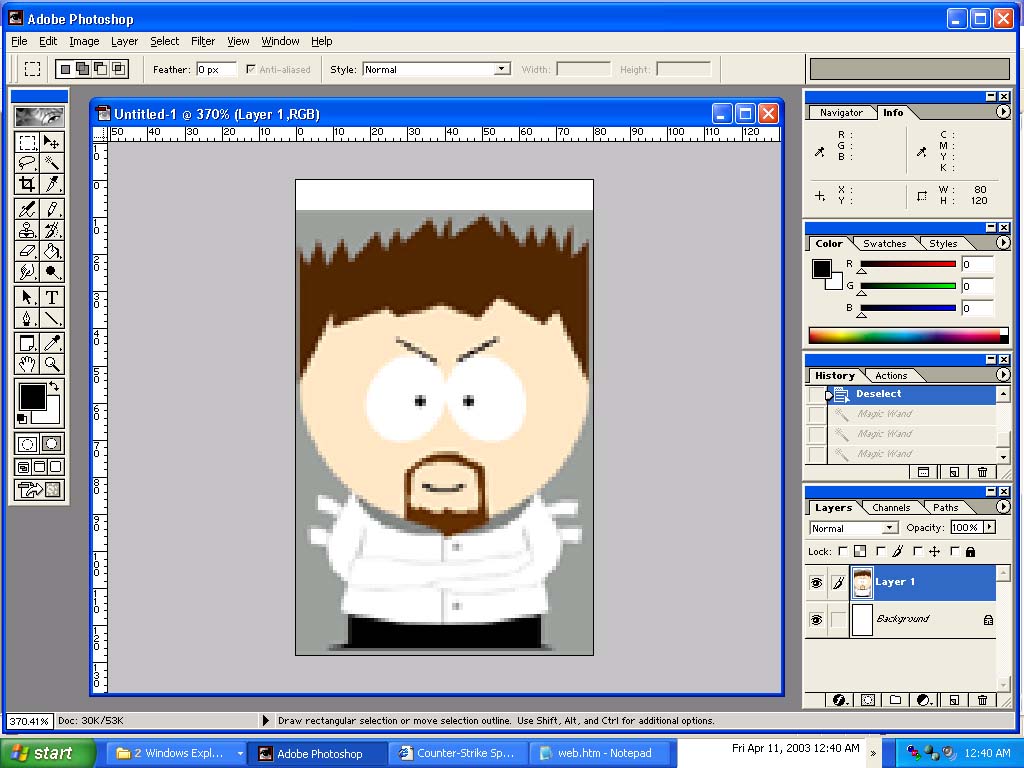
C. If you want Transparency in your spray. Select the area you want to make transparent. And Fill the area with "#0000ff" which is pure blue. (figure 5b.)
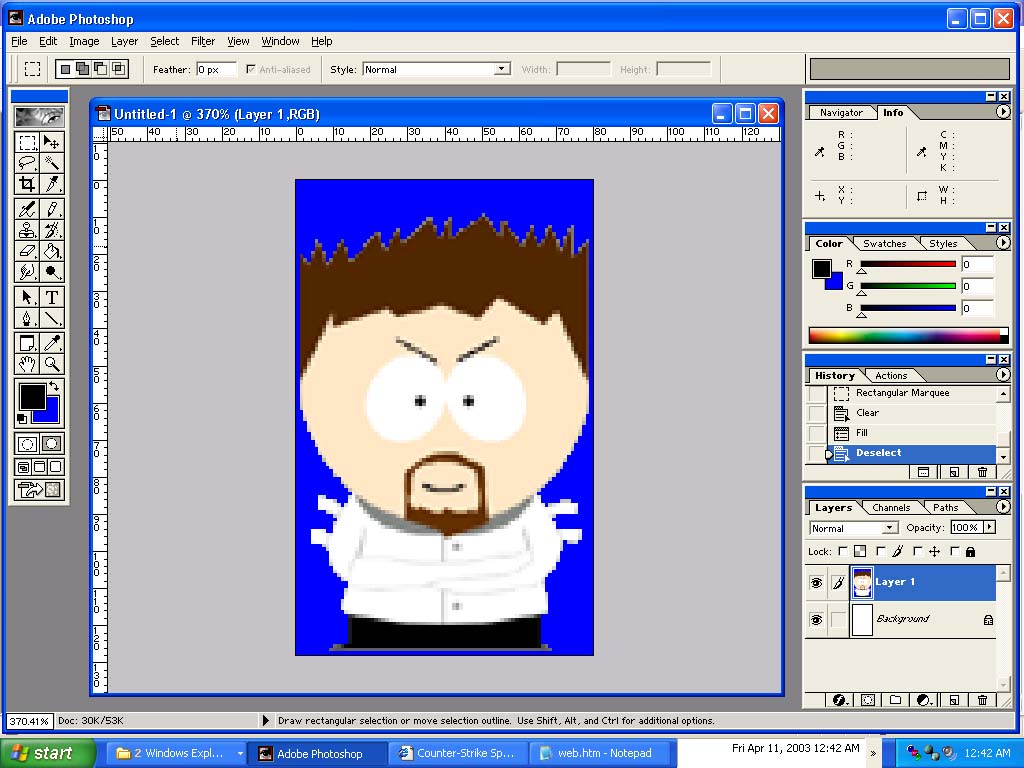
D. If you want you can add text to the spray too. (figure 5c.)
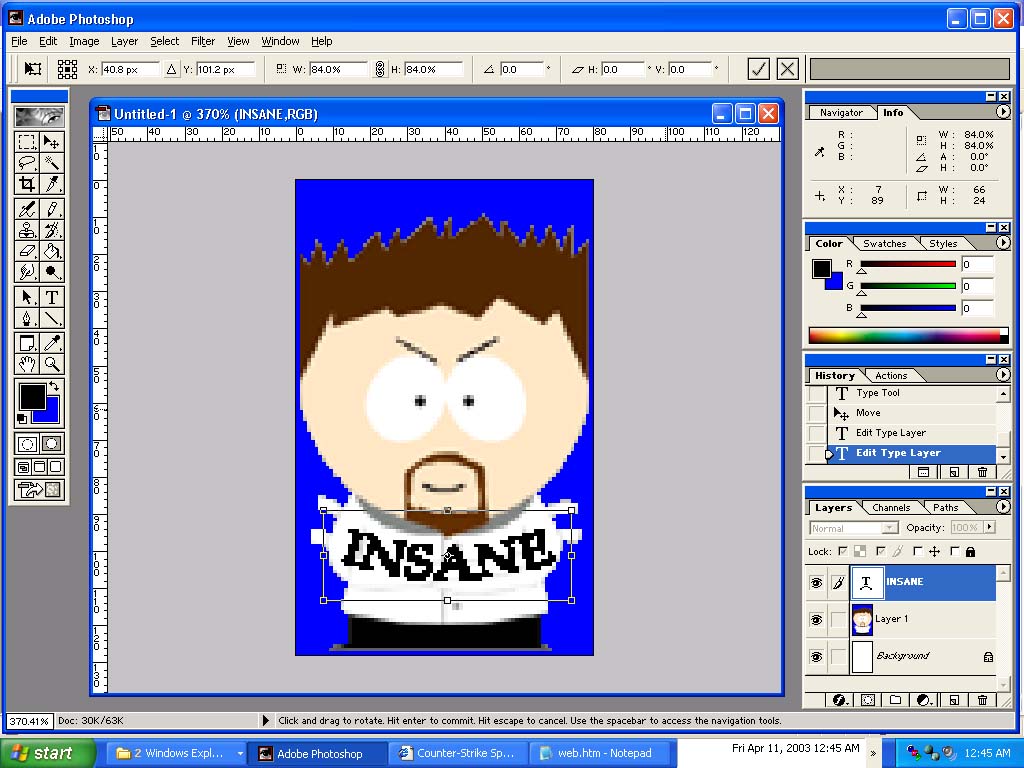
6. After you have your picture complete, Go to Image-Mode-Index Color... Click on Flatten Layers if you are sure you are done. Click OK on the Index Color window. (figure 6a.)
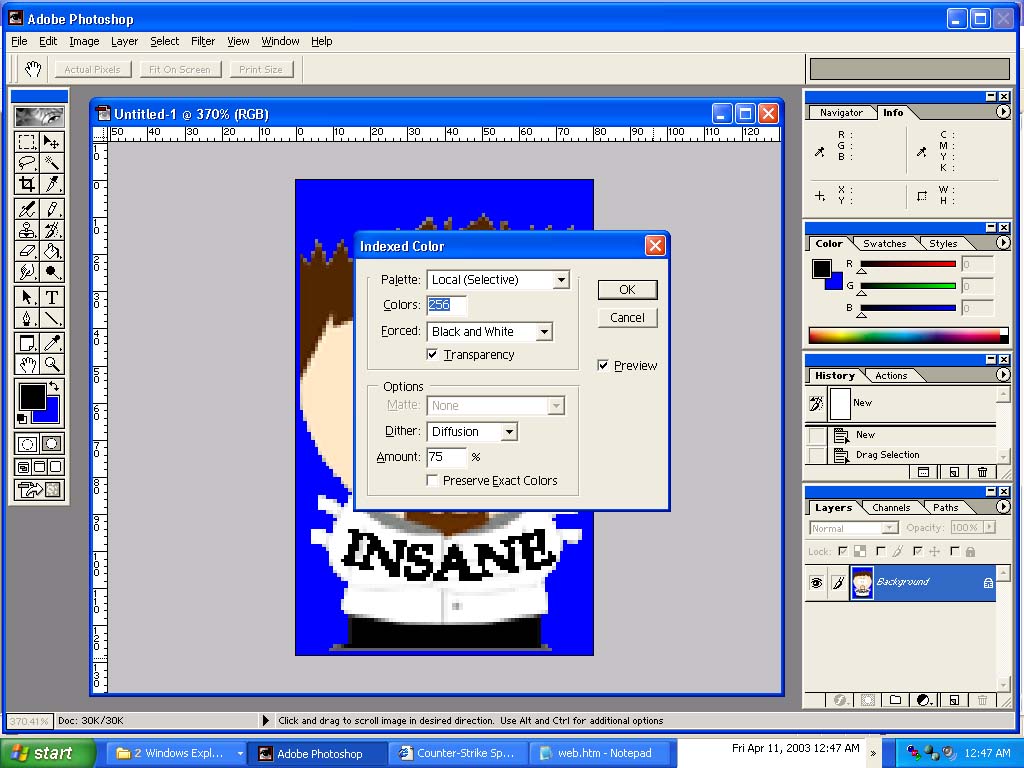
A. Now that the picure is in Index Color Mode, you need to make sure the pallette has pure blue in the bottom right corner. To check this Click on Image-Mode-Color Table... Once this is open Double Click on the Bottom right hand corner box. in the # field type "0000ff" without the quotes. and Click Ok (figure 6b.)
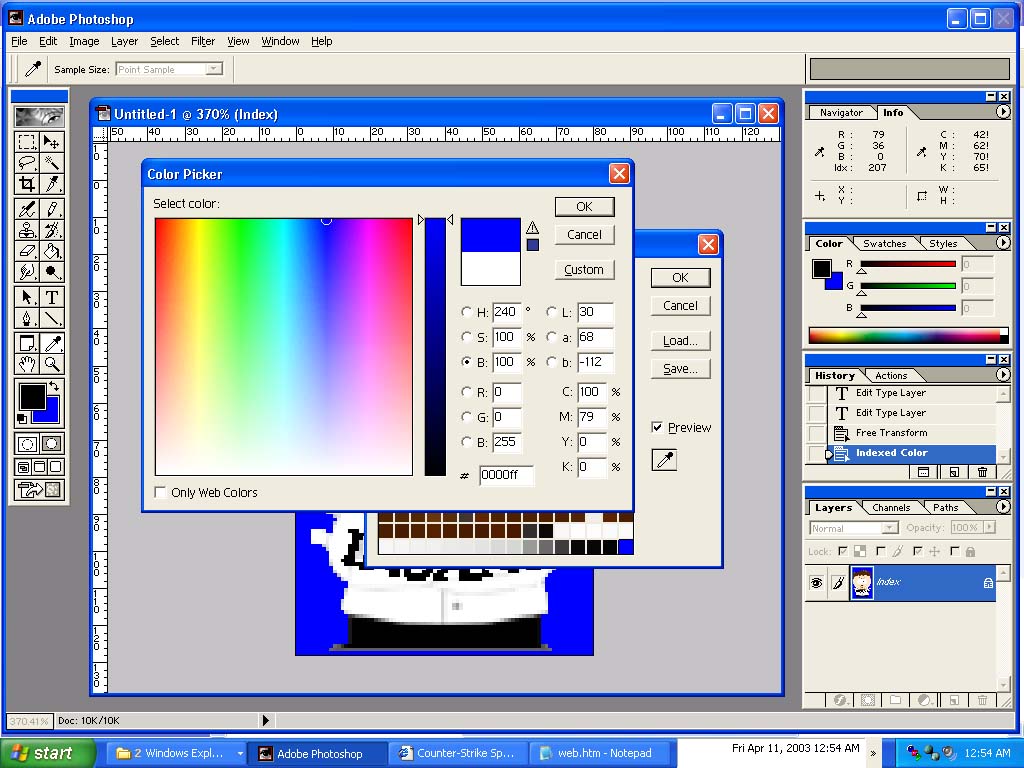
B. Find the other blue box and change the # field to "00ff00" which is a pure green color. The transparency part of the picture will turn green (figure 6c.).
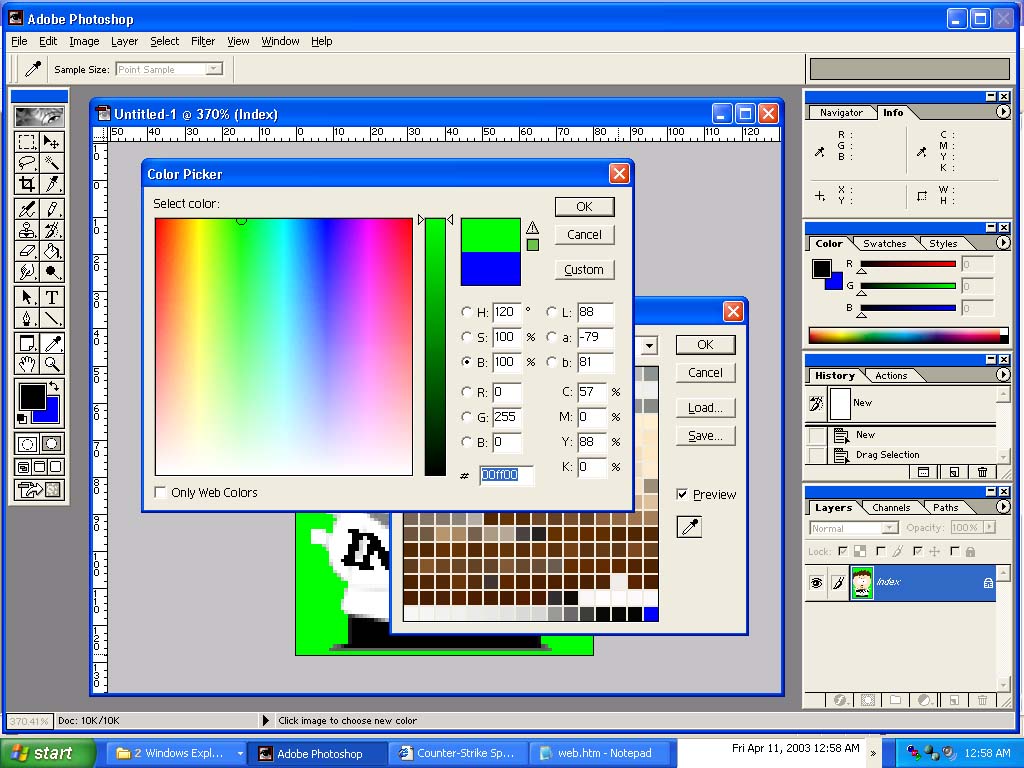
C. Click ok. Select all of the green area, and paint bucket it #0000ff, pure blue (figure 6d.).
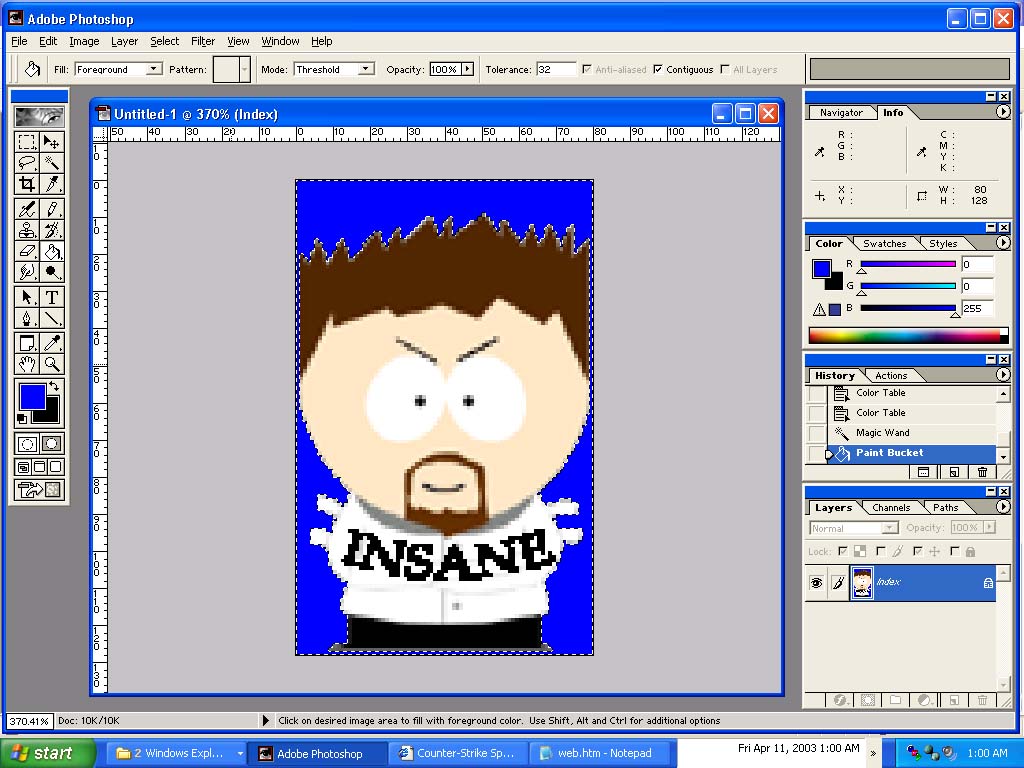
7. Now save it as a .bmp file.
8. Open Up Wally.
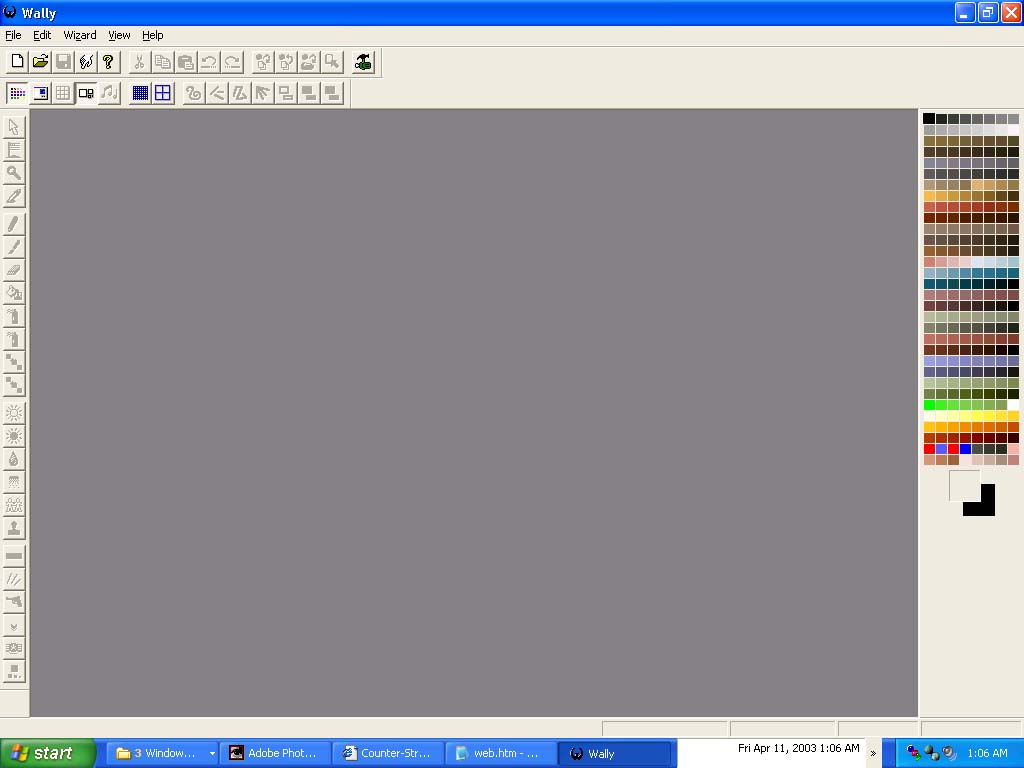
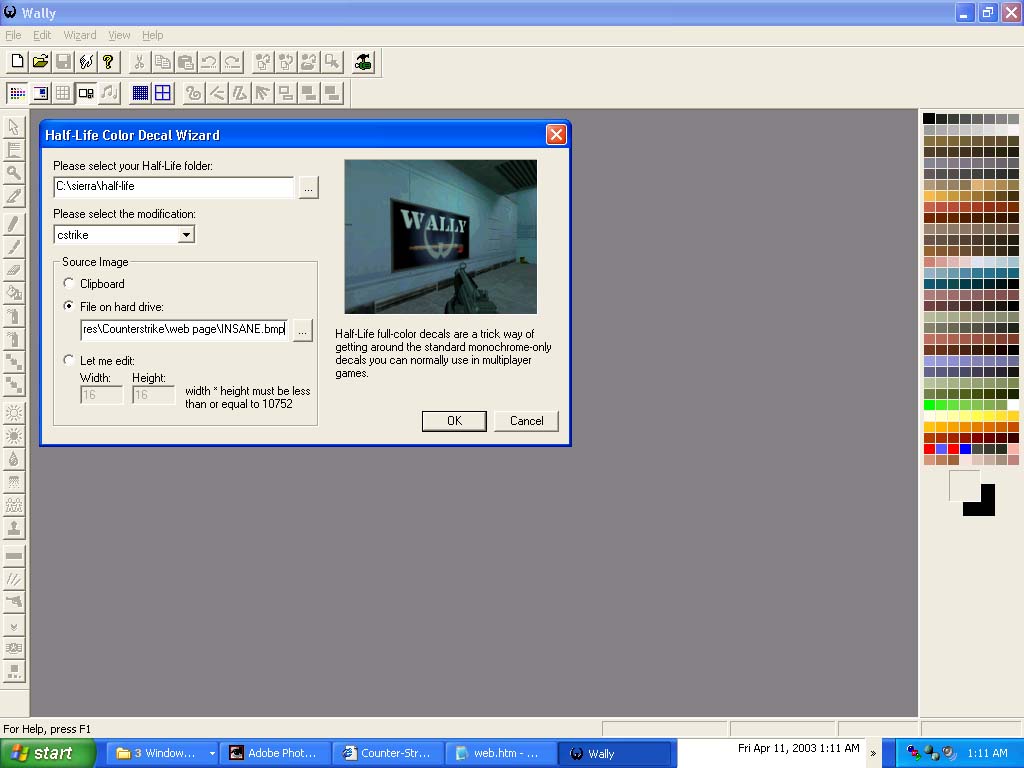
9. Select Wizard-HL Color Decal, Insert your Half-Life folder, Select cstrike, click on the Radio button that says File on hard drive. Click OK
10. Go to File-Save As. Select your CStrike Folder. Save as pldecal.wad.
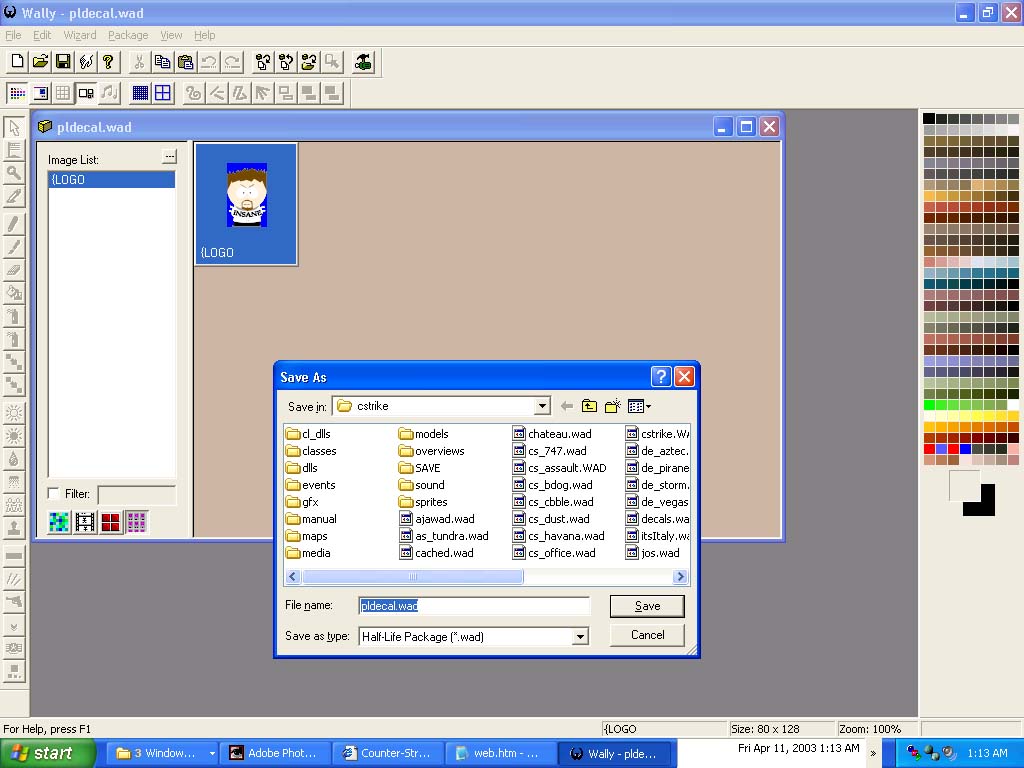

You have to make sure you do NOT go to the Customize Menu to change your name or anything after you do this. If you do, you will have to repeat steps 7-10 again.