| Steps |
Illustration |
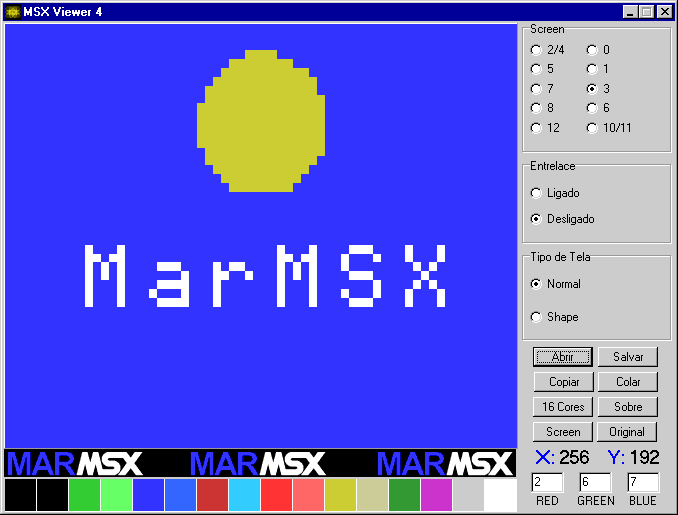
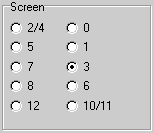
| Choose the corresponding screen, on
screen panel. Left click on your choice. Screen mode must agree real MSX
file format. |
 |
| Turn on or off interlace. Interlace
is a MSX 2 resource that mixes 2 screens to raise screen height dimension
from 212 to 424 pixels. Of course if you´ll open only one screen, turn
off interlce. |
 |
| Screen type. Normal means full
screen, shape means screen saved by MSX 2 basic copy command. |
 |
| Click on Open button. There's a
filter who shows only specific files, like .PIC, .GRP, etc. To list
everything, choose filter *.*. Chose the file to open. If yo acidentally
opened a wrong screen, back to step 1 and click Screen button
instead open. |
 |
| Screen will be shown at the window
biggest region. To copy to clipboard, click on copy. |
|
| Choose one image editor to work. I
reccomend Paintshop
Pro 4. |
|
| Passos |
Ilustrações |
| To convert one image to Screen 2 (which
is equal 4), you need to reduce color number to 16. In addiction, you must
translate to 16 MSX color system. |
|
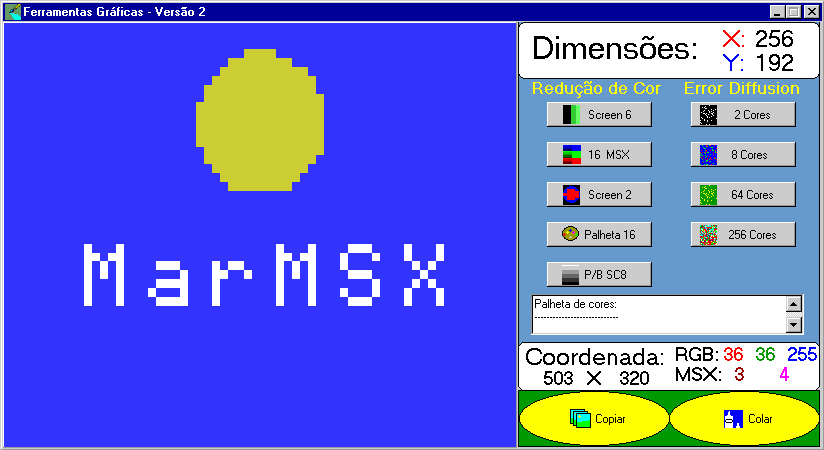
| Open Ferramentas Graficas. Right
click on image and choose it. |
|
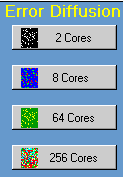
| This screen mode works with
8x1 blocks (see apendice). So, error diffusion reduction is NOT
recommended here. Any way, if you wish to go ahead, choose 8 colors button. |
 |
| Click on 16 MSX. This option works
with 24 bit color, making each color to be corresponded to MSX 1 color
system. If you bypass this step, probably all your image will become black.
If you work with given pallete (main window's 16 colors button), this is
not necessary. |
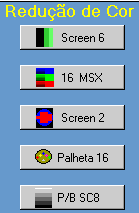 |
| To adjust resulting image to
fit 8x1 Screen 2 pattern, click on Screen 2 button. |
|
| Right click on image and choose
return option. |
|
| Save screen. |
|
| Steps |
Illustrations |
| To convert one image to Screen 3,
you need to reduce color number to 16. In addiction, you must translate to
16 MSX color system. |
|
| Open Ferramentas Graficas. Right
click on image and choose it. |
|
| This screen mode works with
4x4 blocks (see apendice). So, error diffusion reduction is NOT
recommended here. Any way, if you wish to go ahead, choose 8 colors button. |
|
| Click on 16 MSX. This option works
with 24 bit color, making each color to be corresponded to MSX 1 color
system. If you bypass this step, probably all your image will become black.
If you work with given pallete (main window's 16 colors button), this is
not necessary. |
|
| Remember 4x4 pattern. Read
apendice to see this detail. |
|
| Right click on image and choose
return option. |
|
| Save screen. |
|
| Steps |
Illustrations |
| To convert one image to Screen 5 or
7, you need to reduce color number to 16. In addiction, you must translate
to 16 MSX color system. |
|
| Open Ferramentas Graficas. Right
click on image and choose it. |
|
| If you are working with photos,
choose error diffusion reduce method. Click on 8 colors. If it's like
common drawing, choose 16 MSX right. |
|
| Click on 16 MSX. This option works
with 24 bit color, making each color to be corresponded to MSX 1 color
system. If you bypass this step, probably all your image will become black.
If you work with given pallete (main window's 16 colors button), this is
not necessary. |
|
| If you wish to work with pallete,
forget two steps before. Reduce colors to 16 on the editor you are working
(eg. Photoshop). Copy to clipboard and paste on Ferramentas Graficas.
Click on pallete 16. The picture turns to something strange. It's normal.
A MSX basic program appears in text box. Double click on it to save (you
can change program before save). This program cointains the MSX 2 pallete,
relationed to this image. |
|
| Right click on image and choose
return option. |
|
| Save screen. |
|
| Steps |
Illustrations |
| To convert one image to Screen 6,
you need to reduce color number to 4 |
|
| Open Ferramentas Graficas. Right
click on image and choose it. |
|
| If you are working with photos,
choose error diffusion reduce method. Click on 8 colors. If it's like
common drawing, choose Screen 6 right. |
|
| Click on Screen 6. This
option works with 24 bit color, making each color to be corresponded to
MSX 1 color system. If you bypass this step, probably all your image will
become black. If you work with given pallete (main window's 16 colors
button), this is not necessary. Screen 6 mode works with MSX basic color
0,1,2 and 3. |
|
| Right click on image and choose
return option. |
|
| Save screen. |
|