How To Edit DD & MM Animals in Winhex
Okay...this is pretty simple once you know what to do...it just takes a lot
of time. When you create a dino or MM animal, in the animal folder you should
have an extra folder which contains the .pal file of your animal. What you are
basically doing in Winhex is telling the game to read this .pal file instead
of the one from the base animal you use.
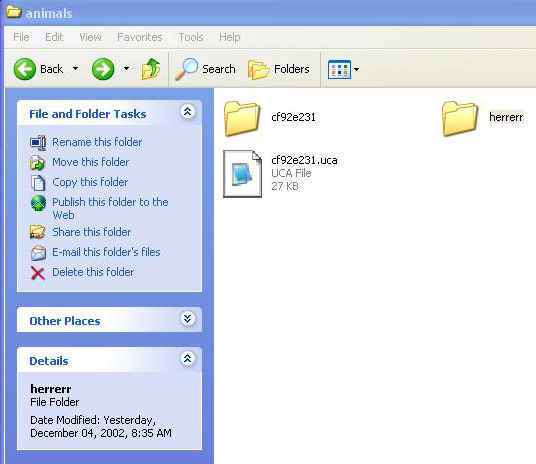
When you unzip the .ztd of the animal you are creating, there should be 3 things
in the animal folder , the folder that is named whatever the id# of your animal
is, the .uca file and the folder that contains the .pal file of your animal
. In this case, the folder containing the .pal file is called herrer
To open the animal in winhex, you need to first extract it, I usually extract to my desktop because then I don't have to go looking for the folder, but extract it anywhere you like...but you should now have a folder containing your animal ( in this case the folder is called pinkosaurus).
Next, start winhex and you will see the following screen
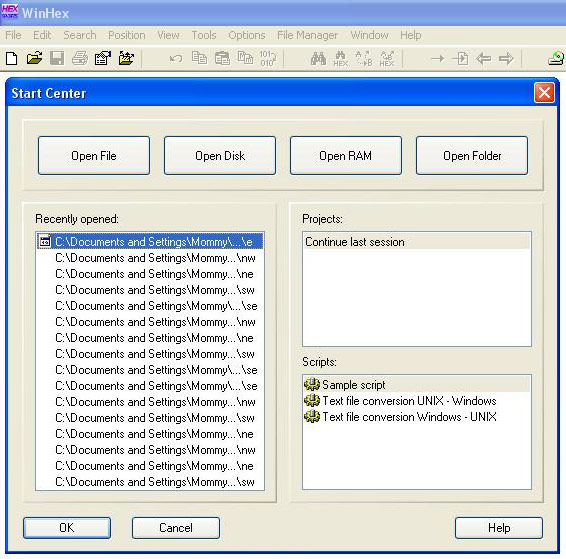
click where it says open file, and the next screen will open
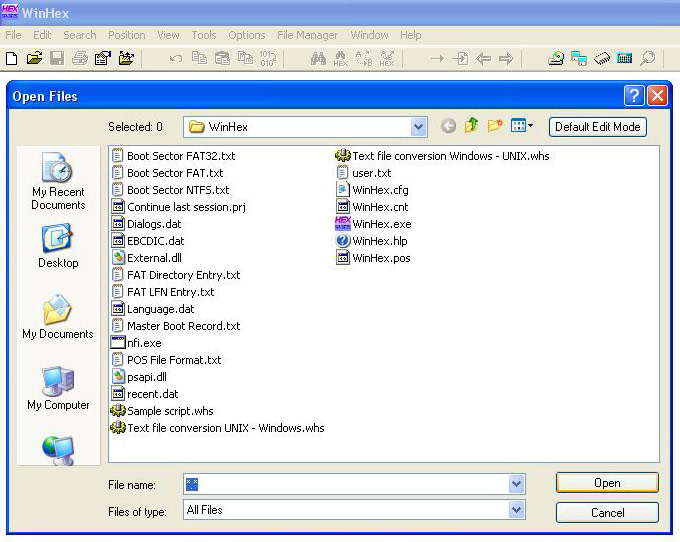
click on the drop-down menu where it says winhex and browse to the folder containing your extracted animal
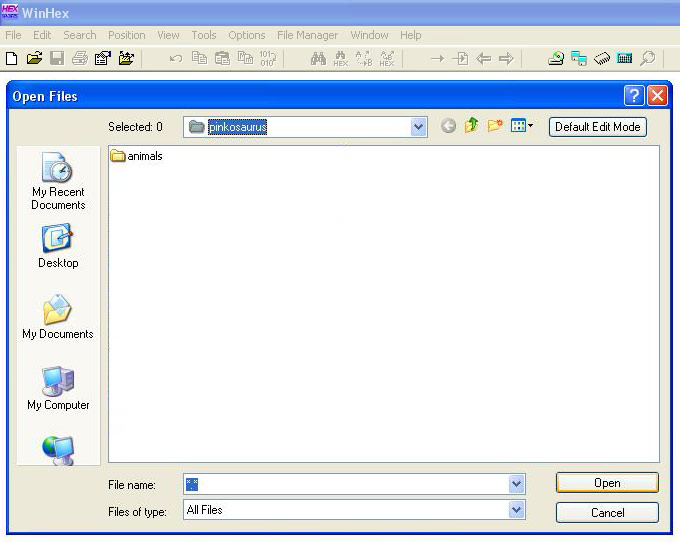
next, click on the animals folder that you see in the window
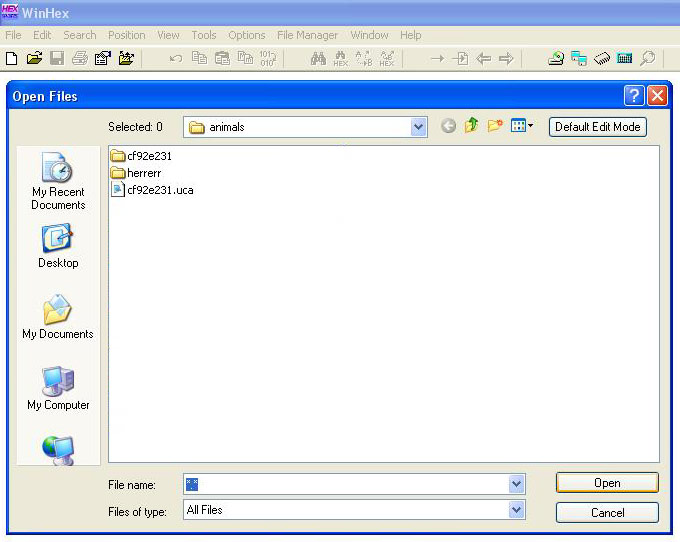
The three subfolders/files will now appear in the window. Click on the folder that is named with the ID# of your animal. In this case cf92e231.
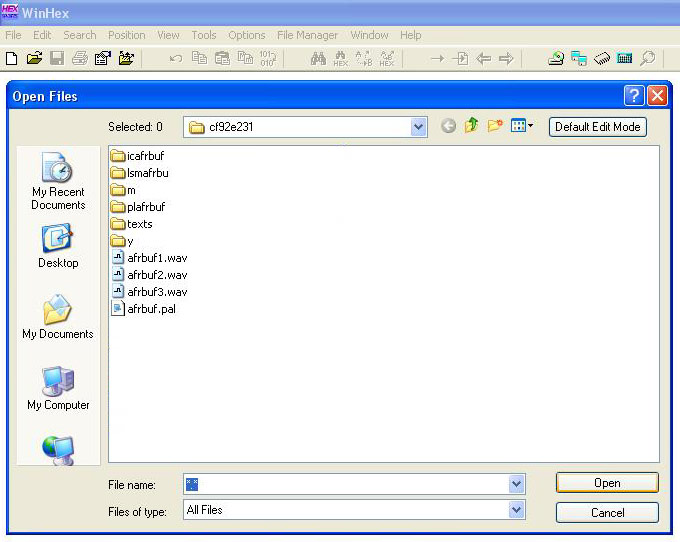
then click on the folder named "m". This folder contains sub-folders for the males animations. Each folder is a separate animation, and must be updated to point it to the correct .pal file.
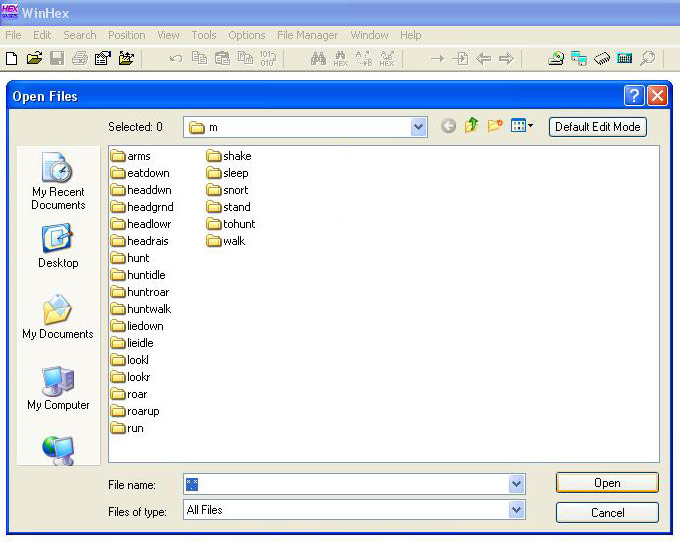
click on the first folder in the list, in this case "arms" and it will bring up the next window
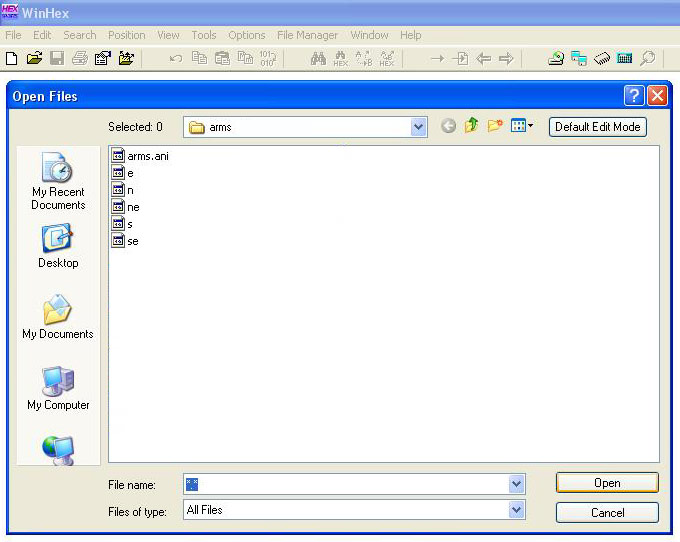
then click on a direction (e, n, ne, s,se) and the next window will look like this:

You need to change the path that appears (which will be different depending on what base animal you use in APE) to point to the folder and file containing the .pal file. In this case the folder is called herrer and the .pal is herrer.pal. To change the info in winhex, simple type over the info that is there with the new info. When you close the window you will get a box asking if you want to save the changes, click yes. If you make a mistake while editing the info, you can close the window, choose no when it asks if you want to save it and start again.
Now here is the time consuming part. You must do this for each direction of each animation, for male (m folder), female(if female has different animation set) and young ( y folder). In this example there is only a male (m folder) and young (y folder) , but there are 5 directions (e,n,ne,s,se) for each animation and 23 total animations just for the male, for a total of 115 edits for the male animations.
Once you finish all the editing, rezip the folder and change back to a .ztd
Information provided by Devona
Tutorial written by mak1027