|

*~* Magic Night *~*
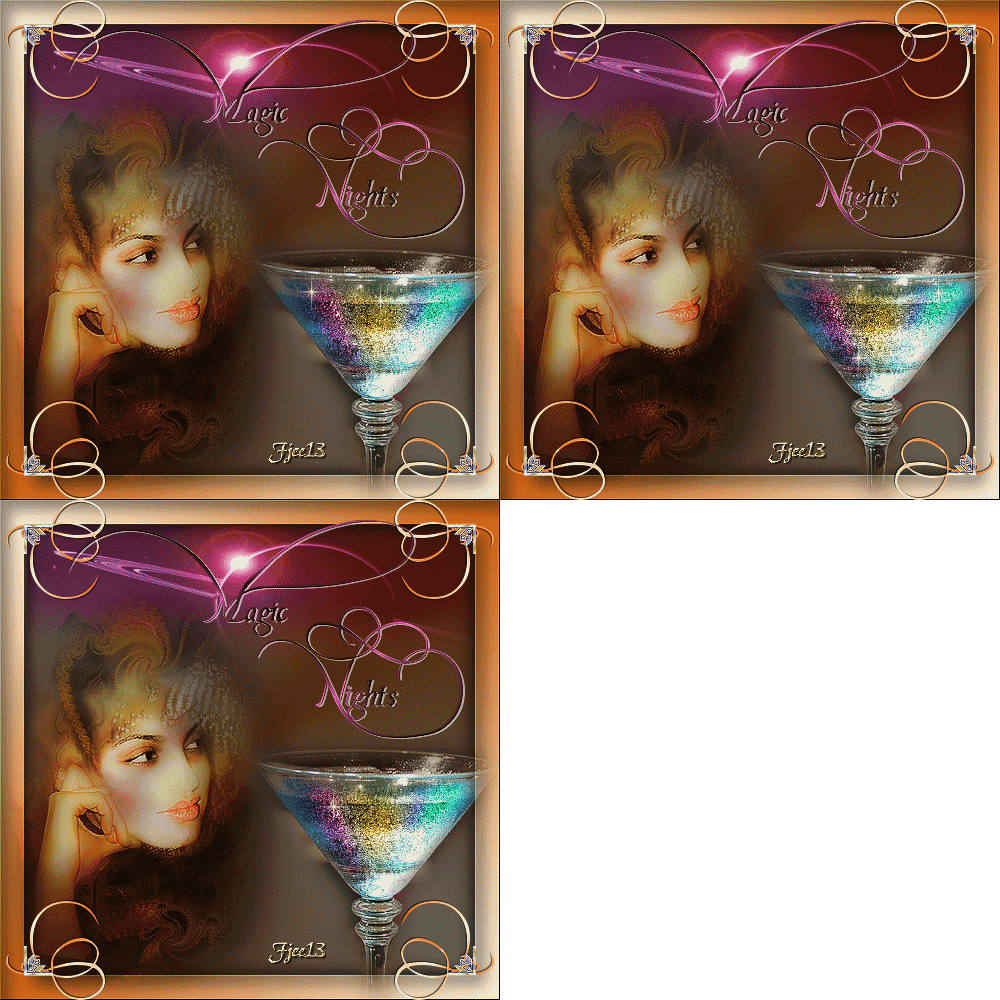
This tutorial was written for PSP 8
but can also be done in PSP 9--10.
The border will differ a bit.
MATERIALS NEEDED:
3 tubes
1 corner
1 font.
Download the supplies here
METHOD:
It is a very long tutorial.
Get something to drink and nibble on :))
Open a new transparent canvas, size 500 x 500 pixels.
Fill with black.
Add a new raster layer.
Make a gradient with the following colors:
#D36717 and #F8E8CF Radial 45-3.
Fill the layer with it.
Select All.
Contract by 25.
Take note: copy while the selection is still running.
Add a new layer.
Paste into selection.
You have three layers now.
Go to the second layer and press the delete key.
Don't worry, it will work out in the end.
Invert the selection.
We're going to add a border around it and buttonize it with a standard preset.
Add a new raster layer.
It should be raster 4 and must be below raster 3.
Keep selected.
Go to Effects --> 3D Effects --> Cut Out: in PSP 8: black
and with a dark color in PSP 9 or 10.
Settings: Horizontal and Vertical - 10--41-20, black.
Sharpen 1x.
Merge layer 4 and 2.
Sharpen 1x.
Deselect.
Activate layer 3.
Adjust --> Blur --> Gaussian Blur 10
Reduce the layer opacity to 40% in the Layers palette.
Merge all layers.
Add a new raster layer.
Draw a selection from the top left black - to the top right black corners.
View the example to see how it must look like.
Copy the sunburst tube.
Paste into selection
Leave it as it is.
Change the blend mode to HARD LIGHT!
Copy and paste the 'magic lady'- tube onto the canvas.
Drag her to the bottom left corner.
Apply a drop shadow: 6-6-60-55.
Change the blend mode of this layer to Hard Light as well.
Reduce the opacity to 80%.
Erase the part of the tube that covers the orange edge.
Copy and paste the 'magic glass'- tube.
Position it in the bottom right corner.
We're going to add a few magic colors to the glass :-))
Activate the Lasso tool ( Freehand Selection Tool), with feather on 15.
Select a small area in the glass.
Copy!
Add a new layer.
Copy and paste into the selection!
Add a color - something like orange.
Select another area of the glass and repeat the selection and coloring.
Add a few colors to the glass.
You can even animate it.
Merge all layers.
Find the ' Plathand Demo'- font, size 45.
Change the background color to gradient.
Add a new layer.
Type the letter 'F' in upper case.
Now you have a nice curl.
Apply a drop shadow: 1-1-6-1.
Sharpen 1x.
Drag it to the top left corner.
Duplicate the layer. Mirror.
Merge these two layers.
Duplicate the merge layer.
Flip it
(Image --> Flip).
Merge all layers.
Copy and paste the 'corner' - tube onto the canvas.
Position it in the top left corner.
Repeat the same steps as with the curl in all 4 corners.
Merge these layers.
Make a gradient with the colors black and #C85A9E.
The settings should be the same as the previous gradient
in the beginning of the tutorial.
Set the gradient as the background color.
Now type the word 'Magic' .
Apply a drop shadow: 1-2-60-1 colr = white !
Add a new layer.
Repeat the same steps with the word "Nights".
Add your name.
Your tag is finished ! :-)
You can add an animation of your choice.
Have fun!!
Back to Index
Click on the banner
to go to Yvonne's Dutch Tutorials
Yvonne Email
***
Updated 13th May 2007
�Magstags2005 - 2007
Home | Filter
links |
Email
|