|
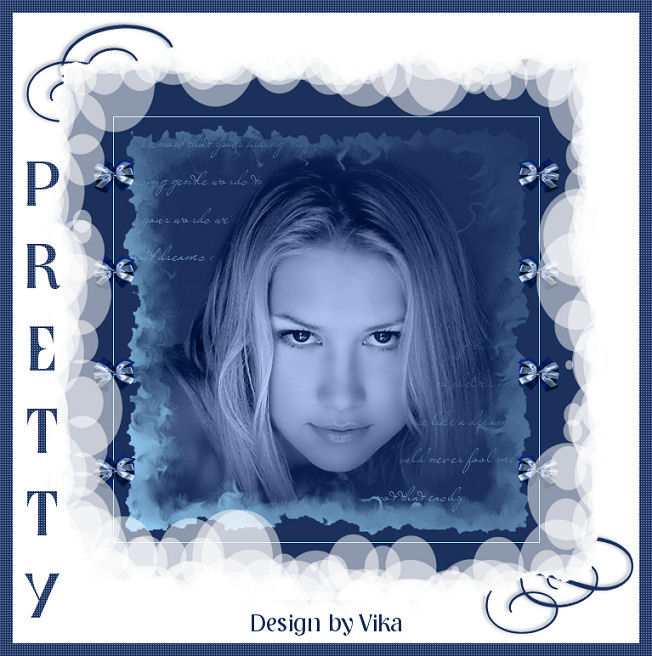
~*~ Pretty ~*~
Vika's original Dutch tutorials
can be viewed
here
Terms
of
Use
None
of the
images
used
in
these
tutorials,
which is offered for download in the zip files,
nor the tutorial results may
be
used
for
any
commercial
purposes
in
any form whatsoever
!!
The
copyright
remains
with
the
original
artists
and
are
protected
by
international
copyright
laws.
Artwork used in the tutorials is used for
educational purposes only.
Copyright of the tag design remains solely with
the tutorial writer.
You cannot claim the tag design or tag results as
your own or sell it as your own.
You cannot sell the images used in the tutorials
as part of a web design or web sets or anything
else.
NOTHING CAN BE SOLD!!
Kindly report any illegal sale of the tutorial
results or material to
Maggie
Magstags
Download the supplies
here
***
FILTERS NEEDED:
Penta.com - Color dot
***
Change the foreground color to #9ad6fa,
background color to #1b305b.
1. Open a new transparent canvas, size 500-500.
Fill with the background color.
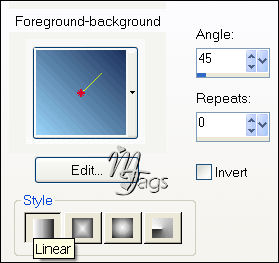
2.Change the foreground color to gradient
with these settings:
3. Add a new raster layer
4. Activate the Brush Tool and find the
'Crazy-SongLyrics 003'- brush.
Left-click on the canvas to apply
as seen below:
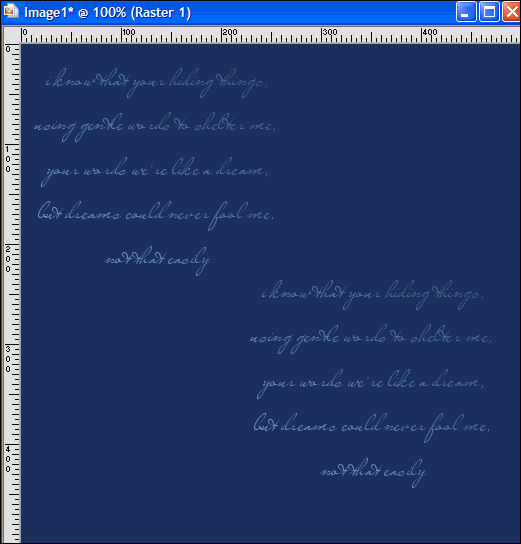
Change the layer opacity to 53% in the Layers
palette.
5.Open tube mc 1148
Image - Resize to 90%.
Edit - Copy
Edit - Paste as a new layer onto the canvas
Move it to the center.
Change the Blend mode of this layer to
'Luminance(Legacy)'
in the Layers palette.
Change the layer opacity in the Layers palette to
79%.
Adjust - Sharpness - Sharpen.
Activate the Brush-layer in the Layers palette.
Use the Eraser Tool to erase the text flowing over
the face.
6. Layers - Merge - Merge Visible.
7. Add a new raster layer.
Fill with the gradient.
8. Layers - Load/Save Mask - Load Mask From Disk:
find 'dsmk 0327' and apply.
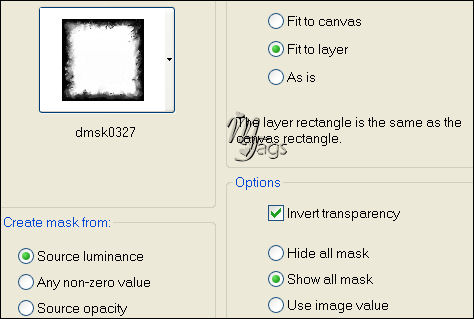
Merge the group layer in the Layers palette.
9. Layers - Merge - Merge Visible
10. Layers - Load/Save Mask - Load Mask From Disk:
find 'mask 0124' and apply.
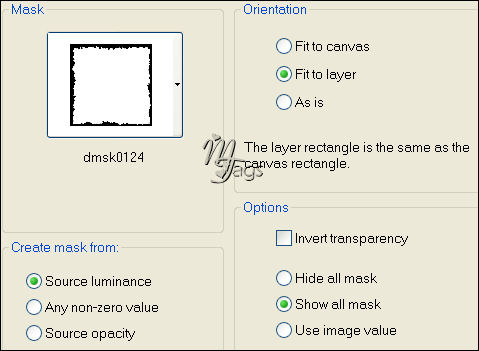
Merge the group layer in the Layers palette.
11. Add a new raster layer.
Fill with the background color.
12.Layers - Arrange - Move Down.
13.Layers - Merge - Merge All
14. Image - Add Borders:
1 pixel foreground color
85 pixel background color
15.Open tube band strikjes
Edit - Copy
Edit - Paste as New Layer onto the canvas.
Arrange the bows on the left edge.
Duplicate layer
Image - Mirror
16. Layers - Merge - Merge All
17.Image - Picture Frame - find the Edge Circles
01 (in PSP X)
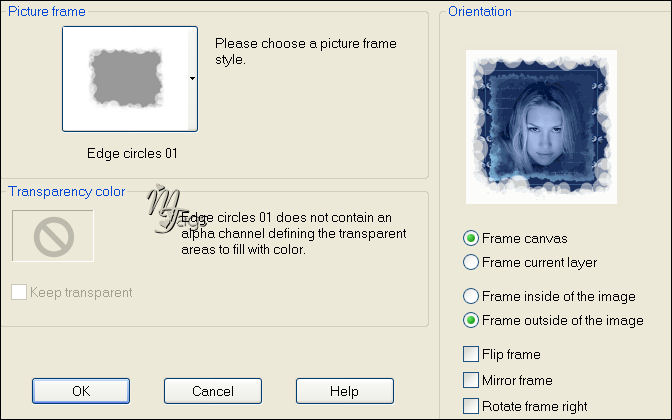
18. Image - Add Borders:
30 pixels white.
Select the border with the Magic Wand.
19. Activate the Brush Tool and find
'hbg 2003 swirls 002'- brush.
Apply in the background color
in the bottom right corner of the canvas.
20. Selections - Select None
21.Image - Add Borders:
15 pixel background color.
Select the border with the Magic Wand.
Effects - Filter Effects - Penta.com - color dot:
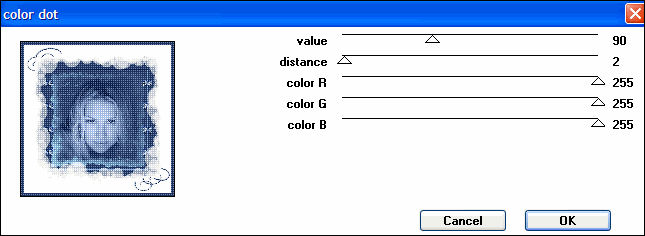
Selections - Select None
22. Lock the foreground color.
Open the 'Nashville'- font, size 72.
Type 'Pretty' vertically down the
the left side of the canvas.
23. Convert vector layer to raster layer
in the Layers palette.
24. Repeat the same Penta- color dot effects as
before.
25. Image - Resize to 85%
Adjust - Sharpness - Sharpen
26. Add your name and you are finished! :)
********************
Vika
Maart 2007

Email
Maggie
at Magstags
Email
Vika
Translated 30th May 2007

Website design and management by
©Magstags
Home |
Filter links |
PSP Goodies |