|
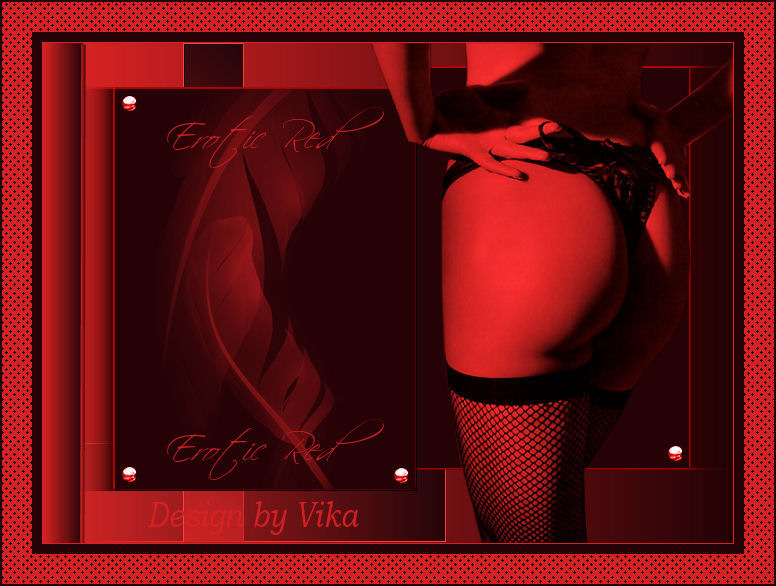
~*~ Erotic Red ~*~
Vika's original Dutch tutorials
can be viewed
here
Terms
of
Use
None
of the
images
used
in
these
tutorials,
which is offered for download in the zip files,
nor the tutorial results may
be
used
for
any
commercial
purposes
in
any form whatsoever
!!
The
copyright
remains
with
the
original
artists
and
are
protected
by
international
copyright
laws.
Artwork used in the tutorials is used for
educational purposes only.
Copyright of the tag design remains solely with
the tutorial writer.
You cannot claim the tag design or tag results as
your own or sell it as your own.
You cannot sell the images used in the tutorials
as part of a web design or web sets or anything
else.
NOTHING CAN BE SOLD!!
Kindly report any illegal sale of the tutorial
results or material to
Maggie
Magstags
Download the supplies
here
***
FILTERS NEEDED:
FM Tile Tools - Blend Emboss
Mura's Meisters - Tone
***
Change the foreground color to #d62223,
background color to #240206.
1.Open a new transparent canvas, size 650-500
2. Change the foreground color to gradient
with these settings:
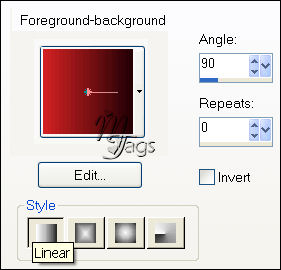
Fill with the gradient.
3. Add a new raster layer.
Layers - Load/Save Selection - Load Selection From Disk:
find 'red erotic-vika1' and apply.
Fill the selection with the foreground color.
Selections - Modify - Contract by 1
Fill with the same gradient as before.
Selections - Select None
Effects - Filter Effects - FM Tile Tools - Blend
Emboss
4. Add a new raster layer.
Layers - Load/Save Selection - Load Selection From Disk:
find 'red erotic2' and apply.
Fill the selection with the foreground color.
Selections - Modify - Contract by 1
Fill with the gradient, but change the gradient
angle to 45.
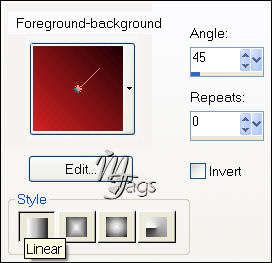
Selections - Select None
Effects - Filter Effects - Fm Tile Tools - Blend
Emboss standard.
Layers - Merge - Merge All
Minimize this image for now.
5.Open a new transparent canvas, size 300-400.
Fill with the background color.
6. Activate the Brush Tool
and find the 'Kitty 387'- brush.
Apply in the foreground color onto the canvas.
Image - Add Borders:
2 pixels - foreground color.
Select with the Magic Wand.
Effects - 3D Effects - Inner Bevel:
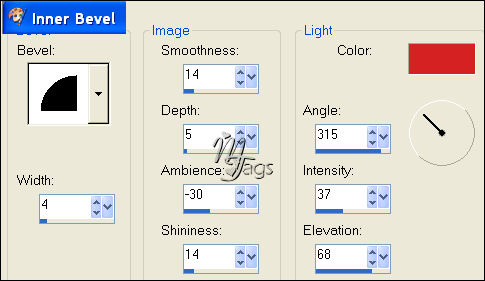
Selections - Select None
Minimize this image as well for now.
8. Open a new transparent canvas, size 300-400
Fill with the background color.
Image - Add Border: 2 pixels - foreground color.
Select the border and repeat the inner bevel
effects.
Selections - Select None
Minimize this image as well.
9.Open the background image (image1)
10. Open the brush-image (image2)
Edit - Copy
Edit - Paste as a new layer onto the background
image.
Move it into position:
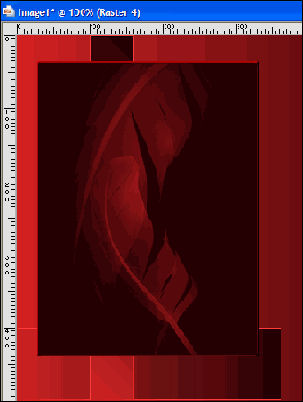
Duplicate the plume layer in the Layers palette.
Effects - Distortion Effects - Wind:
80 from the Right.
Layers - Arrange - Move Down.
Lock the background layer
and merge the other layers visible.
Unlock the background layer.
11.Open the minimized image3.
Edit - Copy
Edit - Paste as a new layer onto the canvas
Move it into postion.

Duplicate this layer in the Layers palette.
Effects - Distortion Effects - Wind:
50 from left.
Layers - Arrange - Move Down.
Layers - Merge - Merge All
12.Open de tube Erotic-Red
Adjust - Brightness and Contrast -
Highlight/Midtone/Shadow:
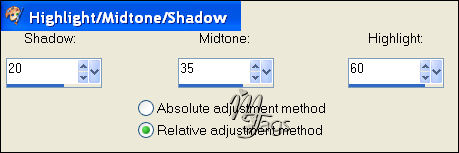
Resize to 90%
Edit - Copy
Edit - Paste as a new layer onto the canvas.
Move it into position as seen in the
example tag.
Adjust - Sharpness - Sharpen.
Layers - Merge - Merge All
13.Open tube mr 25 pearl
Adjust - Hue and Saturation - Colorize (or Shift
+L):
Hue - 255
Saturation - 212
Edit - Copy
Edit - Paste as a new layer onto the canvas
Move the pearl into position.
Adjust - Sharpness - Sharpen
Repeat the pasting of the pearls and arrange
it where you prefer it.
14. Layers - Merge - Merge All
15. Image - Add Borders: 'Symmetric'= NOT CHECKED!
Left - 40 pixels
Right, Top and Bottom - 0
background color.
Select with the Magic Wand and fill with the
gradient:
Selections - Select None
16.Activate the Pen tool - width 4.
Draw a line next to the bar
(the foreground color should still be on the
gradient).
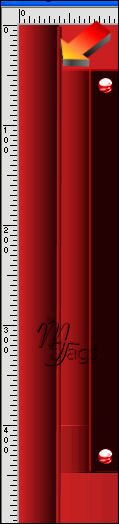
17. Activate the Brush Tool
and find rhe 'Erotic-Red Vika'- brush.
Apply the brush in the foreground color.
Layers - Merge - Merge All
18. Image - Add borders:( Symmetric = checked)
1 pix foreground color
10 pixels background color
30 pixel foreground color.
Select the border with the Magic Wand.
Effects - Filter Effects - Mura's Meister - Tone:
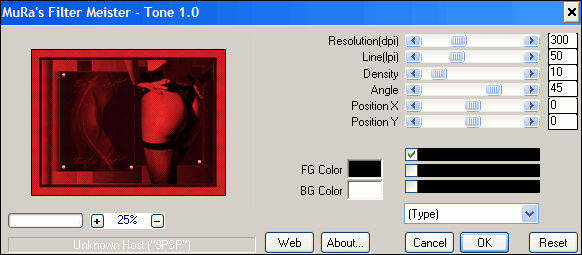
Selections - Select None
Image - Add border: 2 pix background color
********************
Vika
Januari 2007

Email
Maggie
at Magstags
Email
Vika
Translated 30th May 2007

Website design and management by
©Magstags
Home |
Filter links |
PSP Goodies |