|
Orchid
20
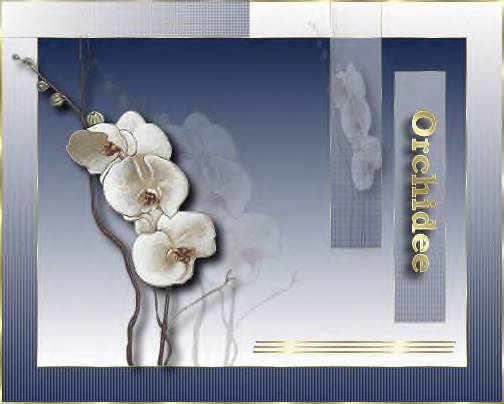
Click on the image to view the working
script.
Jeannette's original Dutch tutorial can
be viewed
here.
***
Materials
needed:
Filters:
Eye Candy 3
Supplies:
download
here
Tube is from
Topdesign
***
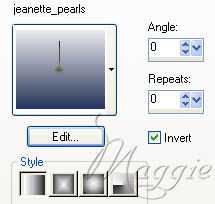
Change your
foreground color to white.
Background on
#1A284D and change to gradient,
with these
settings:
1. Open a new
transparent canvas, size 500x400 pixels.
Fill with the
gradient.
2.
Effects -- Texture Effects -- Blinds:
Width:3;
Opacity: 25;
Color: white;
Light
source from left/top: checked.
3. Set your
background on gold pattern.
4. Selections
-- Select All.
Selections --
Modify -- Contract by 35 pixels.
5. Selections
-- Modify --
Select
Selection Borders with " Inside" checked, border width
1.
6. Add a new
raster layer and fill the narrow border with gold.
Merge layers.
7. Selections
-- Select All
Selections --
Modify -- Contract by 36.
Keep
selected.
8. Add a new
raster layer and fill with the gradient.
9. Image --
Flip.
Merge all
layers.
Deselect.
10. Open the
orchid tube, sharpen 1x,
copy and
paste onto the background canvas.
Reduce the
opacity of this layer to 20% in your
Layers
palette.
11. Paste the
orchid once again onto the canvas.
Apply the Eye
Candy Drop Shadow with the default settings.
Merge All
Layers.
12. Open a
new transparent canvas of 50x250 pixels.
Fill with the
gradient.
Repeat step
2.
Repeat it
again,
but this time
a check mark should be
added next to
" horizontal"
14. Add a 1
pixel black border.
Select and
fill with the gold.
15. Copy and
paste onto the canvas.
Reduce the
opacity of this layer to 50%
in your
Layers palette ( as in my tag example)
16. Paste it
again and reduce the opacity
of this layer
to 50% as well.
17. Go back
to the smaller image.
Image --
Rotate a quarter to the right.
Copy and
paste onto the background canvas,
Position it
neatly in the top left corner so that
the gold
borders forms a neat pattern.
Reduce the
opacity to 50% as well.
18. Open a
new transparent canvas of 250x 50 pixels.
19. Activate
your Text tool.
Use the "
Bookman Old Style" font, size 26,
background
should be on gold,
foreground
locked.
Type your
text and add
the same drop
shadow as in step 11.
20. Go back
to the smaller image.
Image --
Rotate -- Free Rotate a quarter to the right.
Copy and
paste onto the background image in the " bar"
21. Open your
orchid tube again.
Image --
Resize to 70x250 pixels.
Copy and
paste onto the background canvas
and position
it in the other " bar" .
Reduce the
opacit of this layer to 50% as well.
Merge layers
visible.
22. Open a
new transparent canvas, size 200x2,
fill with the
gold,
copy and
paste onto the background canvas.
Paste it
another 2x and position them
beneath each
other.
Merge all
layers.
23. Add a 2
pixel black border, select,
and fill with
gold.
Deselect.
Your tag is
finished.
If you want
to use my script, you will need additional
background,
which you can download
here.
Download the empty script here

BACK

If you enjoy Jeanette's tutorial please be so kind and write
a message in her guestbook.
Translated on 18th June 2006

The graphic design of this page is copyrighted to Magstags.
Home |
Filter Links |
Email|Terms Of
Use
|