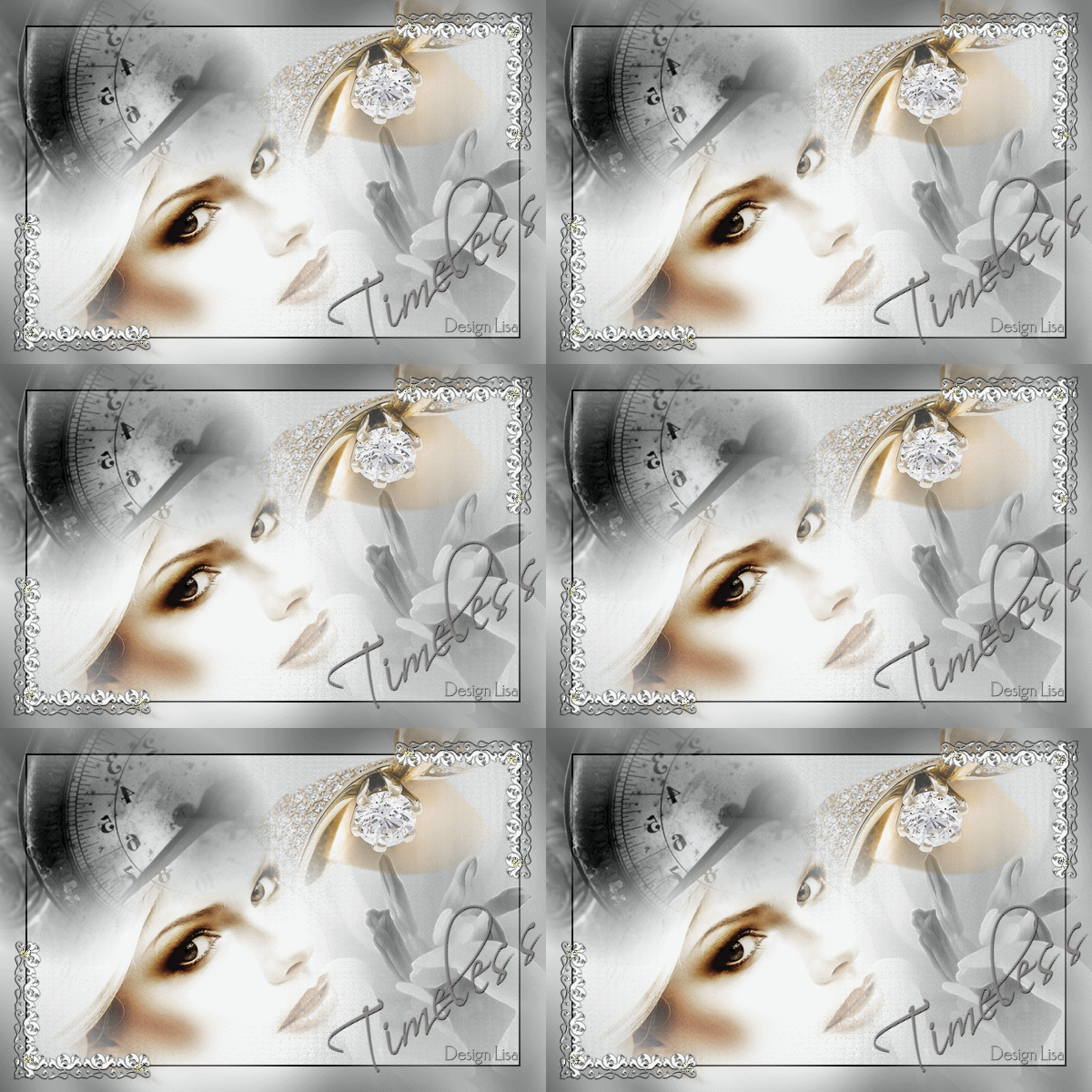
*~*Timeless*~*
Lisa's original Dutch tutorial can be
viewed here
This tutorial was written for PSP X1.
You need some experience in PSP for this tutorial
MATERIALS NEEDED:
Animatie Shop.
***
6 tubes
2 animation gifs
Download the supplies
here
FILTERS NEEDED:
Graphic Plus.
METHOD:
This is an animated blend tutorial.
Save all the supplies in your folder.
Choose a light color from your image: #F8FBFA.
Open a new transparent canvas size 600 x 400 pixels.
Fill with the light color.
Selections - Select All.
Selections - Modify - Contract by 30.
Selections - Invert.
Effects - Filter Effects - Graphic Plus:
all slidebars on 50
except for the bottom 2 : 15 / 100.
Effects - Texture Effects - Mosaic Glass:
50-50-50-0-2-50.
Effects - 3D Effects - Chisel: 2 / black.
Open the 'klokL'- image.
Copy and paste as a new layer on the canvas.
Move it to the bottom left.
Resize 85% ('Resize all layers': not checked).
Move it over the edge.
Change the Blend mode of this layer to
'Luminance(Legacy)'
in the Layers palette.
Open the 'misted-orgideeL'- image.
Copy and paste as a new layer on the canvas.
Move it the bottom right.
Change the Blend mode to Luminance(Legacy).
Open the 'misted-L05'- image.
Copy and paste as a new layer on the canvas.
Resize to 85%.
Move it below the clock
as seen in the example.
Open the 'misted-diamondLk'- image.
Copy and paste as a new layer on the canvas.
Move it to the top right.
Image - Rotate - Free Rotate: 90 / Left.
Open the 'kantL'- corner image.
Copy and paste as a new layer on the canvas.
Layers - Duplicate.
Image - Mirror.
Image - Flip.
Open the text tube.
Copy and paste as a new layer on the canvas.
Arrange it where you like it.
Layers - Merge - Merge All.
Add your name or watermark.
Resize the image to 400 pixels in width
if you want to animate it.
ANIMATION.
Open Animation Shop.
Click on the yellow file-icon
to open the files.
Open the animation accent that you want
to use on your PSP-image.
Drag the animation-accent image out so that
you can see how many frames it contains.
Open PSP again and copy the image that you have just made.
Paste it as a New Animation into AS.
Now you will have to multiply the number
of frames to be the same number of frames
as the animation- accent you want to use.
Edit --> Duplicate Selected.
Duplicate it until you have enough
frames of your own image.
If you have more than the number required for your
animation you can just delete the extra frames.
Just click on the extra frames - one by one
and delete them.
Drag your image out to reveal all the frames.
Go back to frame 1 of the image.
Edit --> Select All.
Leave it for now selected.
Click on your animation-accent again
to activate it.
Go to Edit --> Select All.
Edit --> Copy.
Activate the PSP-image again.
The animation will cling to the mouse pointer now.
Edit --> Paste into Selected Frames.
Make sure you are on frame 1 when you paste
the animation where you want it on the image.
Click on the animation icon on the top toolbar
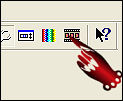
to view the animaton.
Click on the animation icon again when you want to close it.
This way you can add several animations to the image,
if you want to.
When you are happy
you can optimize the animation like this:
Go to File --> Optimization Wizard.
Go through all the steps.
The second window that opens looks like this:
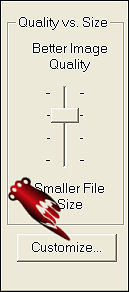
Click on 'Customize'
Choose these options below in the window that opens:

Click on 'OK' and just click on 'next'
in each window that opens and lastly 'finish'.
Now you can save it as a GIF.
|