*~* Lady With The Hat *~*
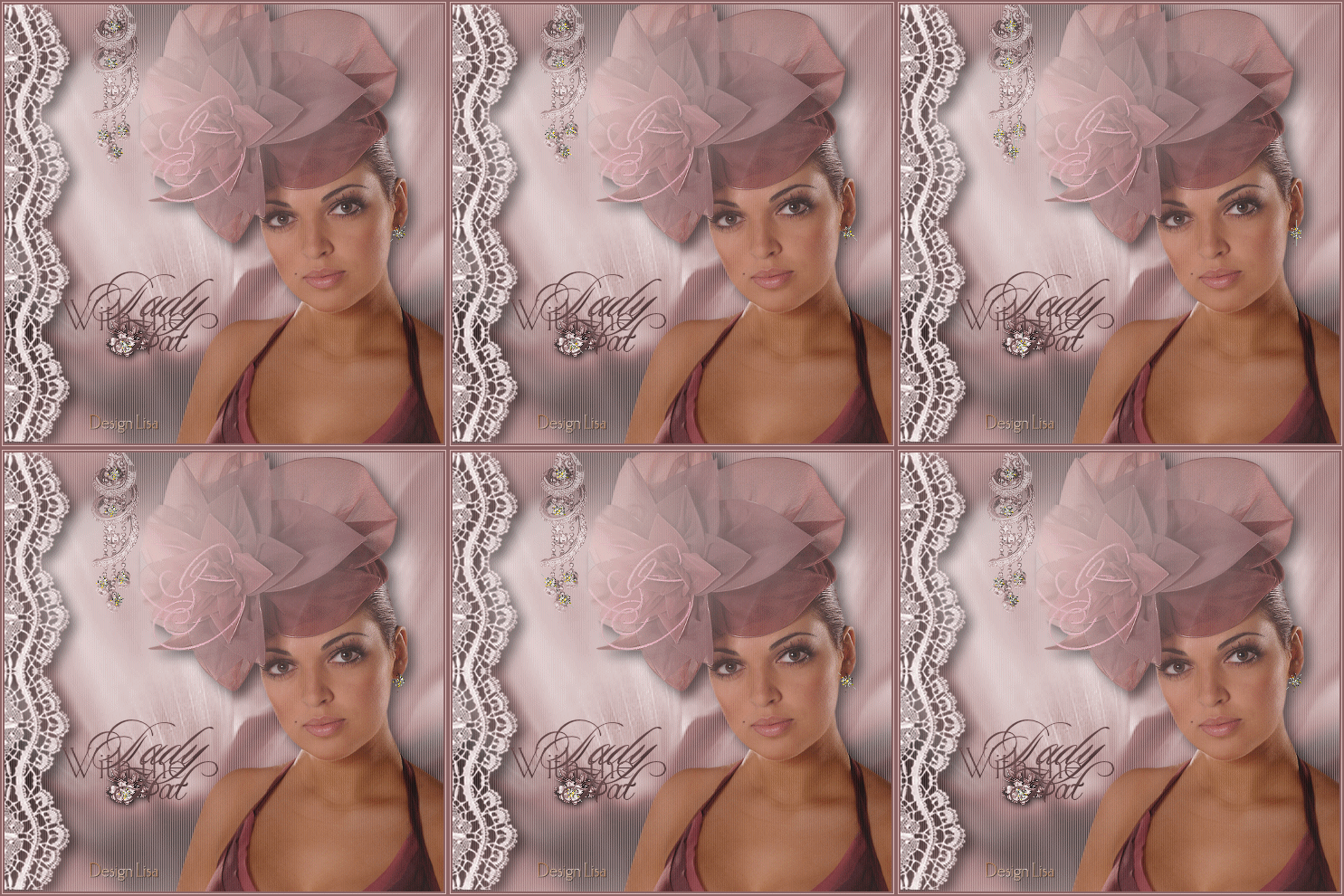
Lisa's original Dutch tutorial can be viewed
here
De Tubes was made by
Bette.
This tutorial is written for PSP X.
MATERIALS NEEDED:
Animation Shop.
5 tubes in the zip
1 animation gif in zip
Open it in AS
Supplies here
Method:
A good knowledge of PSP is required.
Open the lady tube and choose a color.
Dark - #8B6465.
Open all the other images.
You can colorize them to fit into your color scheme.
Open the 'image10' image ( already colorized).
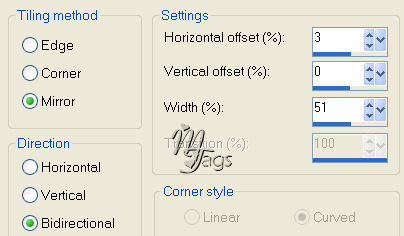
Effects --> Image Effects --> Seamless Tiling.
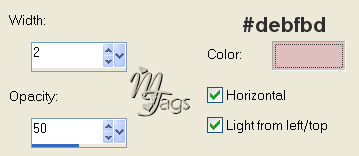
Effecs --> Texture ffects --> Blinds:
Open the' Lace' tube.
Copy and paste as a new layer.
Position it as in tag example.
Apply a drop shadow: 7 / 7/ 65 / 20
Repeat with -7 / -7.
Open the lady tube.
Copy and paste as a new layer.
Drag it to the right.
Reduce the layer's opacity to 80%.
Apply the same drop shadow as before.
Open the flower tube.
Copy and paste as a new layer.
Open the 'script-93' tube.
Copy and paste as a new layer.
Open the 'HA-lisa'- tube.
Copy and paste as a new layer.
Reduce the layer opacity to 50%.
Arrange everything where you like it.
Merge layers.
Add your name.
Resize to 400 x 400 px.
Add a 2 pixel dark color border.
Add a 1 pixel light color border.
Add a 2 pixel dark color border.
Save.
ANIMATION.
Open Animation Shop- standard in PSP 9.
Open PSP again and copy the image that you have just made.
Paste it as a New Animation into AS.
You will need 8 frames to fit the etoile animation.
To do that:
go to Edit --> Duplicate Selected.
Duplicate it until you have enough
frames of your own image.
If you have more than 8
just click on the extra frames - one by one
and delete them.
Drag your image out to reveal all the frames.
Go back to frame 1 of the image.
Edit --> Select All.
Leave it for now selected.
Click on the yellow file-icon
to open the files.
Find the 'etoile 9'animation image.
It contains 8 frames.
Go to Edit --> Select All.
Edit --> Copy.
Edit --> Paste into Selected Frames.
The etoile animation will cling to the mouse pointer now.
Position it where you want it and then just click on the spot in the 1st image frame
where you want it.
Click on the animation icon on the top toolbar
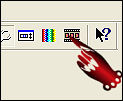
to view the animaton.
Click on the animation icon again when you want to close it.
This way you can add several animations to the image,
if you want to.
If you are finished you can optimize the animation:
Go to File --> Optimization Wizard.
Go through all the steps.
The second window that opens looks like this:
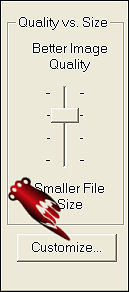
Click on 'Customize'
Choose these options below in the window that opens:

Click on 'OK' and just click on 'next'
in each window that opens and lastly 'finish'.
Now you can save it as a GIF.
|