|
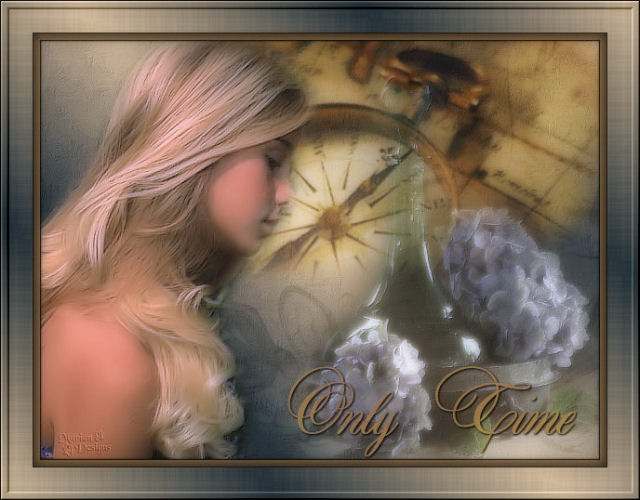
~*~ Only Time
~*~
Marian's original
Dutch tutorial can
be viewed
here.
This tutorial was
written for PSP 9
but can be done
in other
versions as well.
Download the
supplies
here.
or
here
The tubes were made
by:
Carola,
MarieL,
Suzi Sgai
and
*Patry
(*the link to the
group does not
work).
An assortment of
scraptubes.
Please respect the
copyright and keep
the filenames
intact.
Note: some of the
layers have been
locked to save on
bandwidth.
Remember to
unlock them in PSP
:)
Important!!! Please
read carefully!!!
* The scraptubes
used in this
tutorial are bought
by Marian
personally.
You may use these
scrap tubes for this
tutorial, and for
your personal use.
You may not offer
these tubes for
sale, trade,
sharing,
your own tutorials,
or commercial
purposes.
Read carefully the
conditions and terms
of the
scrapdesigners,
otherwise Marian
will have to stop
writing
scraptutorials!!!
Thanks for your
cooperation.
FILTERS NEEDED:
FM Tile Tools -
Blend Emboss
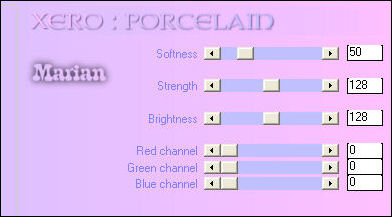
Xero - Porcelain
Sybia - Zigzagge
Bordermania - frame
2
Step 1
Open a new
transparent canvas,
size
600x450 pixels.
The Color Palette:
Foreground color:
#2f3f4a
Background color:
#cbb69e
Make a gradient:
Style - Linear
Angle - 45
Repeats - 3
Invert - checked.
Fill the canvas with
the gradient.
Adjust - Blur -
Gaussian Blur: 8.
Duplicate this
layer.
Adjust - Blur -
Gaussian Blur: 35 /
monochrome.
Step 2
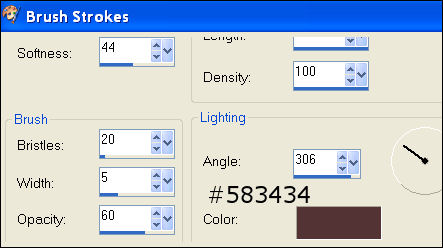
Effects - Art media
Effects - Brush
Strokes:
Step 3
Layers - New raster
layer.
Selections - Select
All.
Step 4
Open the tube
"MarieL_2006_09Septembre_smoke08t".
On the canvas: Edit
- Paste into the
selection.
Change the Blend
Mode of the layer to
'Luminance(Legacy)'
in the Layers
palette.
Change the layer
opacity to 22
in the Layers
palette.
Selections - Select
None.
Step 5
Open the tube
"CarolaMists_Objects_174".
Copy and paste as a
new layer onto the
canvas.
Move it to the top
right.
Change the Blend
Mode of the layer to
'Hard Light'.
Change the layer
opacity to 56.
in the Layers
palette.
Step 6
Open the tube
"PatryMists_06_Flowers_103".
Copy and paste as a
new layer onto the
canvas.
Move it to the
bottom right.
Change the Blend
Mode of the layer to
'Lighten'
in the Layers
palette.
Layers - Duplicate.
Change the Blend
Mode of the layer to
'Multiply'
in the Layers
palette.
Change the layer
opacity to 48
in the Layers
palette.
Step 7
Open the je tube
"SS_977_Misted".
Copy and paste as a
new layer onto the
canvas.
Move it to the left.
Step 8
Effects - FM Tools
- Blend Emboss.
Adjust - Photo Fix -
Digital Camera Noise
Removal.
Step 9
Layers - Duplicate.
Step 10
Layers - Merge -
Merge All.
Effects - Filter
Effects - Xero -
Porcelain
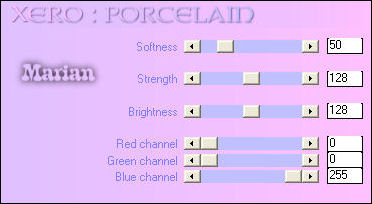
Again: Effects -
Xero - Porcelain,
Step 11
Copy this image with
Shift D.
Step 12
Selections - Select
All.
Effects - 3D Effects
- Drop Shadow
H 1
V 1
Opacity 70
Blur 20
Color - black.
Step 13
Add borders:
1
pixel - color #393832.
7
pixels - color #8a6f52
Effects - 3D Effects
- Drop Shadow
H 1
V 1
Opacity 75
Blur 3
Color - black.
Repeat with V & H
-1.
Add border:1
pixel - color #393832.
Step 14
Add border: 35
pixels -
white.
Select with the
Magic Wand.
The Color Palette:
Foreground color:
#cbb69e
Background color:
#2f3f4a
Make a gradient:
Style - Linear
Angle - 45
Repeats - 3
Invert - unchecked.
Fill the selection
with the gradient.
Stap 15
Effects - Sybia -
Zigzagge - standard
settings.
Selections - Convert
selection to layer.
Image - Flip.
Image - Mirror.
Selections - Select
None.
Step 16
Activate the
Selection tool -
Rectangel.
Draw a selection
from the bottom
right
to the top left as
seen below.
Press delete.
Step 17
Selections - Select
All.
Selections - Modify
- Contract by 35
pixels.
Selections - Invert.
Step 18
Effects - 3D Effects
- Drop Shadow
H 2
V 2
Opacity 60
Blur 20
Color - black.
Repeat with V & H
-2.
Step 19
Layers - Merge -
Merge All.
Effects -
Filter Effects - Bordermania: frame
2 - top two
slidebars on 4.
Step 20
We're going to add
the text now.
Lock the foreground
color in the Layers
palette
and change the
background color to #a48155.
Use the font "Auroa Script",
size 60.
Effects - 3D Effects
- Drop Shadow
H 1
V 1
Opacity 75
Blur 3
Color - black.
Change the Blend
Mode of the layer to
'Lighten'
in the Layers
palette.
Duplicate the layer.
Change the Blend
Mode of this layer
to 'Luminance'
in the Layers
palette.
Step 21
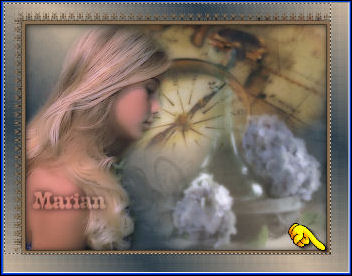
The image above was
opened in PSP11 and
the Film and
Filters- effect
applied to it.

Add your name or
watermark and resize
your image
if you want.
You're done! :-)
©MarianDecember2006.
You may not use this
tutorial in any way
without the
written permission
of Marian.
Email
Back to Index
Visit Marian's
Dutch website here:

Magstags
|
Email |
Filter Links |
Terms Of Use |