|
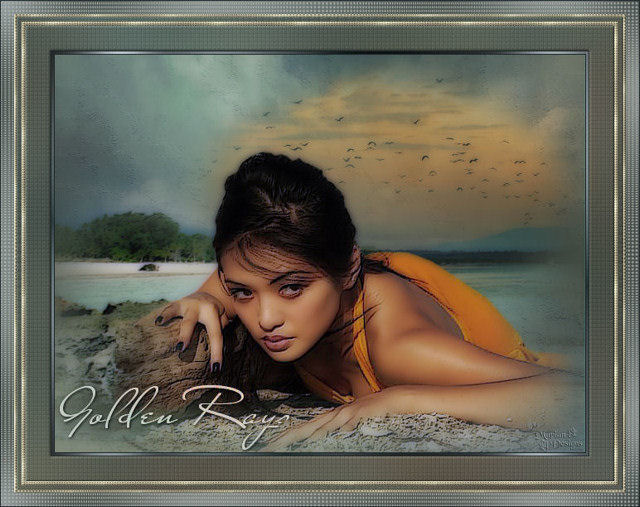
~*~ Golden Rays
~*~
Marian's original
Dutch tutorial can
be viewed
here.
This tutorial was
written for PSP 9
but can be done
in other versions
as well.
Download the
supplies
here.
or
here
The tubes were made
by
Marcio C and
Sheila.
Please respect the
copyright and keep
the filenames
intact.
Note: some of the
layers have been
locked to save on
bandwidth.
Remember to unlock
them in PSP :)
FILTERS NEEDED:
FM Tile Tools
Xero
Graphic Plus
Step 1
Open a new
transparent canvas,
size 640 x 480
pixels.
The Color Palette:
Foreground color:
#616b74
Background color:
#bdc8ce
Make a gradient:
Make a gradient:
Style - Linear
Angle - 45
Repeats - 3
Invert - checked.
Adjust - Blur -
Gaussian Blur: 40.
Step 2
Effects - Artistic
Effects -
Brushstroke.
Layers - New raster
layer.
Selections - Select
All.
Step 3
Open "Textuur_02".
Copy and paste into
the selection on
your canvas.
Selections - Select
None (Ctrl+D).
Change the layer
opacity to 56
in the Layers
palette.
Selections - Select
None (Ctrl+D).
Step 4
Open tube
"beach-sdh".
Copy and paste as a
new layer onto the
canvas.
Use the Deformation
tool to drag the
image out
to the left, right
and bottom.
Effects - FM Tile
Tools - Blend
Emboss.
Step 5
Open the tube
"26-5-06scenic4-sw".
Copy and paste as a
new layer onto the
canvas.
Move it to the right
against the edge of
the other tube.
Change the layer
opacity to 56
in the Layers
palette.
Step 6
Open the tube
"mc28838".
Copy and paste as a
new layer onto the
canvas.
Image - Resize: 80%
/ Bicubic / ' Resize
all layers' =
unchecked:)
Move it to the
bottom.
Effects - FM Tile
Tools - Blend
Emboss.
Step 7
Layers - Merge -
Merge All.
Effects - Xero -
Porcelain: standard.
Repeat the emboss
effect, but change
the
bottom 3 setting to
0.
Step 8
Duplicate this image
with Ctrl+D
and minimize it to
the taskbar for now.
Step 9
Add border: 1 pixel
- color #1e2829
Step 10
Add border: 3 pixels
- white.
Select with the
Magic Wand.
Make a gradient of
the fore- and
background colors:
Style - Linear
Angle - 45
Repeats - 3
Invert - checked.
Fill the selection
with the gradient.
Effects - Graphic
Plus - Cross Shadow:
standard.
Step 11
Add border: 1 pixel
- color #1e2829.
Step 12
Add border: - 30
pixels - white.
Select with the
Magic wand.
Activate the image
that you have
minimized.
Edit - Copy.
Back on the canvas:
Edit - paste into
Selection.
Effects - Filters
Unlimited 2 -
Funhouse -
Centripedal Tile -
standard.
Adjust - Blur -
Gaussian Blur: 40.
Effects - Xero -
Fritillary.
Step 13
Effects - 3D
Effecten - Inner
bevel:

Step 14
Add border: 5 pixels
- white.
Select with the
Magic wand.
Fill with the gold
pattern 'Golden
Mesh"
Repeat the same
inner bevel as
before.
Step 15
Add border: 25
pixels - white.
This time we won't
select it with the
Magic wand.
Selections - Select
All.
Selections - Modify
- Contract by 25
pixels.
Selections - Invert.
Step 16
Make a gradient with
the colors mentioned
in step1.
Style - Linear
Angle - 45
Repeats - 8
Invert - checked.
Adjust - Blur -
Gaussian Blur: 40.
Step 17
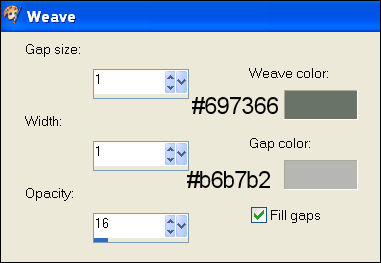
Effects - Texture
Effects - Weave:
Effects - Texture
Effecten - Weave:
colors #697366
and #b6b7b2.
Step 18
Effects - Distortion
Effects - Punch: 80.
Step 19
Add border: 1 pixel
-color #1e2829.
Activate your Text
tool
with these settings:
Font is: Font Miss
Stanfort, size 48,
width 0
Add your text or
name.
Effects - 3D Effects
- Drop Shadow:
H1 / V1 / Opacity
60/ Blur 5.
Change the Blend
Mode of the layer to
'Luminance(Legacy)'
in the Layers
palette.
Save as a jpg and
you're done! :-)
Have fun!
©Marian August2007.
You may not use this
tutorial in any way
without the written
permission of
Marian.
Email
Back to Index
Visit Marian's
Dutch website here:


Magstags
|
Email |
Filter Links |
Terms Of Use |