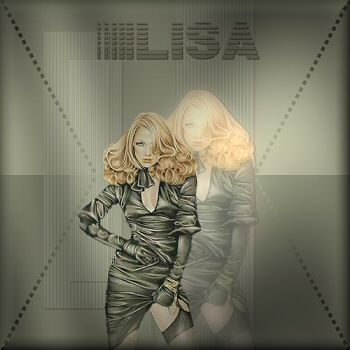
-
Open your tube and choose two colors.
A light color for the foreground and dark color for
the background.
Make a gradient and
change the gradient settings to -- Angle 0 - Repeat 1 -
Invert UNCHECKED -- Style Lineair. You can change it
if you want to.
Minimize your tube until later.
-
Open a transparent image of 500 x 500 pixels.
Fill the image with the gradient.
-
Layers -- New Raster Layer - reverse the
gradient.
Selections -- Load/Save
Selection -- Load Selection from Disk -- find lisa4.
Fill the
selection with the gradient.
Effects -- Texture Effects --
Blinds: Width 2 -
Opacity 35 - Color
white - Horizontal unchecked.
Go to you
Layers Palette and change the Blend Mode of this layer to 60%.
Keep Selected.
-
Effects -- 3D Effects -- Drop Shadow
with these settings below:
1 / 1/ 78 / 2.00 / black.
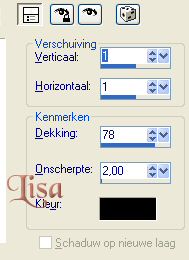
Selections -- Select None.
Layers -- Merge
-- Merge Visible.
-
Effects -- Filters Unlimited
-- Tile&Mirror - XY offset 50% (positive).
Apply.
-
Layers -- New Raster Layer
-- Reverse your
gradient
Selections -- Load / Save Selections - Load Selection From Disk --
find lisa3.
Fill the selection with
the gradient.
Effects --
Texure Effects - Blinds - Width 2 - Opacity 35 - Color White
- horizontal UNCHECKED.
On your Layers Palet, change the Blend Mode of this
layer to 60%
Selections -- Select None.
-
Layers - Duplicate -- Image -
resize - 80% - only this layer!
-
Activate your tube -- Copy -- Paste as new layer.
Effects -- 3D Effects -- Drop Shadow, same as
in step 4.
Effects -- Filter
Xero - Serious Fog , change only the settings
below. Leave the rest.

Paste your tube again as new layer.
It is
still on the clipboard
(memory)
Go
to Image -- Resize -- 80% -- the
"resize all layers"- option must be unchecked.
Drag your tube to the left.
Go to your
Layers Palette and
change the Blende Mode to 80%
Layers -- Merge -- Merge All.
-
Click on the Pen Tool, as seen below.

Change the settings as shown
below:
The line style = Dots.
Width = 5 .
Segment Type =
Line.
The rest as seen below:


-
Draw a diagonal line from the top-right, in the
right square. (from right to left ).
Look at the tag
example above.
You will get nice little squares this way.
Go
to your Layers Palette and convert this vector layer to raster
layer (right click on the vector layer to open the
options).
Go to
Effects -- Filter:
Graphics plus -- Cross Shadow and
set all slidebars on 50.
-
Layers -- Duplicate.
Go to Image -- Mirror
Image --
Flip.
Merge these two layers. Duplicate.
Go to Image --
Mirror.
See tag example.
-
Lock your background layer.
Layers -- Merge -- Merge
Visible.
Unlock your background layer again.
-
Duplicate the Merged Layers.
Go to Image --
Mirror.
Layers -- Merge -- Merge
All.
-
New Raster Layer.
Add your name in your own font, or
the one provided. Merge All
layers(flatten).
-
Reduce the image size to 350 pixels, or
70%.
-
Effects -- 3D Effects -- Buttonize:
H15 W15, Opactiy 65, Color- your dark color.