Square Frame

The tutorial can be done in PSP 7 or 8

Materials needed
An image and corner of your choice.
FILTERS NEEDED:
Bordermania filter.
Andrew's 4 filter.
Graphic plus filter.
METHOD:
Choose two colors from your image:
light for the foreground and dark for the background.
1. Open your image.
Selections - Select all.
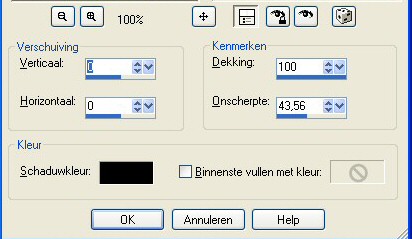
3D Effects Cutout with these settings:
V & H = 0
Opacity = 100Blur = 43.56
Shadow color = black.
Fill inside wit color = not checked.
2. Add a border of 3 pixels, dark color, select -
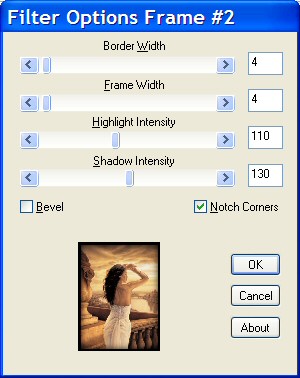
Bordermania Frame #2 with these settings:
Add a border of 2 pixels with your light color.
Add a border of 3 pixels with the dark color again, add
the same Bordermania effect as above.
3. Add a border of 15 pixels with the dark
color and select with your magic wand.
Go to Effects --> Texture Effect -->
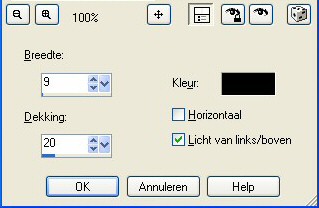
Blinds with these settings:
Width = 9
Opacity = 20
Color = black
Light from left/top = checked.
4. Repeat Step 2.
5. Add a border of 20 pixels in the dark color.
Select with your magic wand.
Go to Effects --> Graphics Plus filter --> Cross Shadow
with the standard settings and apply.
6. Repeat Step 1, begin with the dark color not
selected, Repeat the same Bordermania effect as above,
complete the rest of Step 1.
7. Add a border of 30 pixels in the dark color.
Select with your magic wand.
Go to Effects --> Andrew's filter 4 --> Square_out of it
-- with the settings 24 - 24 - 24.
Go to Filters Unlimited 2.0 -- Buttons & Frames -->
Flower frame Glasframe 1 --> standard settings. Deselect
8. Place your corner-graphic in the left corner.
Duplicate.
Image - Mirror .
Image - Flip.
Resize 60% - 'Resize all layers' not checked.
Image - Mirror.
Image - Flip.
Image - Resize: 60% / "resize all layers"
unchecked).
Merge All layers.
Reduce the image size to a width of 350 pixels.
You're finished :)
|