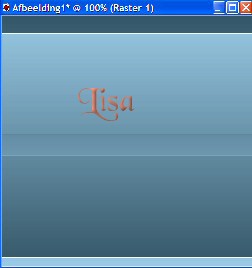
Reverse your foreground and background
colors.
Go to the Tools palet and
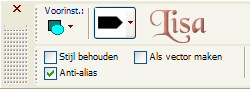
click on the Preset Shape Tools. Choose the standard arrow
as illustrated below
Add a new raster layer.
Draw a figure from left to right, about 75
wide or the size you prefer.
Selections --> Select All --> Float. Your
arrow is now selected.
Effects -- Texture Effects
--> Blinds with these
settings:
width 76 - Opacity 38 - Horizontal
clicked - Color is
black.
Effects --> 3D effects -- Drop Shadow with these settings:
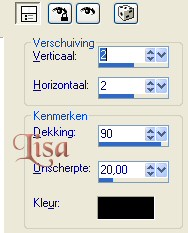
Deselect.
Duplicate the arrow layer en mirror. Drag the arrow
to the bottom. Merge
layers.
Effects --> Simple Filters --> Quick Tile.
Activate your tube --> copy and paste as new layer.
Change the Blend Mode from "Normal " to Luminance" on your
layer palette.
Add a drop shadow
with the same settings as before. Merge layers.
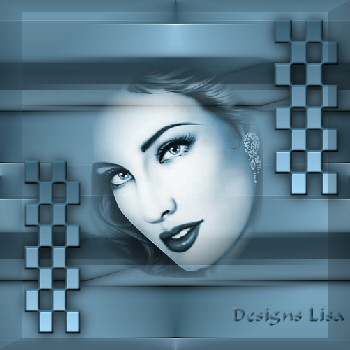
Reduce the size of your image to 350 x 350
pixels
The gradient must still be in the background color
on your color palet.
Add a new raster
layer.
Click on the Preset Shape Tools and search for
div32:
It is small blocks.
Pull them from top left to bottom.
Then from top right to bottom.
Go to Selections --> Select All -->
Float.
Go to 3D Effects --> Innerbevel with
these settings:
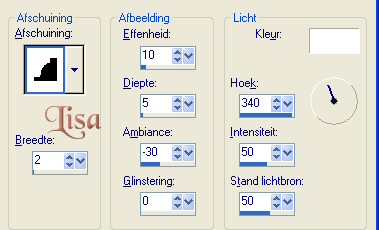
Go to Effects -- 3D Effects -- Drop Shadow with the top two settings on
1.
Finally: Effects --> 3D Effects --> Buttonize
( but you can leave it out if you prefer
)