-
Open your tube and choose two colors. Dark for the
background and light for the foreground.
Make a gradient and
change the settings to:
Angle
0 -- Repeat 1 -- Invert checked.
-
Open a new transparent image of 500 x 500 pixels.
Fill
with the gradient.
-
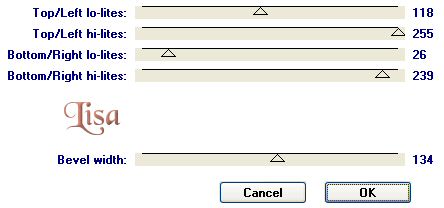
Effects -- Filters -- AFH
Beverler --AFH Beveler, with these
settings:
-
Layers -- New Raster
Layer
Selections -- Load/Save Selection -- Load Selection from
Disk -- find the lisa1
selection.
-
Fill the selection with your background
color.
Effects -- 3D-Effects -- Inner Bevel
-- Change the Preset option in the Inner
Bevel-window to metallic.
Ok.
Keep Selected.
-
Effects -- 3D-Effects --
Drop Shadow: --
Horizontal 0 - Vertical
0 - Opacity 100 - Blur 10.00
Selections
-- Select None.
-
Layers -- duplicate raster layer
2
Image -- Mirror
Image -- Rotate -- 90 degrees left.
Leave it like that.
-
Activate rastor layer 2 again.
Layers -- Duplicate
Image --
Mirror
Image --
Flip
-
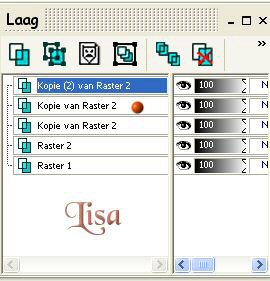
Now go to the second copy of raster layer 2 as
indicated below with the red button.
Layers -- Duplicate
Image -- Mirror
Image -- Flip.
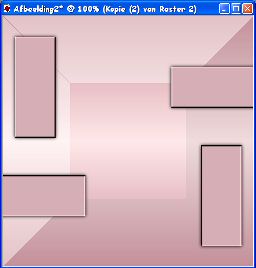
It must look
like this example below.
Layers -- Merge -- Merge All.
-
Effects -- Filters -- Simple Filters -- Quick tile.
-
Activate your tube and reduce the size to fit your
image.
Edit - Copy
Edit - Paste as new layer and arrange it where you want it
to be.
Effects -- 3D-Effects -- Drop Shadow,
the
same as in step 6.
-
Activate your flower tube, reduce the size, copy and
paste as new layer, arrange it where you want it to be, and
add a drop shadow the same as in step 6.
Layers -- Merge -- Merge All
-
Reduce the image to 350 x 350 pixels.
-
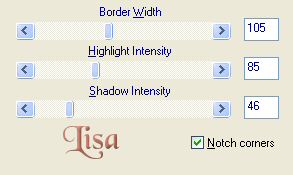
Effecs -- Filters --
Bordermania -- Instant Button #1,
with these settings below:
-
New Raster Layer.
Use a font of your choice and add
your name.
Merge all layers and save as jpg.