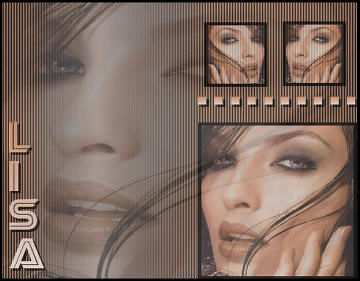
-
Open a new transparent canvas
450-350.
Open your image and choose two
colors: light foreground; dark background.
-
Fill the canvas with the light color.
-
Selections
--> Select All.
Activate your image.
Copy and
Paste into the selection on the canvas.
Deselect.
-
Add a new Raster Layer and fill with the dark
color.
-
Effects
-- > Filter Effects--> Filter Tramages
-- Perforator 1
with these settings:
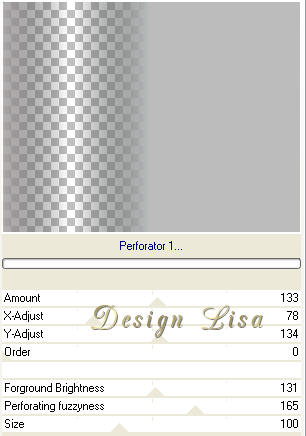
Effects -->
Image Effects--> Seamless Tiling,
with these settings:
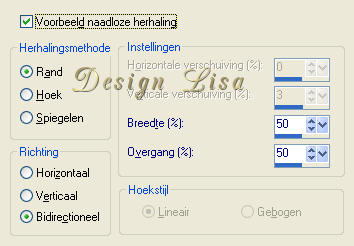
Effects -->
Texture Effects> Blinds: Width 4; Opacity 11;
Color Black; Horizontal not checked.
-
Selections
--> Load/Save--> Load Selection from Disk.
Find Lisa6, still on layer 2. Apply these
settings:
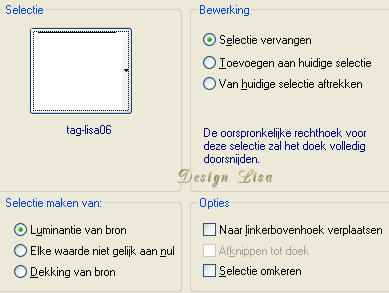
Effects--> 3D Effects
-- Chisel on 2, color Black.
Activate your
image, Copy and Paste into selection.
Change
the Blend Mode of this layer to 70% and
deselect.
-
Layers
--> New Raster Layer.
Selections--> Load from Disk.
Find lisa07 and
paste your image
(which is still in the memory)
into the selection.
Effects --
3D Effects -->Chisel on 2 color Black.
Change the Blend Mode of this layer to 70% and
deselect.
-
Duplicate layer 3--> Go to Image--> Mirror
and place it nearest to the small image on the
canvas.
-
Click on the Pen Tool --
with these settings: Linestyle: Dots;
Width:10.00.
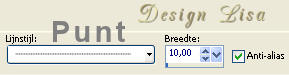
-
Draw a line above the image.
I first made a
gradient, but it is not necessary.
Effects-->
3D effects -- Drop Shadow:
H 3 -- V 3 -- Opacity 60
--
Blur 0.
-
Layers--> Merge--> Merge All.
-
Use a font of your choice and add your text.
Repeat the same drop shadow as before.
-
Add a 2 pixel black border.
Reduce the size
to 350 pixels.