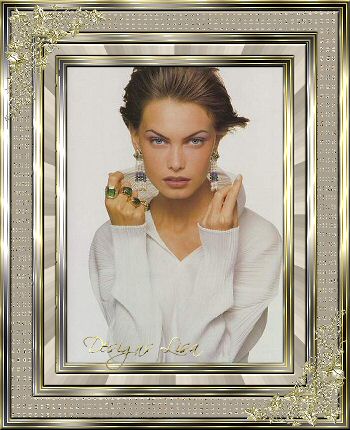
Gretha Frame
This tutorial
was done in PSP 8
MATERIALS NEEDED:
-
An image of your choice
-
A corner ( included in the supplies_zip)
-
A gold pattern( included in the zip)
Download the
supplies
FILTERS NEEDED:
Filter
Graphics Plus
Filter Factory Gallery E
Filter Factor
Plugin Galaxy (download the filters
here)
Place the filters in your
filter's file / directory.
METHOD:
-
Choose 2 colors from your
image: one light-, one dark color.
Set the foreground on the gold pattern.
It will be
used as an effect.
-
Add a 1 pixel border - Black
Add a 2 pixel border - gold pattern
Add a 2 pixel border - your light color
Add a 2 pixel border - gold pattern
Add a 5 pixel border - light color
Add a 2 pixel border - gold pattern
Add a 2 pixel border - light color
Add a 2 pixel border - gold pattern
Select the light color with your Magic
wand. There are 3.
Effects
-- Filter Graphics plus - Cross Shadow -- standard settings.
Selections
-- Select All -- Selections---Modify - Contract by 17 --
Selections--Invert
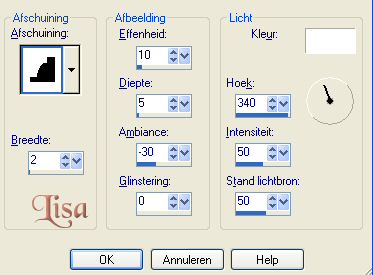
Effects -- 3D Effects -- Inner Bevel with the
settings below:
-
Add a border of 20 pixels - dark color.
Select with
your Magic Wand.
Effects --
Filter Factory Gallery E -- Gradient/
SpokesRatio - 107
Effects - 3D Effects - Inner Bevel as in
step 2.
-
Repeat the entire step 2.
-
Add a border of 35 pixels - dark color.
Select with
your Magic Wand.
Effects --
Filter: Plugin Galaxy -- Warp 1, with these settings below.
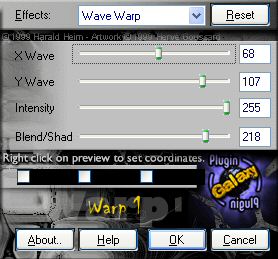
If you work on a dark image, you
can use Filters Unlimited 2.0 -
Buttons & Frames -- glas 1 - contrast
64, instead.
-
Repeat Step 2.
-
Open your corner, resize, copy and paste as new
layer on the top left.
Duplicate
layer -- Mirror -- Flip.
-
Reduce your image to 350 pixels and add your
name.
That's it!
Your Gretha Frame is finished.
|