-
Choose 2 colors from your image / tube: light and
dark.
Choose your picture with the
image in the center, copy and minimize the original.
-
Layers -- New Raster Layer -- fill with the light
color.
Layers -- Load / Save Mask
-- Load Mask From Disk - find the 20-20 Mask
The "Invert transparency"- option should
be checked. Apply. Delete Mask and reply "yes" to the pop-up
question.
-
Add a 1 pixel black border.
Add a 2 pixels light color border.
Add a 1 pixel black border.
Add a 2 pixels ligth color border.
Add a 1 pixel black border.
-
Add a 10 pixel border in the dark color.
Select with
the Magic Wand.
Effects --
Texture Effects -- Blinds --
Width 4 - Opacity 25 -
Color black
The "ligth
from left / top "- option should be checked.
Effects -- filter -- Graphics plus - Cross Shadow with all the slidebars on 50.
Effects -- 3D Effects - Inner Bevel with these settings below:
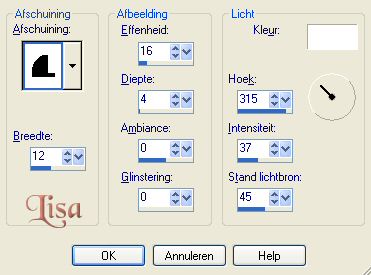
Selections -- Select
None.
-
Repeat step 3.
-
Add a 25 pixel border in the light color.
Select with
your magic wand.
Effects --
Filter Factory Gallery F - Scrambler, with
these settings below:

Effects -- Graphics
Plus - Cross Shadow - same settings as step
4.
Effects -- 3D Effects -- Inner Bevel, with these settings
below:
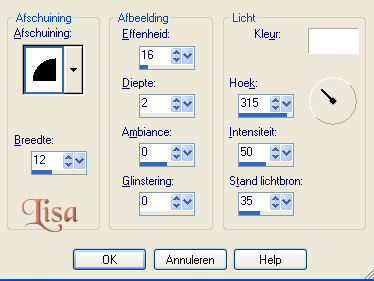
Selections -- Select None
-
Repeat steps 3 -- 4 -- 3.
-
Add a 25 pixel border in the light color.
Select
with your Magic Wand.
Effects -- Geometric Effects --
Perspective - Horisontal - Distortion
50 - color = your dark color.
Effects -- Texture Effects -- Blinds
-- with the same settings as in step 4.
Effects -- filter
Graphics Plus - Cross Shadow - same as in step 4.
Effects -- 3D Effects - Inner Bevel - same as
in step 6.
Selections -- Select
None.
-
Repeat step 3 -- 4 -- 3.
-
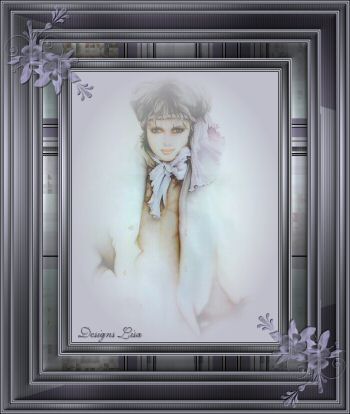
Open your corner, or use Lisa's.
-
Reduce the size of your image to 350 pixels and
add
your name.