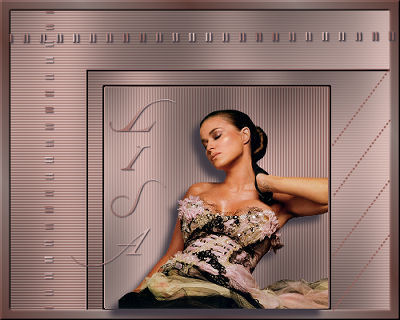
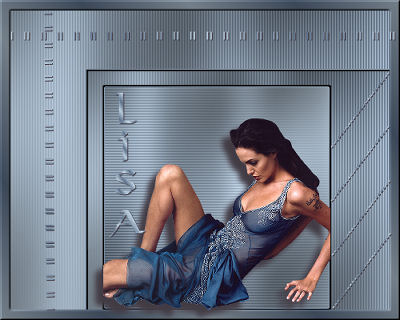
-
Open
a new canvas 500x400 pixels.
Choose 2 colors from the image and make a
gradient,
with
settings:
Angle53; Repeat1; Invert checked.
Fill the canvas with the gradient.
-
Selections -->Load/Save-->
Load Selection from Disk-->Lisa11
-
Layers --> New Raster Layer -
Invert the gradient,
and fill
the selection with it.
-
Effects --> Texture Effects --> Blinds : width
2; Opacity 100;
Horizontal not checked; color Light.
-
Effects--> Filter Effects--> Filter Graphic Plus
--> Cross Shadow,
with these settings:

-
Effects--> 3D Effects--> Chisel: 2 color Black.
Deselect.
-
New
Raster Layer --> Load Selection from Disk-->
Lisa12.
Fill with the same gradient as in step 3.
-
Effects-->Texture Effects--> Blinds: Width 2;
Opacity 100;
Horizontal checked.
-
Effects -->Filter Effects--> Graphic
Plus-->Cross Shadow,
with the same settings as in Step 5.
-
Effects--> 3D Effects -->Chisel: 2 on Black.
Deselect.
-
Merge
Visible Layers.
-
Select the even-colored parts with your Magic
Wand.
Make sure all
is selected.
-
Invert your gradient again and fill these
selected parts with it.
-
Effects-->Texture Effects--> Blinds: Width2; Opacity 100;
Horizontal checked.
-
Effects-->Filter Effects--> Graphic Plus--> Cross
Shadow,
with the same settings as in Step 5.
Deselect.
-
Selections-->Select All-->Selection Modify-->
Contract by 13.
Selections--> Invert.
-
Change the gradient now. Set the Repeat on 5.
-
Add a
new Raster Layer and fill with the gradient.
-
Effects-->3D Effects-->Inner Bevel, with these
settings:
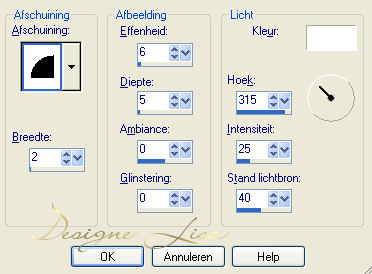
-
Activate your tube, reduce the size to fit the
canvas.
Copy and Paste as a new layer.
Effects-->3D Effects-->Drop Shadow, with these
settings:
10 / -10 / 100 / 10.00
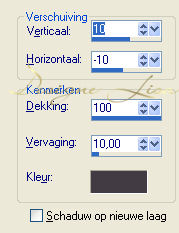
-
Activate your Pen Tool - find the krishemline,
with these settings:


-
Layers--> New Raster Layer-->Draw a line from
left to right.
-
Also
from top to bottom as in the tag example.
Merge all layers.
-
Effects-->3D Effects-->Drop Shadow: 1-1-100-1.
-
Layers --> New Raster Layer.
Activate your Pen Tool again and find the dotted
line.
Draw a line as shown in the Tag-example(diagonally).
-
Effects-->3D Effects-->Drop Shadow:1-1-100-1.
-
Duplicate this layer and drag this layer
a
little below
the previous one.
Repeat another 2x.
-
Layers-->Merge All.
-
Add
your text (on a new layer) in a font of your
choice.
Merge All Layers.
-
Reduce the size of your image to 400 pixels
wide(width)
Your
Carmen Tag is finished!