-
Choose 2 colors from your image: one light; one
dark.
-
Selections -- Select All --
Effects -- 3D-Effects -- Cut Out with these settings: H 0 - W 0 - Opacity 100 -
Blur 12.
-
Add a border of 3 pixels - color white. Select with
your Magic Wand.
Fill with the gold
pattern.
Effects -- filter
Bordermania -- Frame#2.
Set the top slide to
2.
Selections -- Select
None.
Add borders:
2 pixel border - black.
3 pixels
border - white.
Select with your Magic Wand.
Fill with the gold pattern.
Effects -- Plugins -- NVR Bordermania -- Frame#2,
with the top slider on 2.
Select None.
-
Add a 15 pixel border - in your dark color.
Select.
Effects -- Filter
Unlimited 2.0 -- Buttons&Frames -- Kaleidoscopic --
Rectangular - with these settings below:
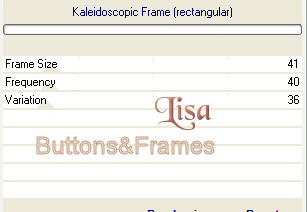
Copy the border - click on the
blue border on top - go to Edit -- Copy. The border is now
saved on the clipboard.
Effects -- 3D-Effects -- Inner Bevel, with these
settings below:
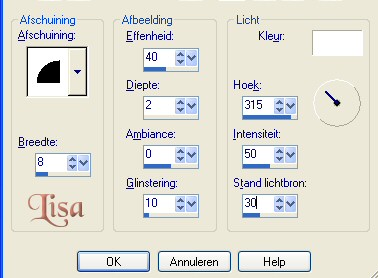
Select None ( Deselect).
-
Repeat Step 3. (If white does
not comply with the border color, use another color
instead).
-
Add a 15 pixel border - dark color.
Select with
your Magic Wand.
Effects --
Filter Screenworks -- Net Pattern.
Effects -- 3D-Effects -- Inner Bevel, the same as
step 4. Deselect.
-
Repeat step 3.
-
Add a 25 pixel border - dark color and select with
your Magic Wand.
Effects --
Geometrich Effects -- Perspective Vertical -- Distortion 50 -- your light
color.
Deselect.
-
Now select the light parts in the image.
The
clipboard/memory still has your border in.
Go to Edit --
Copy into selection.
Select None ( deselect).
-
Select the dark areas.
Effects -- Filter Graphics Plus -- Cross Shadow -
with the bottom slider
on 70.
-
Adjust -- Add/Remove Noise -- Add Noise - noise setting on 15 -- Monochrome and uniform checked.
Deselect.
-
Selections -- Select All --
Modify -- Contract
by 25 -- Invert.
-
Effects -- Filter Unlimited 2.0 --
Buttons&Frames -- glasframes1 -- Set the
Frame size and Contrast both on 64.
-
Repeat Step 3.
-
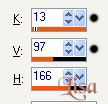
Activate your corner, We're going to color it.
Click on the color of your choice. You
will see these settings below:
|
 |
K =
H(Hue)
V=S(Saturation) |
Write down, or memorize the
numbers next to the dots.
Go to
Adjust -- Hue and Saturation -- Colorize
Change the numbers to the numbers you have memorized
or written down, as shown below:
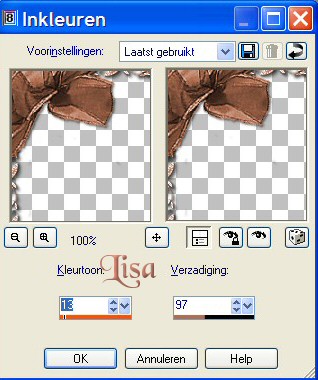
Now you have changed
the color of the bow
to one you prefer.
-
Copy the bow and paste new layer, and drag it into
place.
-
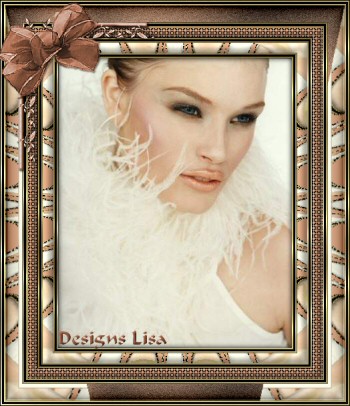
Add your name, or watermark, and you're finished
!
Reduce the size of your image to
350 pixels wide.