Bartje Frame
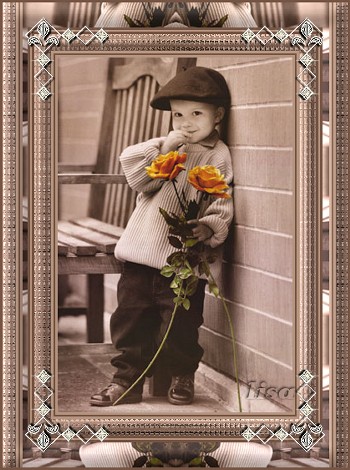
This can be done in either PSP7 or PSP8.

Materials
needed:
An image of
your choice
A
corner
-
FILTERS NEEDED:
DSB Flux;
VM Toolbox;
Simple filters.
You can
download it
here
Additional
information:
Tiler is one
of the VM Toolbox filters.
If you
don't have it in there,
you can add it to Filters Unlimited
and it will do the same job.
Method
-
Choose 2
colors from your image:
foreground - light;
background -
dark.
-
Add borders:
3 pixels light border;
2 pixels dark
border;
3 pixels
light border.
-
Add a 20
pixel dark border. Select with your Magic Wand.
Effects: DSB Flux filter -- Bright Noise, with these settings:

-
Keep selected. Go to
Effects -- Texture Effects -- Mosaic-Glass with these
settings below.
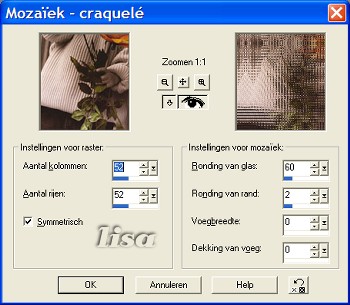
Keep selected
-
Effects -- 3D-Effects -- Inner Bevel, with these settings:
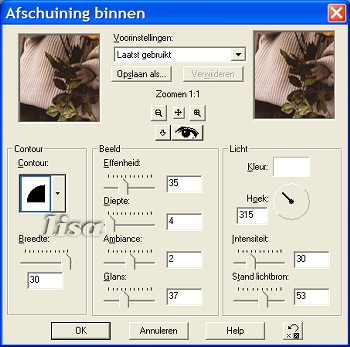
-
Deselect (
Selections - Select None).
-
Repeat step
2, but begin with the dark color, then light, then
dark.
-
Add a 30
pixels light color border. Select with the Magic Wand.
Go to
Effects -- filter: VM Toolbox -- Tiler, with these settings:
128-46-26-106

-
Effects -- 3D-Effects -- Inner Bevel with the same
settings as in step 5.
-
Add a 3
pixel border in the dark color.
-
Add your
corner as a new layer.
I
first reduced the image to 350 pixels in width and then
added the corner. I did it like this:
Place your corner at the top left side in the position you
want it.
Go to Simple filters ---TopLeftMirror.
Click on
OK.
The filter will place it exactly
where it should be in
all 4 corners,
without all the copy and paste and
new layers,
and merge actions you normally need.
You can decide if you
first want to place the corners
and then reduce the image,
or visa versa.
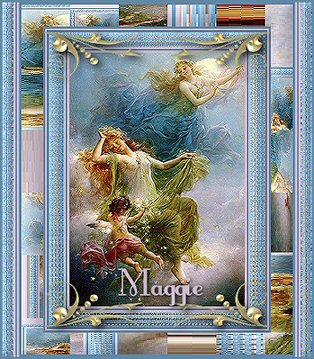
Another example:
|