
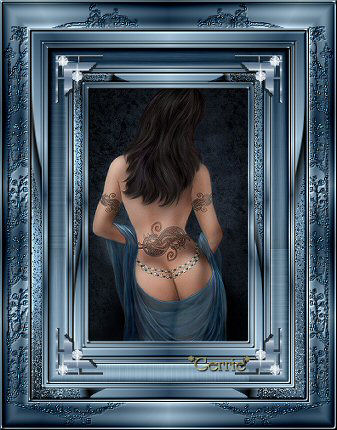
Gerrie's original Dutch tutorial can be viewed
here
Vicky
Filter: Bordermania
Filter: Eye Candy
4000
Filter: Graphics Plus
Filter: Unlimited 2.0
Download here
Supplies
Download here
Open
your image
Choose one light- and one dark color from it.
I
used #29455D en #A0BDD1
Make a
gradient of your colors
Add a 3 pixel border, select
with your Magic Wand
and
fill with your gradient - with these settings
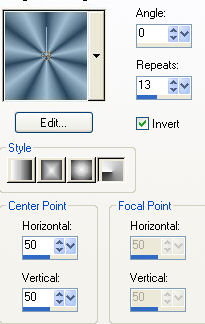
Effects / 3D Effects / Inner
Bevel - with the Metallic preset
Add a 3
pixel border, select and fill with the gradient
Add
a 3 pixel border, select, and fill with the gradient
Repeat
the Inner Bevel
Add a 13 pixel border, select and fill with
the gradient
Effects / Image Effects / Page Curl - with these
settings
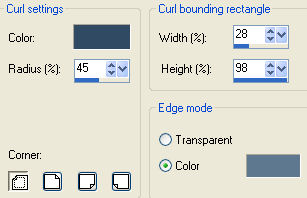
Repeat, but with the top right corner
chosen as the Corner
Selections / Select None
Select the even- parts with
your Magic Wand,
with
your Shift key pressed down
Effects / Plugins / Graphics Plus / Cross Shadow -
standard
Effects
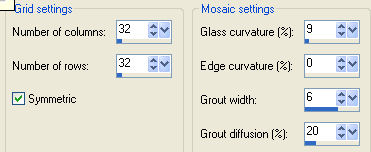
/ Texture Effects / Mosaic Glass -
with
these settings
Selections / Select All
Selections / Modify / Contract by 13 pixels
Selections /
Invert
Effects / Plugins / Bordermania / Frame2 -
with
the top two settings on 12
Selections / Select None ( or Ctrl+D)
Add a 3
pixel border, select and fill with the gradient
Effects / 3D Effects / Inner Bevel -
with
the Metallic preset
Add
a 3 pixel border, select and fill with the gradient
Add a 3
pixel border, select, fill with the gradient
and
repeat the inner bevel
Add a 25 pixel border in a dark
color
Select
Change
your gradient to these settings
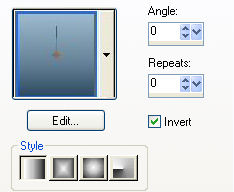
Fill the border with it
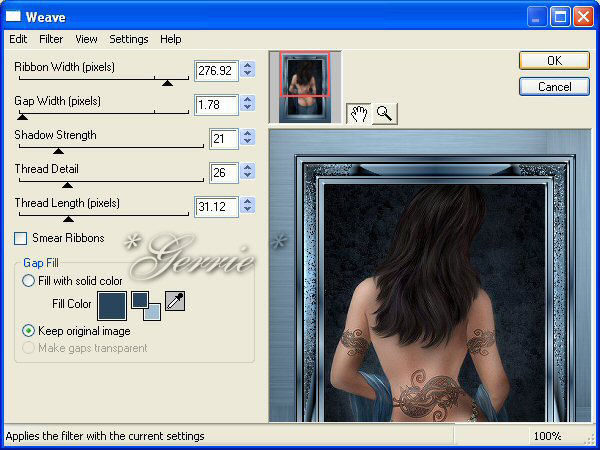
Effects /
Plugins / Eye Candy 4000 / Weave - with these
settings:
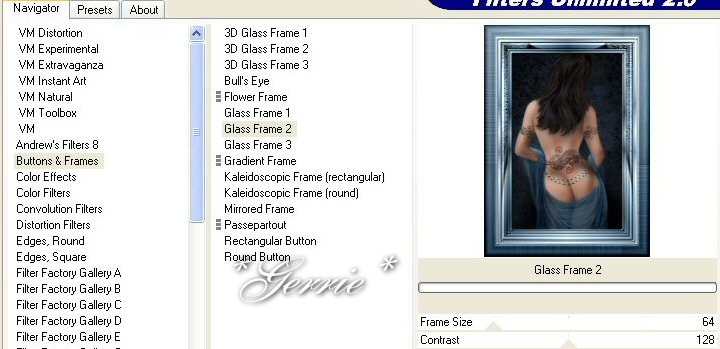
Effects / Plugins / Filters Unlimited
2.0 / Buttons&Frames /
Glass
Frame 2 - with these settings
Selections / Select
None
Change
the settings of your gradient back to the original
Add a 3
pixel border, select,
and
fill with the gradient
Effects
/ 3D Effects / Inner Bevel- with the Metallic preset
Add a 3
pixel border, select,
and
fill with the gradient
Add
a 3 pixel border, select and fill
with
the gradient
Reduce the image size to 85%
Adjust
/ Sharpness / Sharpen
Add a
13 pixel border, select and fill with the gradient
Effects / Image Effects /
Page Curl
Now do the bottom corners,
with
the rest of the settings the same as before.
Select
the even parts again with your Shift key pressed down
and
your Magic Wand activated
Effects
/ Plugins / Graphics Plus / Cross Shadow
with
the standard settings
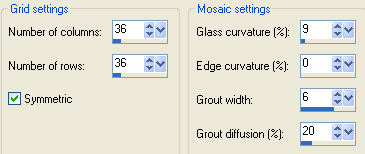
Effects / Texture Effects / Mosaic Glass
with
these settings
Selections / Select All
Selections / Modify / Contract by 13 pixels
Selections /
Invert
Effects
/ Plugins / Bordermania Frame2 -
with
the top two settings on 12
Add a 3
pixel border, select, fill with the gradient
and
repeat the Metallic Inner Bevel effect
Add a 30 pixel border
in a dark color.
Select
and fill with the gradient
Layers
/ New Raster Layer
Fill
with your dark color
Layers
/ Load/Save Mask / Load Mask from disk -
find
the "Victorian254"- mask and apply
Delete the mask layer in your Layers Palette and
reply
"yes" to the pop-up question.
Selections / Select
All
Selections / Float
Effects
/ 3D Effects / Drop Shadow -
with
these settings:
Vertical & Horizontal
= 0
Opacity = 100
Blur = 0
Color = Black.
Effects / Edge Effects /
Enhance
Layers / Merge / Merge All
Selections / Select All
Selections /
Modify / Contract by 30 pixels
Selections / Invert
Effects / Plugins / FM
Tile Tools / Blend Emboss
Effects / Plugins / Filters Unlimited 2.0 /
Buttons&Frames /Glass Frame2
- standard
Add a 3
pixel border, select,
and
fill with the gradient. Repeat the Metallic Inner Bevel
Open
the corner tube and position it in the top left where you want it.
Effects
/ Plugins / Simple Filters / Top Left Mirror
And
that's it, you're done ;)
©Gerrie© 24-11-2003

Translated
by Maggie_za February 2005
I want to thank
Gerrie for allowing me to translate this tutorial.
***

The
graphic design of this page is copyrighted to ©Magstags2005
Home |
Filter Links |
PSP
Goodies |
|