Materials:
Supplies
Download here
Filter: I.C. Net Software's Filter Unlimited2.0
Filter: Eye Candy 4000
Filter: NVR Border
Mania
Filter: Graphics Plus
Download here
Open your tube
Choose two nice colors complimenting each other from it.
One dark - one light
color
I used #E2CEC7 & #CBB3A5
Set your background on gradient - with these settings:
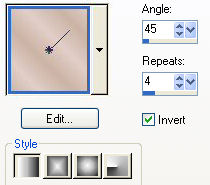
Your foreground should be on the "Mirror_Diz"-gradient
(included in the zip
file)
Add a 3 pixel border and fill with the "Mirror_diz" - gradient
Effects / 3D Effects / Inner Bevel -
with the Soft
Edge- preset
Add a 3 pixel border
with your light color
Effects / Plugins / Graphics Plus / Cross shadow standard-
the bottom two
slidebars should be on 128
Add a 3 pixel border
Fill with the "Mirror_Diz"-gradient
Repeat the Soft Edge Inner Bevel
Add a 23 pixel border with your light color and select
Fill with your gradient
Effects / Plugins / Flaming Pear /Sphere Warp A
Effects / Plugins / Bordermania/ Color Push Button
Selections/ Select All
Selections / Modify / Contract by 3 pixels
Selections / Invert
Layers / New Raster Layer
Fill the border with the "Mirror_Diz"-gradient
Layers / Merge / Merge All
Effects / 3D Effects / Inner Bevel with the Soft Edge-preset
Add a 3 pixel border
with the light color
Effects / Plugins / Graphics Plus / Cross Shadow standard -
the bottom two
settings should be on 128
Add a 3 pixel border
and fill
with the "Mirror_Diz"-gradient
Repeat the Soft Edge Inner Bevel
Reduce the size of the
image to 85%
Add a 30 pixel border in the light color
Effects / Plugins / Graphics Plus / Cross Shadow -
bottom two settings
should be on 51
Effects / Plugins / Ulead/Particle -
with these settings
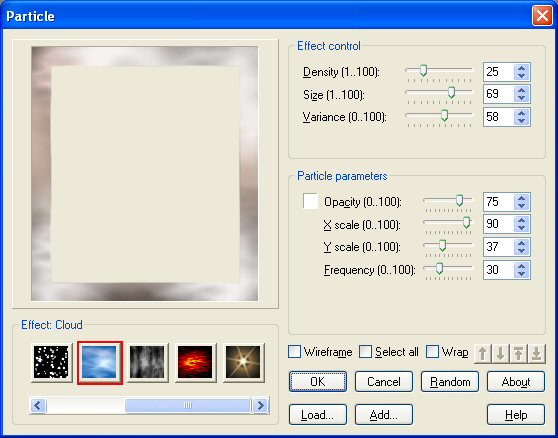
Layers/ New Raster Layer
Fill with the "Mirror_Diz"-gradient
Layers/ Load/Save Mask from Disk / Load Mask from Disk
- find "mask oo8"
Selections / From Mask
Delete mask and reply " yes "
Effects /3D Effects / Drop Shadow:
First time all
settings should be on 0, except for the Opacity
which should be on 100
Use a color that compliments your image
I used #FFC0C0
Repeat the Drop Shadow
a second time
but this time change
all the 0-values to 1, and keep
the Opacity on 100
Effects / Edge Effects / Enhance
Effects / Plugins / EyeCandy4000 / Cutout-
with these settings
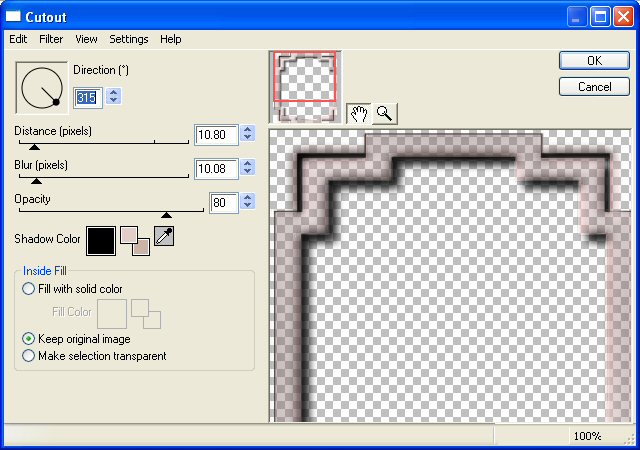
Selections / Select All
Selections / Modify / Contract by 30 pixels
Selections / Invert
Layers / Merge / Merge All
Effects / Plugins / Filters Unlimited2.0 / Buttons & Frames /
Glass Frame 1 - both
settings on 50
Add a 3 pixel border
Fill with the "Mirror_diz"-gradient
Effects / 3D Effects / Inner Bevel - with the Soft edge preset
Add a 3 pixel border
with the light color
Effects / Plugins / Graphics Plus / Cross Shadow-
with the bottom two
slidebars on 128
Add a 3 pixel border
Fill with the "Mirror_Diz"-gradient
Repeat the Soft Edge Inner Bevel
Add a 23 pixel border and
fill with your
gradient
Effects / Plugins / Graphics Plus / Cross Shadow
- with the bottom two
slidebars on 51
Effects / Pluginins / Filters Unlimited2.0 / Buttons & Frames /
Glass Frame 1 - both
settings on 50
Add a 3 pixel border
Fill with the "Mirror_diz" - gradient
Effects /3D Effects / Inner Bevel with the Soft Edge-preset
Open your corner tubes and position them
I used corners from Annissa & Ludo's site and added the parel;)
Below is another
example in which I used the Mirror-gradient
with the colors from
the image
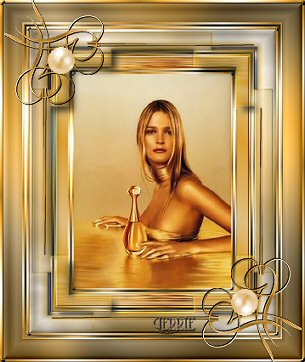
©Gerrie© 5-05-2004