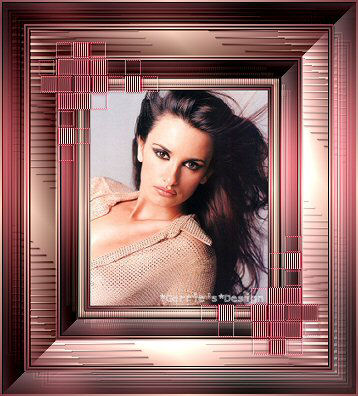
Materials
Supplies
Download
here
Filter: Unlimited 2.0
Filter: VM Experimental
Filter: FM Tile Tools
Download
here
Open your tube
Reduce the size to a height of 350 pixels.
I prefer to do it in small steps.
First reduce it two or three times in percentage,
and then finally in pixels.
This way you loose very little of the quality.
Choose two colors from your image with your Color dropper.
Choose one light- and
one dark color
I used
#FFD6C4 light and #7F3E44 dark
Use the light color as the foreground,
and the dark color as
the background
Change your foreground to gradient,
with these settings
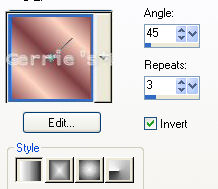
( If you experience difficulties selecting the border
with your Magic Wand and
applying the gradient in this lesson,
you can instead then rather go to
Selections / Modify / and Selections/ Invert -
and then apply the gradient.)
Add a 1 pixel black border
Add a 2 pixel border,
select and fill with the gradient
Deselect ( Ctrl+D)
Add a 2 pixel border
in your dark color, select with your Magic Wand
Effects / Plugins / Graphics Plus/ Cross Shadow- standard
Deselect
Add a 2 pixel border, select and fill with the gradient.
Deselect
Add a 1 pixel black
border
Add an 8 pixel border, select and fill with
your gradient
Effects / Texture Effects / Blinds -
with these settings
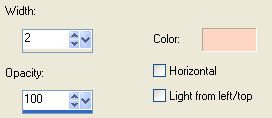
Add a 2 pixel border, select,
and fill with the
gradient
Deselect
Add a 1 pixel black
border
Add a 2 pixel border with your dark color,
select and repeat the
Cross Shadow effect
Add a 22 pixel border, select and fill with the gradient
Repeat the Cross Shadow effect
Effects / Plugins / Filters Unlimited2.0 /
Special Effect 1/ Shiver- standard
Effects / Plugins / FM Tile Tools / Blend Emboss
Effects / Plugins / Filters Unlimited/ Buttons & Frames /
3D GlassFrame3 - standard
Deselect
Add a 1 pixel black border
Add a 2 pixel border, select,
and fill with your
gradient
Selections / Select
None ( or Ctrl+D)
Add a 2 pixel border, select, fill with your dark color,
and repeat the Cross
Shadow effect
Add a 2 pixel border, select,
and fill with the
gradient
Reduce your image size to 85%
otherwise it will become too big
Add a 30 pixel border, select,
and fill with the
gradient
Layers / New Raster Layer
Fill this new layer with the gradient as well
Effects / Plugins / VM Experimental / TeeWee - standard
Selections / Select None
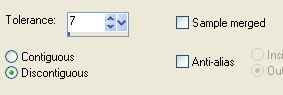
Next, now select with your Magic Wand - with these settings
|
Mode
Match Mode
Tolerance
Sample Merged
Outside |
- Add(Shift)
- RGB Value
- 0
- clicked |

Select a black stripe
Selections / Modify /Select Similar
Change your gradient's Repeat-setting to 9
Make sure you Flood
Fill Tool's Tolerance setting is on 100 -
Fill the selection
with it
Change the Repeat-setting of your gradient back to 3
Effects / 3D Effects / Drop Shadow -
with these settings
Vertical & Horizontal = 1
Opacity = 59
Blur = 2.00
Color = black.
Selections / Select All
Selections / Modify / Contract by 30 pixels
Selections / Invert
Layers / Merge / Merge All
Effects / Plugins / Filters Unlimited / Borders & Frames /
3D GlassFrame3 - standard
Add a 1 pixel black border
Add a 2 pixel border, select, and fill with the gradient
Deselect
Add a 2 pixel border,
select, and fill with your dark color
Repeat the Cross
Shadow effect
Repeat the Cross Shadow
Add a 2 pixel border, select,
and fill with the
gradient
Deselect
Reduce the image size again to 85%
Add a 22 pixel border, select, and
fill with your
gradient
Repeat the Cross Shadow Effect
Effects / Plugins / Filters Unlimited 2.0 / Special Effect 1/
Shiver - standard
Effects /Plugins / FM Tile Tools / Blend Emboss
Effects / Plugins / Filters Unlimited / Buttons & Frames /
3D GlassFrame3 - standard
Add a 2 pixel border, select, and
fill with your
gradient
Open the corner tube
Copy and Paste as new layer onto your canvas
Position it in the top left corner
Layers / Duplicate
Image / Mirror
Image / Flip
Reduce your image to the size of your choice
and add your watermark
©Gerrie©09-01-2005