
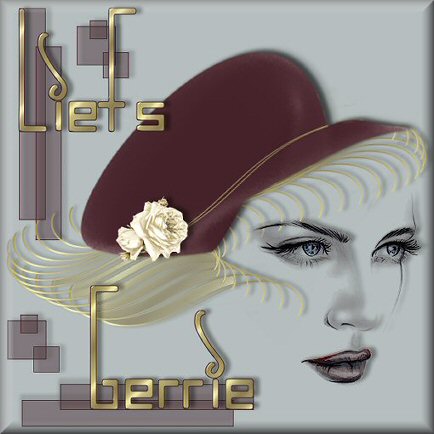
Gerrie's
original Dutch tutorial can be viewed
here
Lady Tag
Materials
needed:
Supplies
Download
here
Filters
needed:
Filter: Mura Dowload
here
Filter: Lokal
shadow Download
here
Filter: Sinedot
Download
here
Place the *sindots.cfg*
in your filters folder,
or if you have a seperate folder for each filter,
place
it in the Sindedots folder
Reply "yes" when you are asked
if the exisiting
file must be replaced
We are going to do somethine different than
a frame,
so this will be a
very long lesson;)
I want to thank the LNK Wondersite for the
use of their
brushes in this tutorial;)
Import the brushes
to your PSP brushes folder, before you begin
Open a new transparent
image of 600 x 600 pixels
We're first going to make the
hair
Add a new Raster
Layer
Your background
color should be locked
Choose a foreground
color that you would like the hair to be
I used the gold
pattern with these settings
Scale 250 Angle 0
Open your Text Tool and choose the Dekor1- font with these
settings
Create
as floating; Size100 Stroke width1

Type the letter "g'' ( lowercase")
into the font window and apply
Selections / Promote Selection to
Layer
Selections / Select None
Use
your Mover Tool to drag it to the center top of the canvas
Effects / Plugins
/Mura's Meister / Copies
with these settings
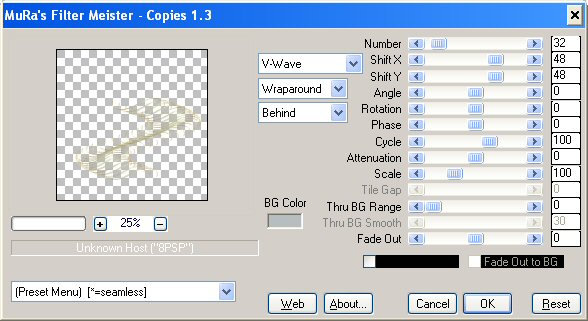
Your image should look like
this
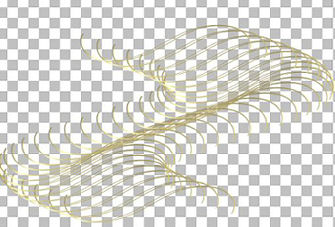
(image reduced)
Hold your Shift down and select the
wider parts of the hair.
It should look like this:
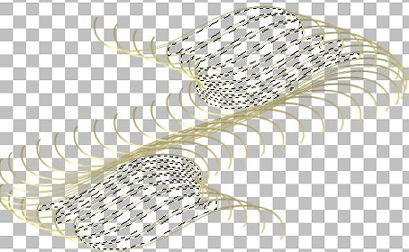
(image reduced)
Keep selected.
Add a
new Raster Layer
Fill
the selections with your color ( mine is the gold pattern)
Reduce
the opacity of this layer to 56% in your Layers Palette
You can
decide for yourself how you prefer the opacity;)
Deselect (Ctrl+D)
Minimize this
image on your toolbar.
We're
going to make the hat now.
Open a
new transparent image of 600 x 600 pixels
Fill this canvas with the color your
have chosen for the hat
I used #442028
Effects / Plugins / Dragonfly
/ Sinedots -
with these settings
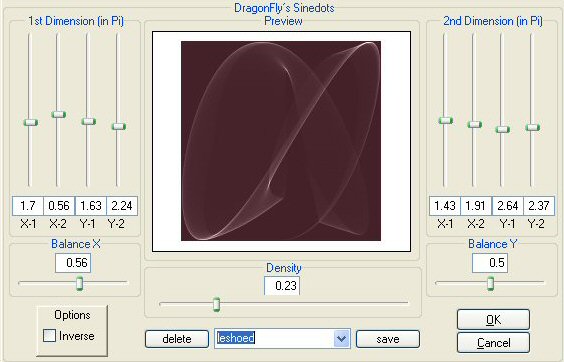
You can play around with the settings
to view the different
results. I made two additional examples
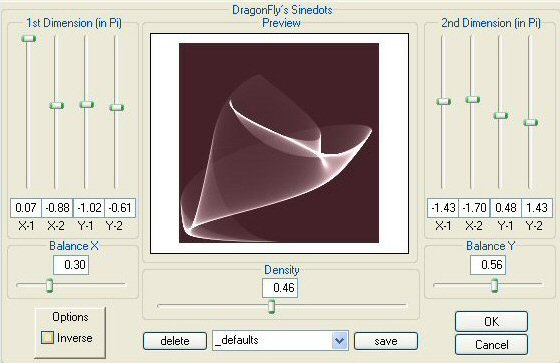
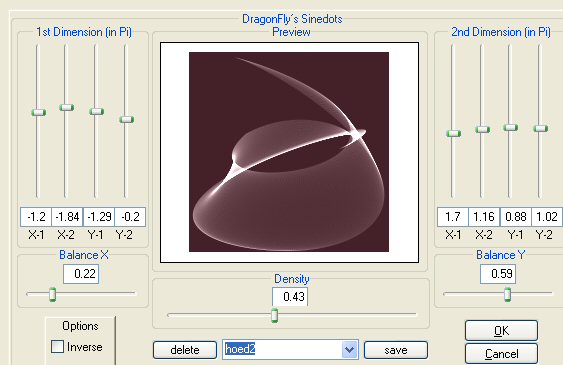
Ok, back to our hat
It's on
your canvas now
Use your Magic Wand to select the color
around
the hat
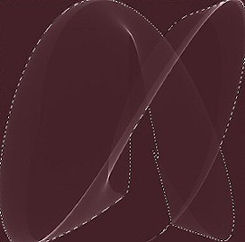
(image size reduced)
Click DELETE on your
keyboard
Deselect ( Ctrl+D)
Use your Eraser Tool to remove the parts I
have selected below
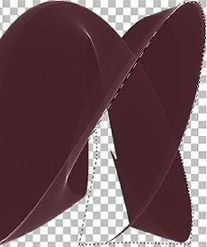
(image reduced)
Now you have the final hat form as it
should look like
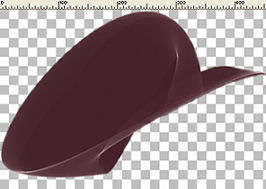
Reduce the size to 60%
Apply
Effects / Texture Effects / Fur - with these settings
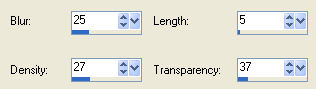
Edit Copy
Go to the first image
with the hair, and
paste
the hat as a new layer
Effects / Plugins / Lokal Software / 3D
Shadow-
with
these settings
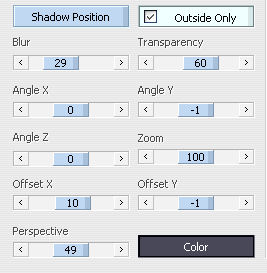
Position the hat on the hair.
Activate the hair- layer and erase the hair sticking out
above the hat - see my example
Add a
new Raster Layer
Your
foreground color should be the gold pattern,
or your
own color of choice.
The
background color should be a
complimentary color.
Activate the Text Tool again
and
type the letter "g" again and apply
Selections / Promote selection to layer
Selections / Select
None
Activate the Deformation Tool and pull the shape out so that it fits
nicely onto the
hat.
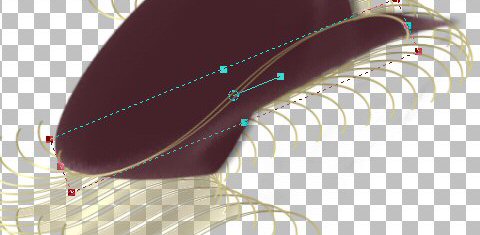
Use the Eraser
Tool to remove the unwanted
parts sticking out.
Now you
can add another tube to the hat. I used a rose and
applied
the same Lokas 3D-Shadow effect to it.
X-out
the background layer on your Layers Palette
and
merge all the others
Open the face tube, copy and paste it
as a new
layer
onto the canvas
Drag it
in place with your Mover Tool
I gave
it a Drop Shadow with these settings
Horizontal and Vertical -1
Opacity17 Blur1
Layers / Merge visible
Ok, you can leave it as it
is, or you can add a background to it.
Layers
/ New Raster Layer - drag this layer below the hat layer
The new
layer should be activated
I chose
the color #B6BEBF since other colors
might
change the end results of the face too much.
The
color should be as light as possible.
Layers / New Raster
Layer
Activate the Brush Tool and find the *brush_LK23*
Change your foreground to the dark color.
I used
#442028
Click once or twice on your new layer,
and apply the
Lokas 3D shadow effect again
Duplicate this layer
Image /
Rotate / Free rotate 90 degrees to the left.
Drag
the image to the bottom
Layers / New Raster Layer
Activate
the Brush Tool again, and
this
time find the *Brush_LK27*
Click once to the top of the image and once a
little down.
You can
decide where you want it.
Apply
the Lokas 3D Shadow again
Now choose a nice font and add your
name or
text of
your choice to the tag.
I used
the "Incarnation"-font
I used
the Lokas 3D Shadow - effect again on the text and applied
an
Inner Bevel as well - with these settings
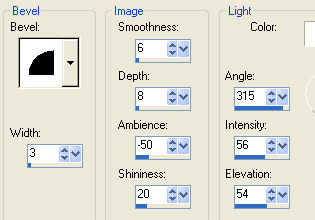
You can activate the head-layer (
merged layer)
and apply the Lokas 3D Shadow to it as
well.
Layers / Merge / Merge All
Reduce
your image and apply the following Button effect
Effects
/ 3D Effects / Buttonize - with these settings
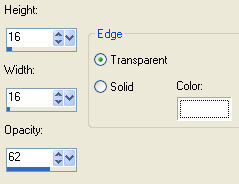
So
this was a very long tutorial,
but I hope you had fun and enjoyed doing it.
©Gerrie©
09-07-2004
Another example :)
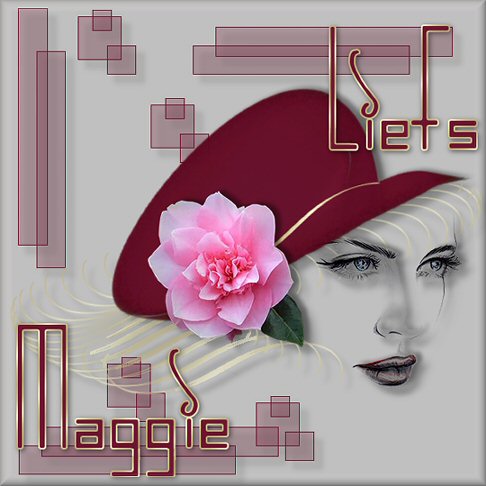

Translated
by Maggie_za February 2005
I want to thank
Gerrie for allowing me to translate this tutorial.
***

The
graphic design of this page is copyrighted to ©Magstags2005
Home |
Filter Links |
PSP
Goodies |
|