|

Christmas Tag

A translated tutorial
of No
***
Materials:
Silver pattern;
A Xmas tube of your choice;,
Merry
Christmas tube: download
here.
Filter: VM Extravaganza, Ray transmission:
download here.
***
Open a new canvas 400x400.
Go to image, raster.
Both the horizontal and vertical settings should
be 50 in the properties setting.
Set the background color on the silver pattern.
Choose a nice color from the tube for the foreground.
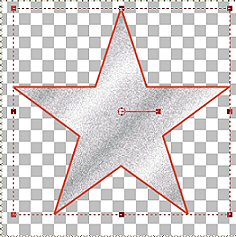
Activate the Preset Shape Tool and find Star2.
Draw a shape from the top-right corner to the
bottom-left corner of the canvas.
It should look like this:
Go to your Layers Palette and convert the
vector layer to raster layer.
Go to Objects-->Align-->Centered In
Canvas
Duplicate this layer in your Layers
Palette.
highlight the copy layer.
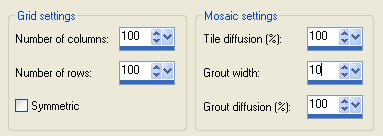
Go to Effects-->Texture Effects-->Mosaïc
Antique,
with these settings:
Go to your Layers Palette, highlight
raster layer 1 and fill with black.
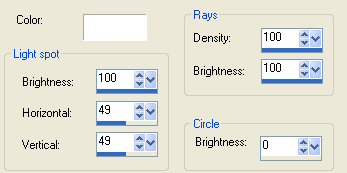
Go to Effects-->Illumination
Effects-->Sunburst,
with these settings:
Go to Adjust-->Hue and
Saturation-->Colorize,
and colorize it with a fitting color from
your image.
Go to Layers --Merge--> Merge All.
Go to your Layers Palette and promote
your background layer.
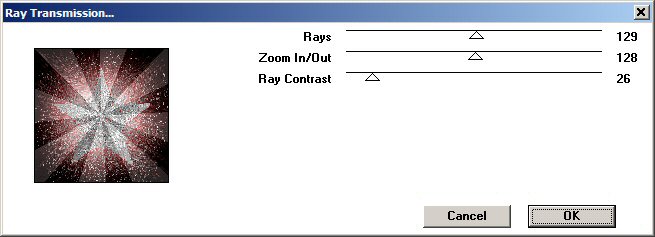
Go to Effects--> VM Extravaganza-->
Ray Transmission, with these settings:
Go to Layers--> New Raster Layer
Paste your tube
Merge all Layers
Go to Image--> Add Borders,
and add a 10 pixel border in the
background color
or any other color from the image.
Add a 2 pixel black border.
Go to Layers--> New Raster Layer
Add the Merry Christmas tube, or any
other
tube of your choice on it.
Go to Layers--> New Raster Layer
Apply your text or watermark.
Reduce the image to 350x350 pixels.
Your tag is done!
Merry Christmas!
©No2005


©Magstags2005
|