|

Jeanette

Thanks Noëlla!
***
Materials:
Download the supplies
here.
Save the 20-20 mask in your
psp_mask folder
Filters:
Greg's Factory Output, Vol2
Simple
Download
here
Corners of your own choice.
***
Open your tube/image. Duplicate
twice
and close the original.
Activate one of your images.
Go to Layers--> Load/Save
Mask-->
Load From Disk
and find the mask20/20.
Apply with these settings:
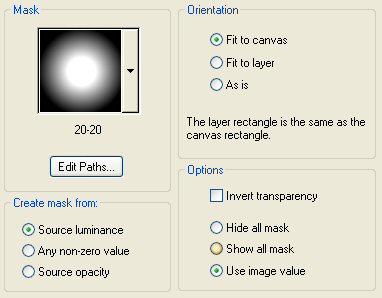
Right-click on your Layers
Palette and delete the mask
layer.
Reply "yes" to the question.
Go to Layers-->Merge-->Merge
Group
Activate your second image.
Go to Adjust-->Blur-->Gaussian
Blur: radius10
Edit--> Copy your first image
and
Edit-->Paste as New Layer onto
your first image.
Go to Layers-->Merge-->Merge All
Choose a light color from your
image.
I used #F5F0DE
Choose a dark color from your
image as background color.
I used
7F4C37.
Write your color codes down to
have the exact
colors stored somewhere.
(note from maggie: go to Image
-->Image Information-->
Creator Information, and type
the colors in there.)
Go to Image-->Add Border,
and apply a 1 pixel black,
symmetrical border.
Add a 2 pixel symmetrical border
in the dark colorl
Activate your Magic Wand, with
these settings:

Select the border.
Go to Effects-->3D
Effects-->Inner Bevel and
apply with these settings:
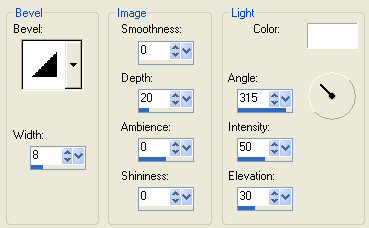
Deselect.
Go to Image-->Add Borders and
apply a 15 pixel symmetrical
border in the light color.
Select the border with your
Magic Wand.
Go to Effects-->Filter
Effects-->
Greg's Factory Output Vol 2-->
Apply the Pool Shadow with the
standard settings.
Deselect.
Add a 2 pixel symmetrical border
with the light color.
Add a 2 pixel symmetrical border
with the dark color.
Select with the Magic Wand.
Go to Effects-->3D
Effects-->Inner Bevel,
with the same settings as
before.
Add a 20 pixel border in the
light color.
Select with the Magic Wand.
Go to Effects-->Filter
Effects-->Simple-->
Diamonds, and apply.
Deselect (Ctrl +D).
Select the even colored parts in
the border
with the Magic Wand, by holding
down the
Shift Key while selecting all
the parts.
Go to Effects-->3D
Effects-->Inner Bevel,
and apply the same settings as
before.
Deselect (Ctrl+D).
Add a 1 pixel symmetrical border
- black.
Add a 2 pixel summtetrical
border - dark color.
Select with the Magic Wand.
Apply the same Inner Bevel
Effect as before.
Deselect (Ctrl+D)
Add a 2 pixel symmetrical border
- light color.
Add a 2 pixel symmetrical border
- dark color.
Select with the Magic Wand.
Apply the same Inner Bevel
effect as before.
Deselect (Ctrl+D).
Add a 20 pixel border in the
light color.
Apply the same Greg's Filter
Output Vol2 -
Pool Shadow as before.
Deselect.
Add a 2 pixel symmetrical border
- dark color.
Select with the Magic Wand.
Apply the same Inner Bevel as
before.
Add a 2 pixel symmetrical border
- light color.
Add a 2 pixel symmeterical
border - dark color.
Select with the Magic Wand.
Apply the same Inner Bevel as
before.
Deselect.
Add a new Raster Layer and apply
your text or watermark.
Add your corners.
(note from Maggie: easy way to
add corners is to
paste the first corner graphic
in the top left corner.
Then go to Effects-->Filter
Effects-->Simple-->
Top Left Mirror and apply and
that's it. All corner graphics
are placed by the filter.)
Merge Layers and you're done!
Enjoy!
©No2005


©Magstags2005
Home |
Filter Links |
PSP Goodies
|