|
BORDER MANIA
A tutorial of Noëlla
***
Materials needed:
A tube
or template of your choice.
Masker
20/20
Filter Bordermania, download
here
***
Open a new canvas, size
400x400 pixels.
Click on your canvas with your Magic Wand
to select it all.
Activate your tube/template/image and copy it (Ctrl+D)
Close the original
Go to Edit--> Copy
Go to your canvas and paste it as a new layer.
Go to Adjust-->Blur--> Gaussian Blur - with Radius 25.
Go to Layers--> Merge--> Merge All
Go to Effects-->Filter Effects-->
NVR Border Mania-->Round Button #1
Apply this filter effect 4 times, with the settings as
follows
for each application:
|
Application |
Border
Width |
Light
Angle |
Light
Intensity |
Outside
Mask |
Outline Width |
|
1
2
3
4
|
20
40
60
80
|
106
150
106
150
|
29
29
29
29 |
10
10
10
10 |
0
0
0
0 |
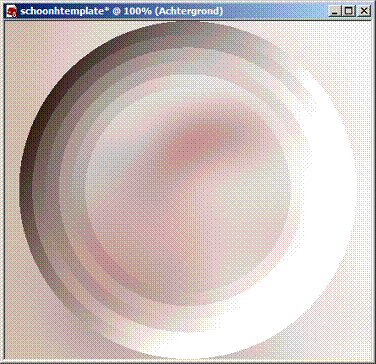
Your canvas should now look like this:
Go to Image-->Mirror
Go to Image--> Flip
Activate your original image/template/tube
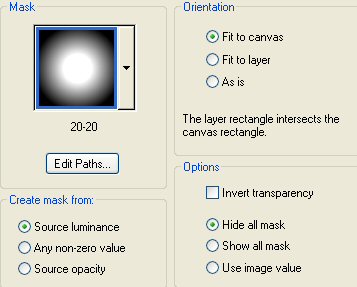
Go to Layers--> Load/Save Mask--> Load Mask from Disk.
Find the mask20/20 and apply with these settings:
Go to the mask layer in your Layers Palette
and delete the mask layer, reply "yes" to the question.
Merge layers.
Edit-->Copy
And Paste it as a new layer onto your button-canvas.
Layers--> Merge--> Merge All
Go to Effects--> Filter Effects-->NVR Border Mania-->
Frame#2 - with these settings:
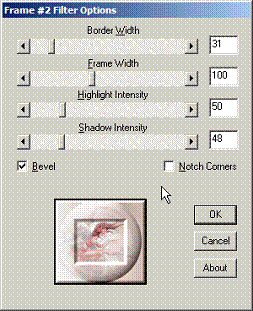
Go to Image--> Add Borders of 30 pixels(symmetrical),
in a light color.
Select the border with your Magic Wand
Go to Effects--> Filter Effects--> Border Mania-->Ellipse
and apply with the standard settings.
Go to Effects--> Filter Effects--> Border Mania-->Ripple
and apply the standard settings.
Deselect.
Go to Image--> Resize to 350x350 pixels.
Copy the image (Shift D) and minimize one copy to the toolbar.
Go to Image --> Resize to 1024 x 400 pixels with the
Resample option as "Smart Size"
Go to Effects--> Image Effects-->Offset,
with these settings:
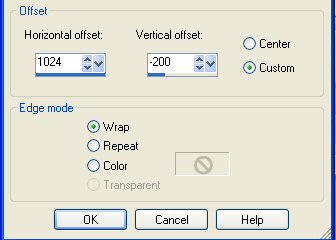
Activate the copy of the image.
Copy and Paste onto this larger canvas.
Add a new raster layer.
Add your name or watermark to it.
Merge all layers and you're done!
Enjoy!
©No2005


©Magstags2005
|