~*~ Black Is Beautiful ~*~
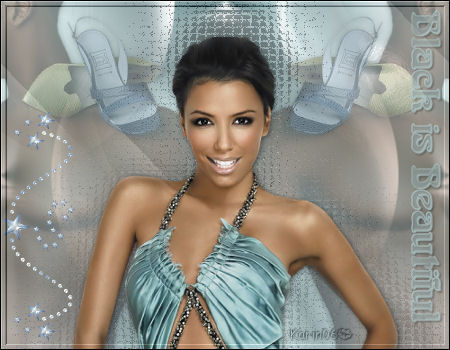
Karins's original Dutch
tutorial can be viewed
here
Materials Needed:
Download the supplies
here.
Open the brush in PSP and import it
into your brushes folder.
The tube was made by Jeanne.
You need two more tubes: one of a man
and one of a woman.
***
Download the Balls and
Bubbles-preset
and the blur-white gradient needed
for the Balls and Bubbles effects
here.
Save the preset in your PSP-presets folder.
Save the gradient in your PSP-gradients
folder.
***
FILTERS NEEDED:
Bordermania
Open a new transparent canvas, size 450x350
pixels.
Open all the tubes in PSP and set them aside for
now.
Choose a dark color from the image as
foreground color.
Choose a light color as background color.
Change the foreground color to gradient,
with settings:
Style -
Radial
Angle - 136
Repeats - 20
Invert - checked
Horizontal - 2
Vertical - 4
Fill the canvas with the gradient.
Change the gradient now to the 'blur-white'
gradient.
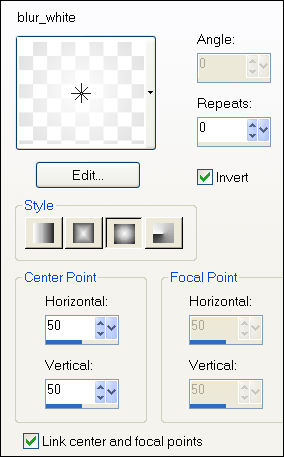
Effects - Artistic Effects - Balls and
Bubbles:
Find the 'Karin_blackisbeautiful'- preset

Click on 'Surface'
Change the 'Material' to the white-blur
gradient
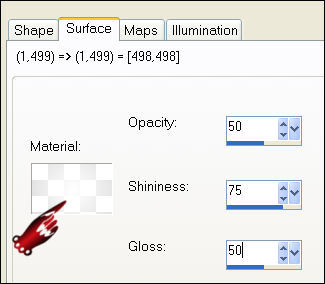
Apply.
Go to Effects - Image Effects - Seamless
Tiling
and apply with the standard(default)
settings.
Activate your man tube.
Copy and paste onto the canvas.
Move it to the left.
Apply a drop shadow:1, 1, 50, 8, black
Change the layer opacity to 40%
in the Layers palette.
Duplicate the layer.
Image - Mirror.
Open your own lady tube.
Edit - Copy.
Edit - Paste as new layer onto the canvas.
Effects - Texure Effects - Mosaic Glass:
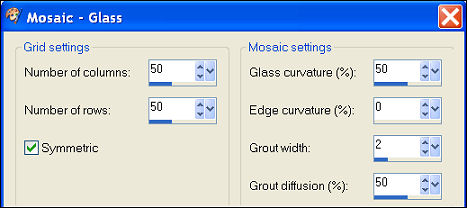
Change the layer opacity to 40%.
Change the Blend mode to 'Luminance'
in the Layers palette.
Copy and paste your lady tube again onto the
canvas.
Resize 90%('Resize All Layers' - not
checked')
Repeat the same drop shadow as before.
Open the tube 'Ita-deco-div 12'.
Copy and paste as a new layer.
Image - Rotate - Free Rotate 90 degrees:
right -
not all layers.
Resize to 60% - 'Resize all layers - not
checked.
Position it next to the woman.
Add a new raster layer.
Activate your Brush Tool.
Find the 'Black is beautiful'- brush and
apply it to the right side of the canvas.
Apply a drop shadow: 1, 1, 50, 2, black.
Merge all layers.
Effects - Filter Effects -
Bordermania - Frame#2:
Set the top two slidebars on 5
the third slidebar on 110
the fourth slidebar on 130
"notch corner' - checked.
Add your watermark!
You're finished! :)
Back to Index

Magstags |
Filter Links |
Email |